Moving sessions between desktops
In Linken Sphere, you can move sessions between different desktops. This is convenient for organizing your work and separating tasks. There are two ways to move sessions: single and bulk.
Method 1. Moving a single session
Open the desktop where the desired session is located.
Find the session and open the session context menu (three dots in the right corner).
In the menu that appears, select "Change desktop."
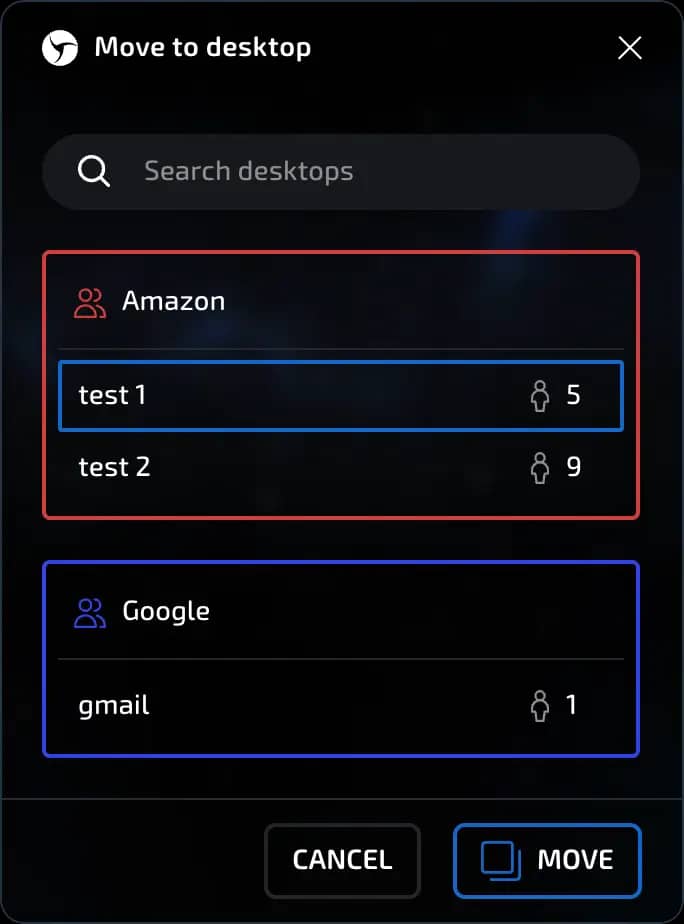
A window will open with a list of all your desktops. You can:
select the desired desktop manually;
use the search by name.
After selecting, click the "Move" button.
invisible text for space
Important: sessions with cloud synchronization disabled cannot be moved between desktops. When moving sessions between desktops, only information synchronized to the cloud is transferred. A warning window will notify you of this before the transfer.
invisible text for space
Session transfer is available starting with the PURE plan and above.
Method 2. Bulk session transfer
Go to the desktop where the desired sessions are located.
Select the desired sessions (you can select all).
At the bottom of the screen, click the "All Actions" button.
Select "Change Desktop."
In the window that opens:
find the desired desktop manually;
or use the search function.
Click "Move."
invisible text for space
Bulk transfer works according to the same rules: only sessions with cloud synchronization enabled are transferred.
Transfer rights in team workspaces
Team owner - can transfer any sessions of any user to any workspace available to them, including their own; there are no restrictions.
Team administrator - can transfer any sessions in the teams where they are an administrator to any workspace within those teams; there are no restrictions.
Member - can transfer all sessions between team desktops available to the member.
invisible text for space
Additional condition:
All of the above actions are available with active cloud synchronization and PURE and higher plans.
invisible text for space
Now you can flexibly manage the structure of your sessions and keep your desktops organized, taking into account the rights of different roles in the team.
Previous page
Next page