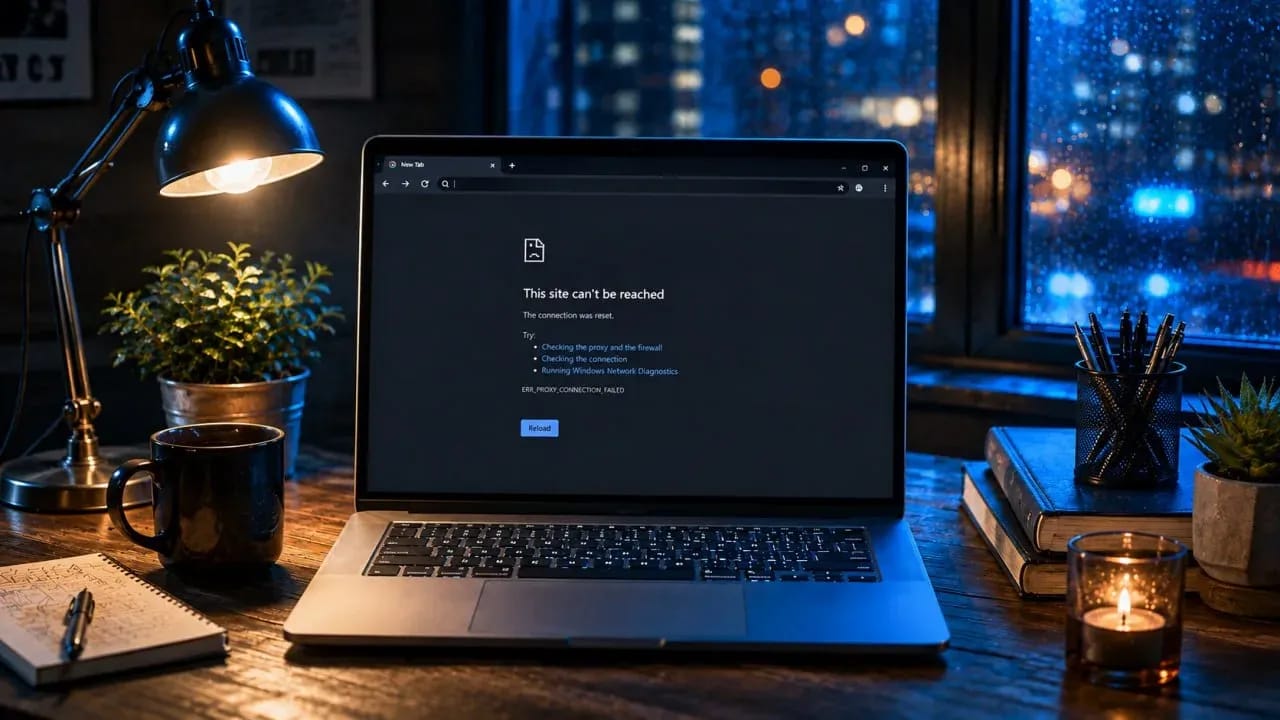
Common Proxy Errors and How to Fix Them
We are breaking down what the most common proxy errors mean and whether they can be fixed.
How Proxies Work
Proxies can be used to change IP addresses and GEOs, manage multiple accounts, perform data scraping, handle automation, access resources from different regions, and distribute a large number of requests.
Connecting usually requires a server IP address, port, and authorization data. Depending on the service, this can be a login and password or IP-based access permission.
When you connect to a resource through a proxy, the request first goes to the proxy server, and from there to the target website. In response, the resource sees the proxy's IP address rather than the user's original address. The scheme looks like this:
User → proxy server → website → proxy server → user
If a problem occurs at any stage of this chain — for example, an incorrect port is specified, the server stops responding, the website blocks the IP, or authorization fails — the user receives an error.
How to Understand Why a Proxy Is Not Working
If a proxy fails to connect, there can be many reasons: from a simple typo in an IP address or password to issues with the server itself, the browser, or the website you are trying to visit. Therefore, it is best to quickly determine where exactly things break down first.
You can start checking with the simplest steps:
- Check the IP and port. Even a single incorrect digit will lead to a connection error.
- Verify the protocol. A proxy can operate via HTTP, HTTPS, or SOCKS5. Your software must support the selected option.
- Check login and password. With credential authorization, errors often arise from typos or an outdated password.
- Check if your IP is whitelisted. Some services only allow connections from pre-added IP addresses.
- Check the expiration date and remaining traffic. A rented proxy may disconnect after the paid period ends or the limit is exhausted.
- Open a different website. If the issue occurs on only one resource, its system might have restricted access from this IP.
- Try another browser or application. This helps quickly determine if the error is tied to a specific app's settings. For instance, high-quality antidetect browsers like Linken Sphere feature built-in proxy checkers.
Another indicator is the error text itself. Codes like 407, 403, 429, 502, or 504 point to specific types of problems. Messages like ERR_PROXY_CONNECTION_FAILED, Connection refused, or Connection timed out are most often related to server connection issues.
Proxy Configuration Errors and How to Fix Them
A proxy often fails to work due to small details in the settings. For example, you might make a mistake in a single digit of the IP, mix up the port, or select the wrong protocol.
Incorrect IP Address or Port
Every proxy has its own IP and port, for example:
185.123.45.67:8000
If there is an error in the address or port, the connection simply will not establish. It is best to copy the data again from your proxy service control panel and check for any extra spaces or characters in the line.
Wrong Protocol Selected
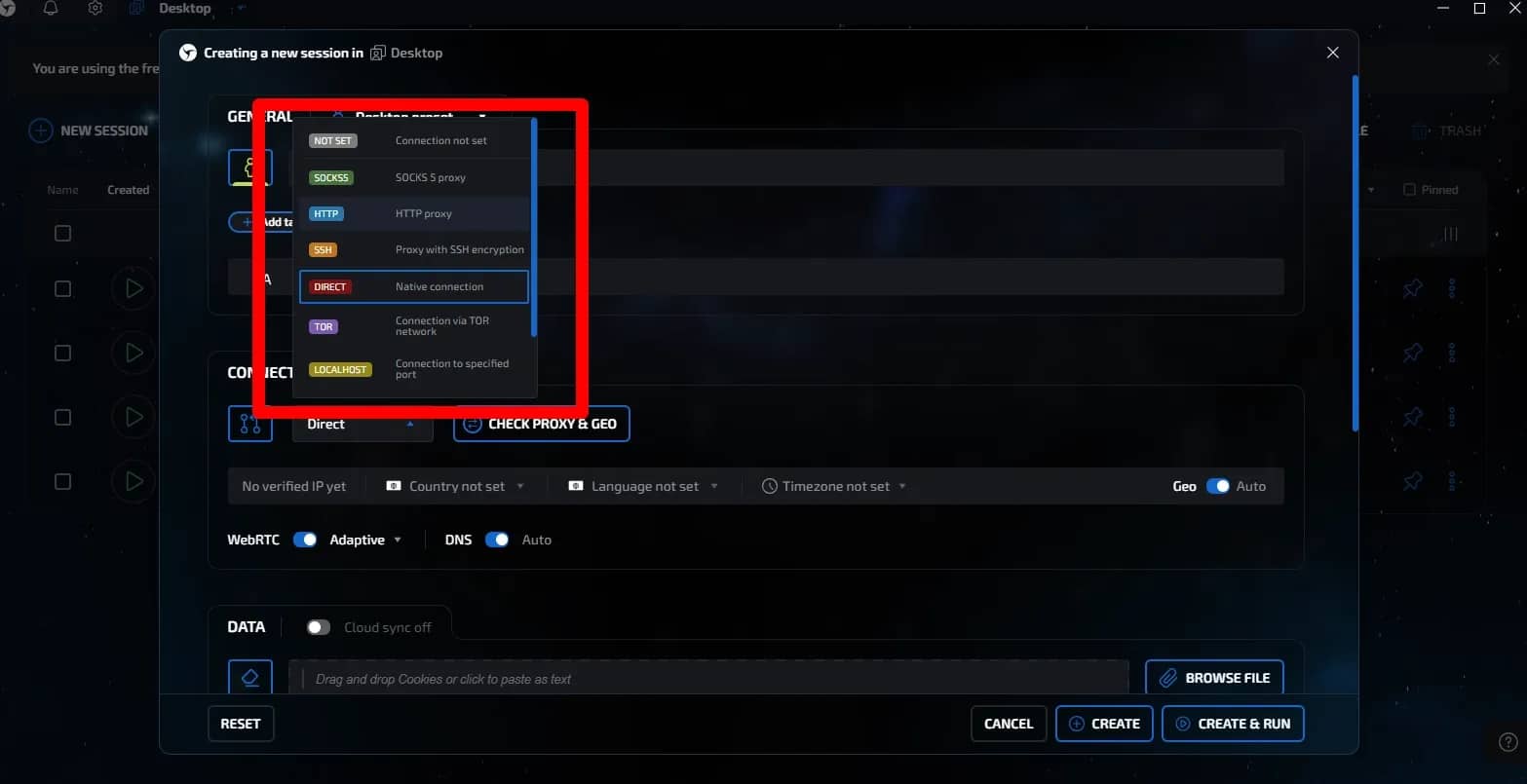
One proxy might operate via HTTP or HTTPS, while another uses SOCKS5. When adding a proxy to a browser, antidetect, or other software, you must select the protocol specified by your provider.
If a SOCKS5 proxy is added as HTTP, the application may fail to connect to the server.
Incorrect Proxy Format
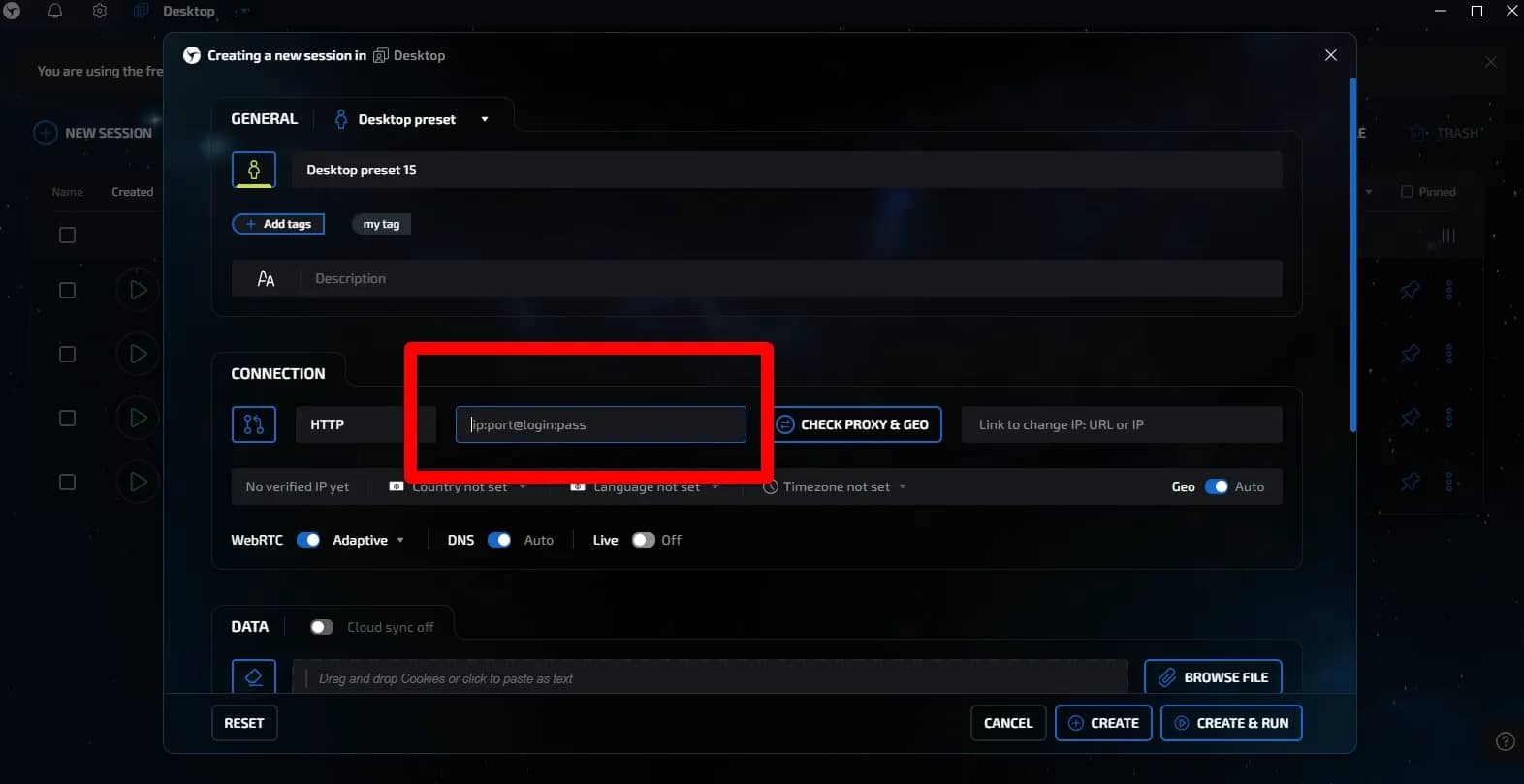
Different programs accept data in different formats. The most common variations include:
- IP:PORT
- IP:PORT:LOGIN:PASSWORD
- LOGIN:PASSWORD@IP:PORT
If a service delivers a proxy in one format while your program expects another, you will need to rearrange the data in the required order.
IP Not Added to Whitelist
Some proxies operate without a login and password. Access to them is granted only from IP addresses that have been added to a whitelist in advance.
After changing Wi-Fi, ISP, VPN, or rebooting your router, your external IP may change. The proxy will then stop connecting until the new address is added to the allowed list.
Expired Period or Exhausted Traffic
A proxy's paid period or available traffic volume may run out. In this case, settings remain unchanged, but the server no longer accepts the connection.
You can usually check the expiration date and remaining traffic balance in your proxy service account panel.
Proxy Authorization Errors
Sometimes the proxy itself is active, the IP and port are entered correctly, but you still cannot connect. In such cases, the problem is most often in authorization: the service refuses the login and password or fails to recognize your IP.
Error 407 Proxy Authentication Required
Code 407 means that the proxy server requires authentication. Usually, this error appears when credentials are wrong, data is not transmitted at all, or the software cannot properly handle the chosen authorization method.
First, copy the login and password from your dashboard again and check if they are pasted correctly. If credentials are correct, inspect your software settings, as proxy authentication sometimes needs to be enabled separately.
Incorrect Login or Password
The most basic reason is a typo. It is especially easy to make a mistake if the password is long and consists of random characters.
It is better not to enter credentials manually, but to copy them from your provider's control panel. At the same time, check that no extra spaces were included at the beginning or end of the string.
Issues with IP Authorization
Some proxies do not use logins and passwords at all. The provider simply allows access from a specific external IP.
If you changed networks, restarted your router, or enabled a VPN, your external IP might have changed. In this case, you need to add the new address to the whitelist in your dashboard.
Proxy Keeps Requesting Login and Password
If the authorization prompt appears repeatedly, the server is rejecting the entered data. The reason might be an incorrect password, an expired account, or settings within the application itself.
The easiest test is to try the same proxy in another application or browser. If authorization succeeds there, the issue likely lies within the settings of the first application.
Proxy Authenticates in One App, But Fails in Another
Different software handles HTTP, HTTPS, and SOCKS5 differently and may support different authentication methods. That is why the exact same proxy can run smoothly in an antidetect browser while returning an error in another piece of software.
In this scenario, check which protocol is selected in the application, whether it supports login/password authentication, and what format the proxy data should be entered in.
Proxy Access Errors
Sometimes the proxy connects properly, authorization passes, but the target website still fails to open. Here, the issue is usually related to the target resource itself, as websites may restrict specific IPs, regions, or excessive request frequencies.
Error 403 Forbidden
Code 403 means that the website received the request and denied access. With proxies, this often happens if the IP has already been flagged for suspicious activity, caught by resource filters, or belongs to an unsuitable region.
To test, try changing the IP and opening the page again. If the website loads with a different proxy, the cause is almost certainly the specific address.
Error 429 Too Many Requests
Error 429 appears when too many requests arrive from a single IP within a short period. This frequently occurs during web scraping, automation, and bulk account operations.
Lowering request frequency, increasing delays, or rotating IPs can help. For large volumes, it is best to distribute requests across multiple proxies beforehand.
Access Blocked to Only One Website
If other resources open through the proxy while one specific site returns an error, it is worth inspecting that IP. The resource might have restricted it based on reputation, geography, or past activity.
A quick way to test is to open the same site through another proxy from the same country. If it works, the current IP should be replaced.
Website Opens Without Proxy, But Fails Through It
This typically indicates restrictions against proxy IPs. Some websites filter server proxies, addresses with poor reputation, or IPs sending too many requests much more strictly.
In this situation, try changing the IP, GEO, or switching to a different proxy type. It is also useful to check if the website is blocking the entire address range of a specific provider.
Proxy Server Errors
A proxy may be configured correctly with authorization passing, yet opening a website still results in a 5xx group error. This usually means the problem arose during data exchange between the proxy and the destination server.
Error 500 Internal Server Error
Code 500 indicates an internal server error. The cause may lie on the website's side or with the service through which the request passes.
First, try opening the page again after a few minutes and test it through a different proxy. If the error persists across different IPs, the issue is likely on the website's end.
Error 502 Bad Gateway
502 Bad Gateway occurs when the proxy or another intermediate server receives an invalid response from the upstream server in the chain.
This happens during temporary glitches, server overloads, or connection issues. You can switch proxies, reconnect, and test the site directly. If everything works with another IP, the current proxy is best replaced.
Error 503 Service Unavailable
Code 503 means the server is currently unable to handle the request. Common causes include overload, maintenance, or a temporary outage.
Pausing and retrying the request after some time usually helps here. If the error appears only with a specific proxy, try testing another IP.
Error 504 Gateway Timeout
504 Gateway Timeout arises when a proxy or gateway waits too long for a response from the upstream server and closes the connection due to timeout.
The cause could be a slow proxy, an overloaded website, or an unstable connection. Try switching IPs, picking a server closer to the target region, and checking proxy speed.
Error 522 Connection Timed Out
Code 522 is most commonly encountered on websites using Cloudflare. It means Cloudflare was unable to establish a timely connection with the origin web server.
If the error appears across different proxies and through a regular connection as well, you simply have to wait for the website to recover. If the issue occurs with only one IP, try testing a different proxy.
Proxy Connection Errors Without HTTP Codes
Sometimes a browser or application does not display a code like 403 or 502 at all. Instead, a message appears stating that the connection could not be established, the server is not responding, or the wait time expired. The text of such errors usually indicates where to investigate.
ERR_PROXY_CONNECTION_FAILED
The ERR_PROXY_CONNECTION_FAILED error most often appears in Chromium-based browsers when connecting to the proxy fails completely.
Reasons are usually simple: incorrect IP or port, proxy turned off, expired rental period, or the server is temporarily unavailable. First, re-verify the proxy details and try another IP from the same pool.
Connection refused
Connection refused means the connection to the server was rejected. This happens when the required port is closed, the proxy is no longer running, or the provider has restricted access to the server.
It makes sense to check the IP and port using a proxy checker. If the server does not respond in other programs either, the proxy will likely need to be replaced.
Connection timed out
With Connection timed out, the program waited too long for a response and closed the connection due to timeout.
This occurs due to high proxy load, poor routing to the server, or network issues. Try reconnecting, changing the IP, or choosing a proxy closer to the desired target location.
Proxy Server Is Not Responding
A message like this speaks for itself: the connection fails to reach the proxy, or the server is currently unavailable.
Check if your internet works without the proxy, then test the proxy itself separately. If other proxies connect normally, the problem is almost certainly with that specific server.
Failed to Connect to Proxy Server
This error can result from incorrect settings, an unsuitable protocol, or connection blocking on the system side.
Double-check the IP, port, and proxy type, then test the same credentials in another browser or application. This quickly clarifies whether the issue is with the proxy itself or software settings.
Proxy Connects, But Websites Will Not Open
The proxy seems connected and the IP has changed, but websites still fail to open or load indefinitely?
The cause could be DNS issues, an excessively slow proxy, website restrictions, or problems transmitting HTTPS traffic. To test, open several different resources and try the same proxy in another browser.
Conclusion
Most proxy issues are solved quite practically: check the IP and port, authorization, server availability, and the target website's response. Sometimes fixing a single digit is enough; other times you need to change the IP. If such problems happen once a month, it is no big deal. If you have to fix connections, replace dead addresses, and write to support every day, the question is rather about the quality of the proxy service itself.
Why Google Blocks Accounts and What Your Antidetect Has to Do With It
Google has once again complicated the mechanisms of digital identification by deploying a new, more sophisticated layer of protection based on proprietary HTTP headers. This quiet change caught most of the market off guard, triggering a wave of rushed updates. While others hastily released superficial 'fixes', we realized that we were dealing not with a minor issue but with a fundamental shift that required deep and comprehensive analysis.

SOCKS vs HTTP Proxy: What’s the Real Difference and Which One to Choose?
There are times when you don’t want a website to link the request back to your device. That’s where a proxy comes in, it acts like a middle layer and sends the request for you. The site sees the proxy’s info instead of yours. It’s a go-to trick when you’re trying to see a page that’s not available in your region, pull content that’s restricted by location, or avoid hitting a wall when sending lots of requests.

The Best Alternative to OBS Studio
Working with a webcam on many online platforms can turn into a real challenge. A strict oval or rectangular frame appears on the screen, but your image doesn’t align perfectly with it. As a result, the system blocks further progress, demanding perfect alignment, and your workflow is disrupted before it even begins.