
How to rent a proxy port in Dexodata and connect it in Linken Sphere
Dexodata is a global proxy ecosystem built on a fully opt-in network, with strict adherence to KYC and AML standards and extensive IP coverage worldwide.
Use the promo code LINKENSPHERE to get +5% on your deposit. The code can be redeemed once (until September 3, 2027).
Start with no upfront cost: test the network on a $1 starting balance, and your first top-up earns a 25% bonus (on deposits up to $50).
Working online at a professional level is nothing like ordinary browsing: the traffic is heavier, and your machine sends and receives hundreds of requests per minute. Search engines and websites impose limits on affiliate marketers, SEO and SMM specialists, media buyers, and other digital-marketing professionals, and reaching your goals means getting around those limits.
This is where proxies and the Linken Sphere antidetect browser come in: proxies replace your outgoing IP address, while the antidetect browser hides your digital fingerprint. It is important to understand that even the best residential or mobile proxies do not hide the fingerprint completely – that is the job of the antidetect browser. In this guide we break down the types of proxies, how to rent a port in the Dexodata network, and how to connect it in Linken Sphere.
What proxies are and why professionals need them
A proxy server acts as an intermediary between your device and the target resource: it receives your requests and returns the result while replacing your outgoing IP address. In practice, this solves several tasks.
- Bypassing restrictions. Access to content and services that are unavailable due to location or other IP-based limits.
- Managing multiple accounts. Antidetect tools like Linken Sphere run dozens of profiles; proxies give each one a separate IP and isolate them from one another.
- Protection against tracking and blocks. They reduce the chance of being tracked or banned on social media, e-commerce, and ad networks.
- Web scraping and data collection. Rotating addresses regularly keeps websites from mistaking a stream of requests for a DDoS attack and blocking the IP.
Key capabilities of the Dexodata network:
- Geotargeting by country, region, city, and ISP.
- Flexible IP rotation options.
- API for automation.
- VPN compatibility (WireGuard) and Xray support.
- Pay-as-you-go pricing on a tokenized balance.
- Built-in firewall with customizable domain allowlists and blocklists.
- Referral and bonus programs.
Proxy types in Dexodata: residential, mobile, datacenter
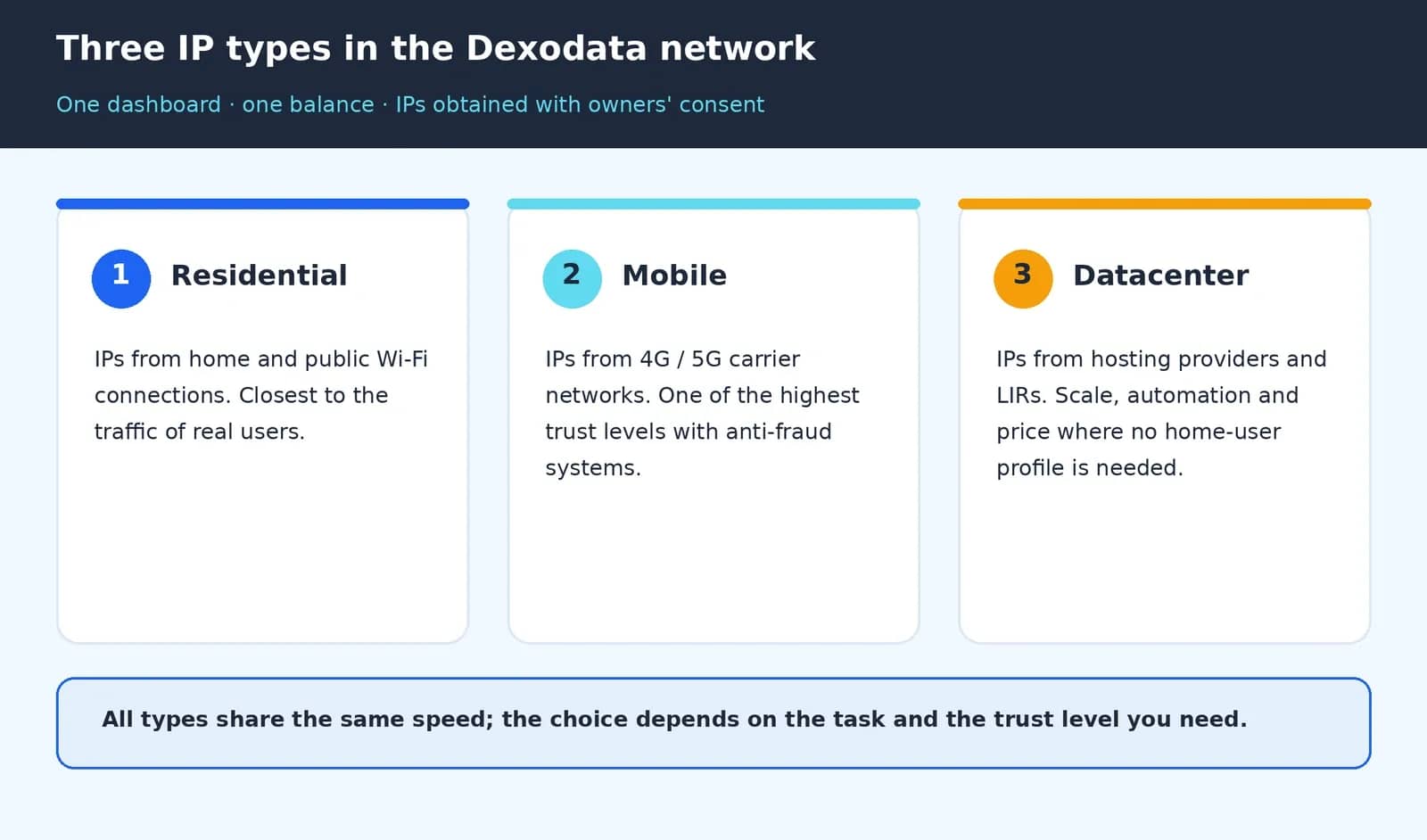
- Residential. IPs from home and public Wi-Fi connections that blend into real user traffic more naturally than hosting-based addresses.
- Mobile. 4G/5G IPs on carrier networks with one of the highest trust levels among anti-fraud systems.
- Datacenter. IPs based on hosting providers and LIRs (Local Internet Registry). A fit for large-scale, automated tasks where price matters and no home-user profile is required.
Geotargeting and IP relevance
Local, relevant addresses make your observations trustworthy: a request looks like it comes from a real local user on a specific network rather than a foreign visitor. That way you see each market exactly as its own real users see it.
IP change modes (rotation)
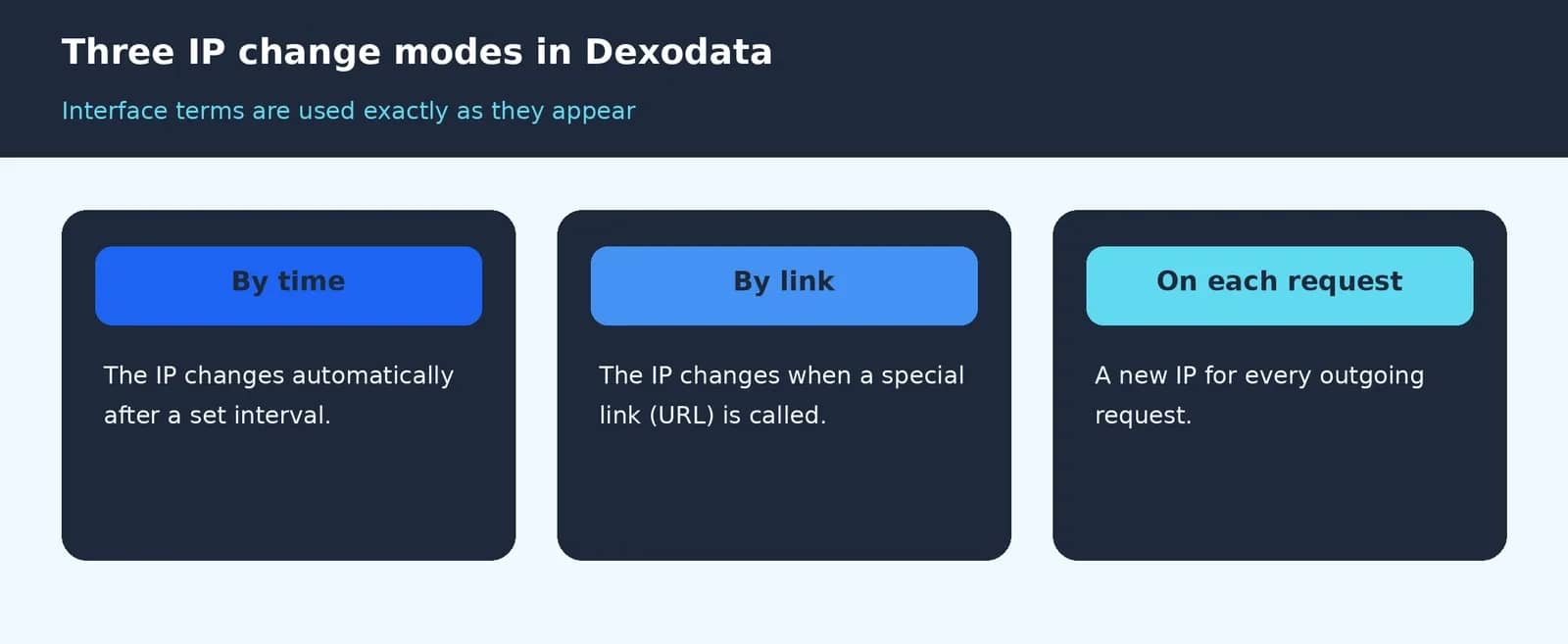
There are three ways to change the IP, and the interface terms are used exactly as they appear: by time, by link, and on each request.
Pricing and the real cost of quality
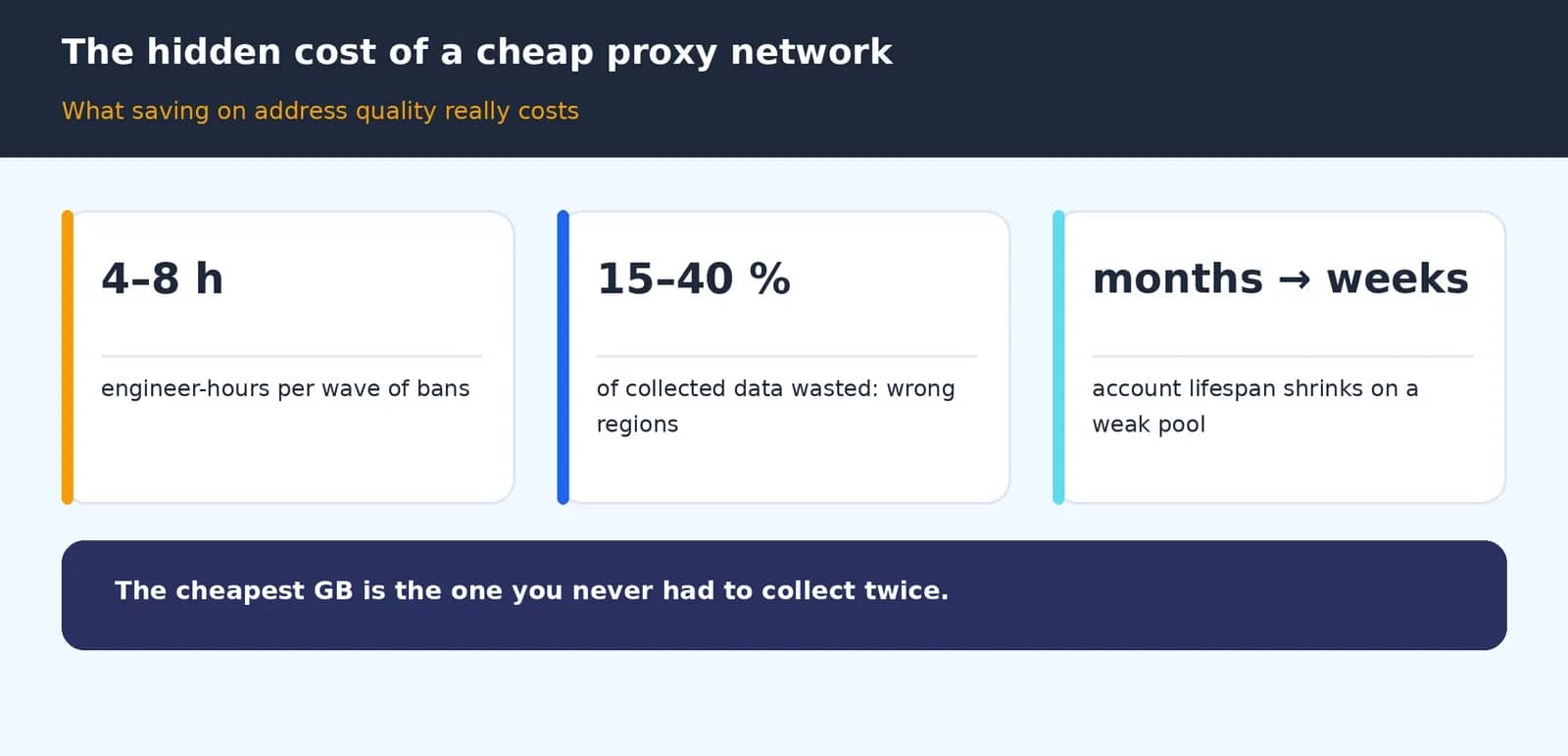
With pay-as-you-go billing, proxy costs grow together with your research rather than ahead of it. A cheap proxy network only looks like a bargain on paper: by Dexodata's own estimate, saving on address quality translates into roughly 4–8 engineer-hours per wave of bans, 15–40% of collected data discarded because of wrong regions or partial loads, and account lifespan shrinking from months to weeks.
How to rent a port in Dexodata: a step-by-step guide
You can rent a port in just a few steps, right in the dashboard. Below is the real path through the interface: from signing in to ready-to-use credentials that you simply paste into your antidetect browser.
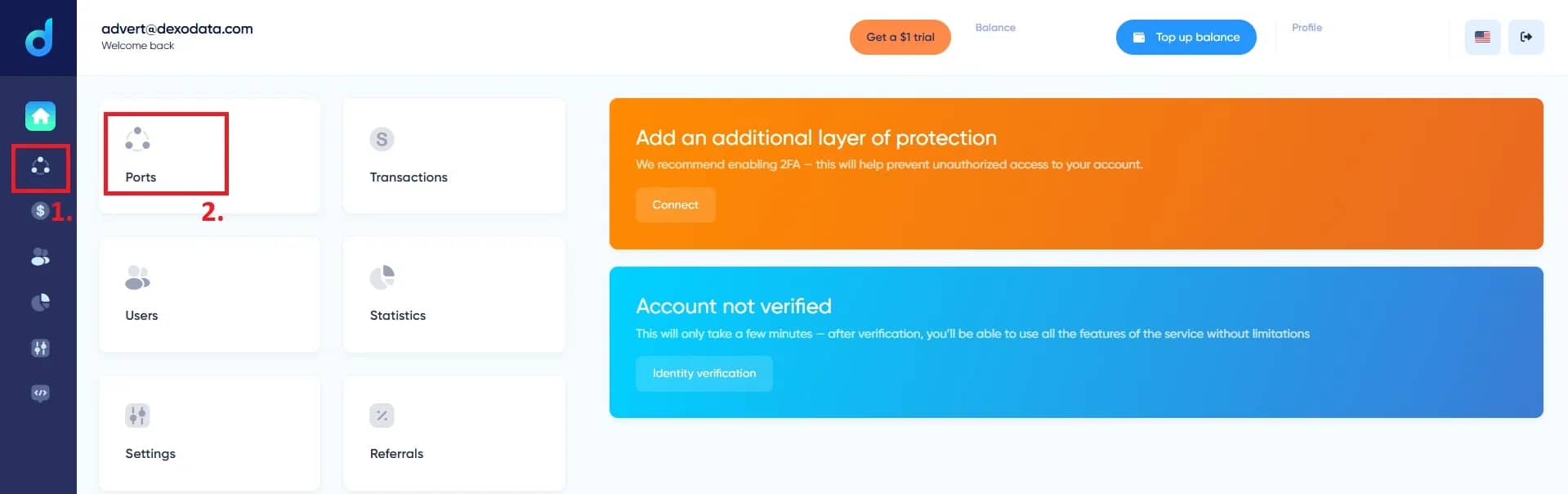
Steps 1–2. On the dashboard, open the Ports section: the ports icon in the left menu (1), then the Ports card (2).
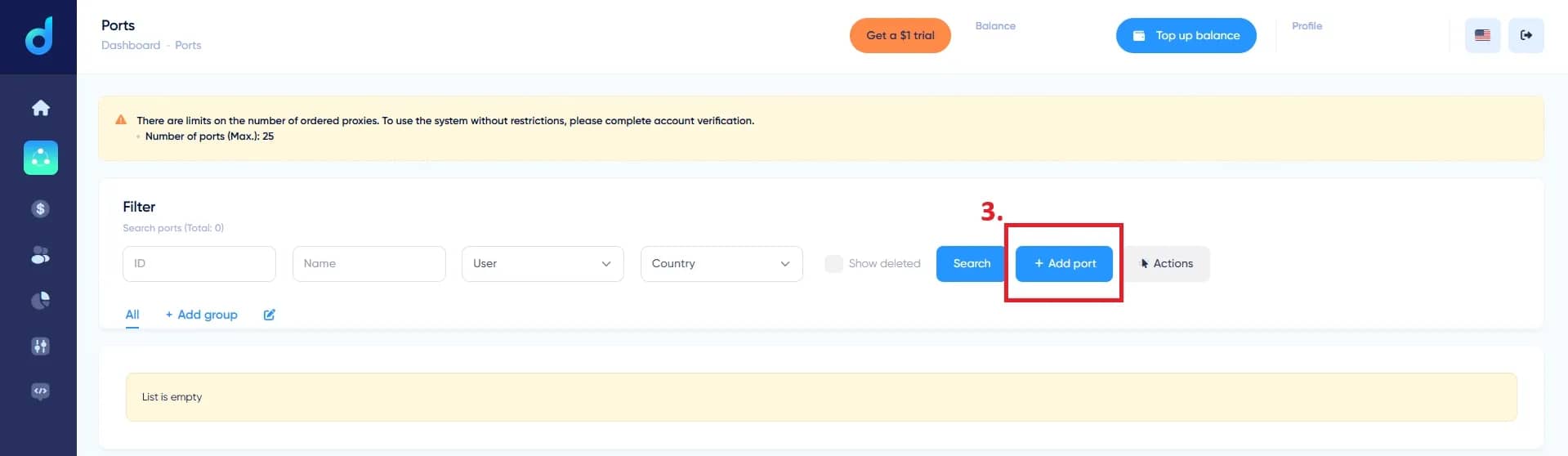
Step 3. On the Ports page, click + Add port (3). The limit without verification is also shown here – up to 25 ports.
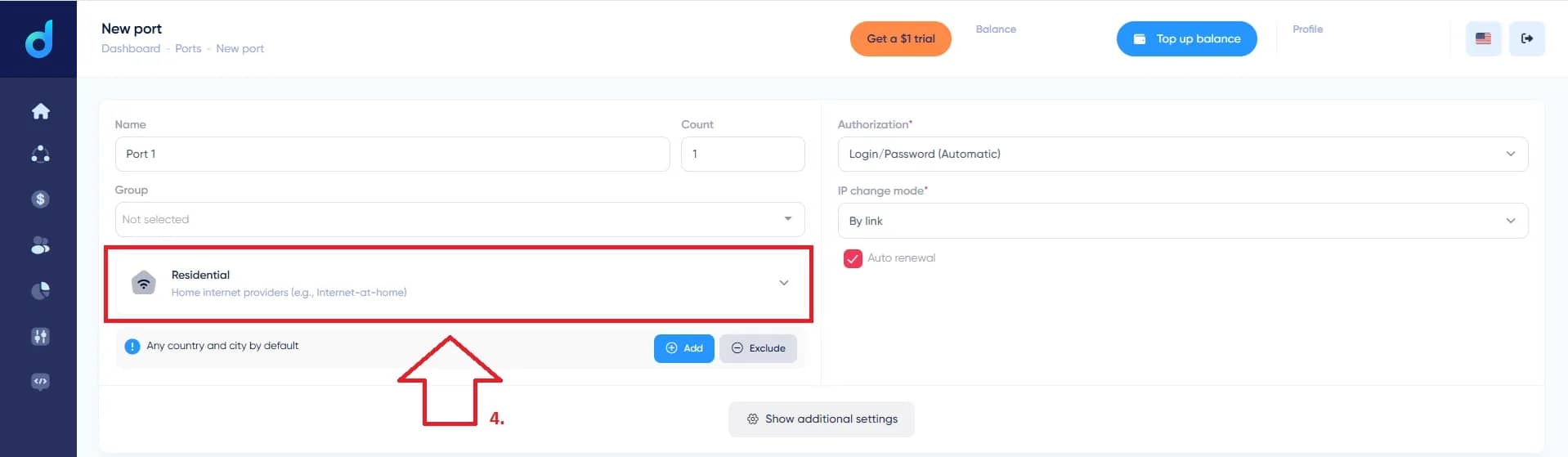
Step 4. The New port form opens. Set the Name and Count, the Authorization method (Login/Password, Automatic), and the IP change mode. The proxy type block (4) defaults to Residential / Home internet providers.
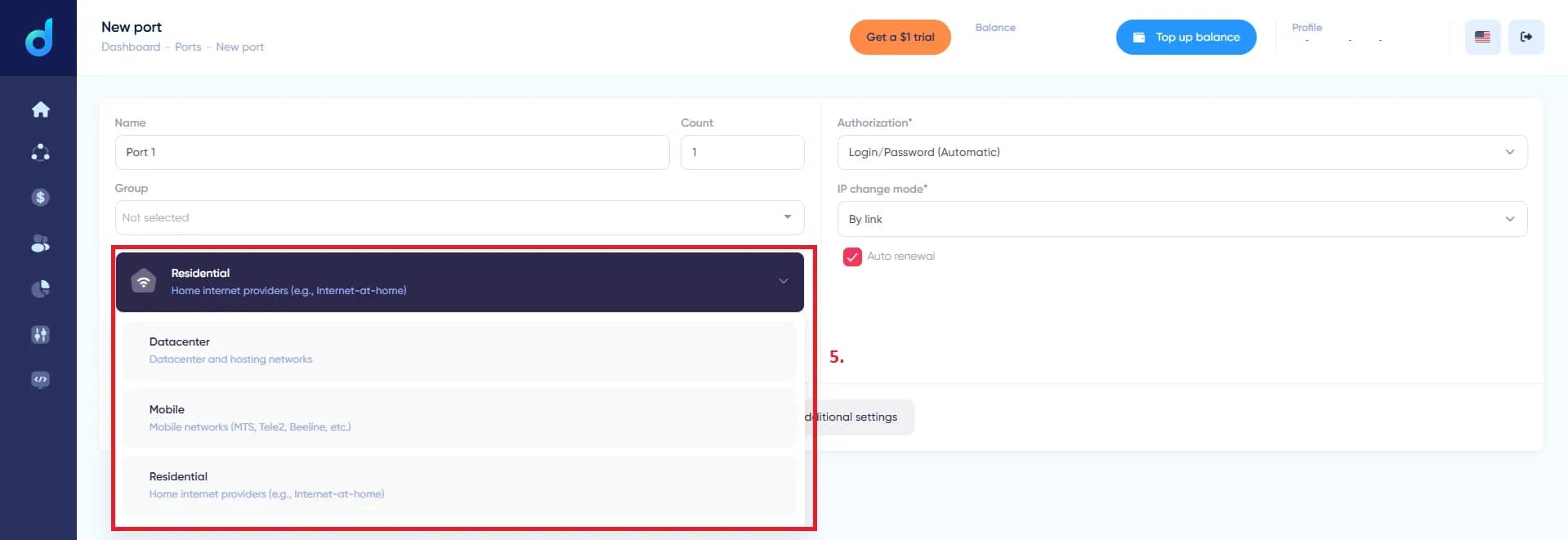
Step 5. Expand the type list (5) and choose the one you need: Residential (home internet providers), Datacenter (datacenter and hosting networks), or Mobile (mobile networks – MTS, Tele2, Beeline, etc.).
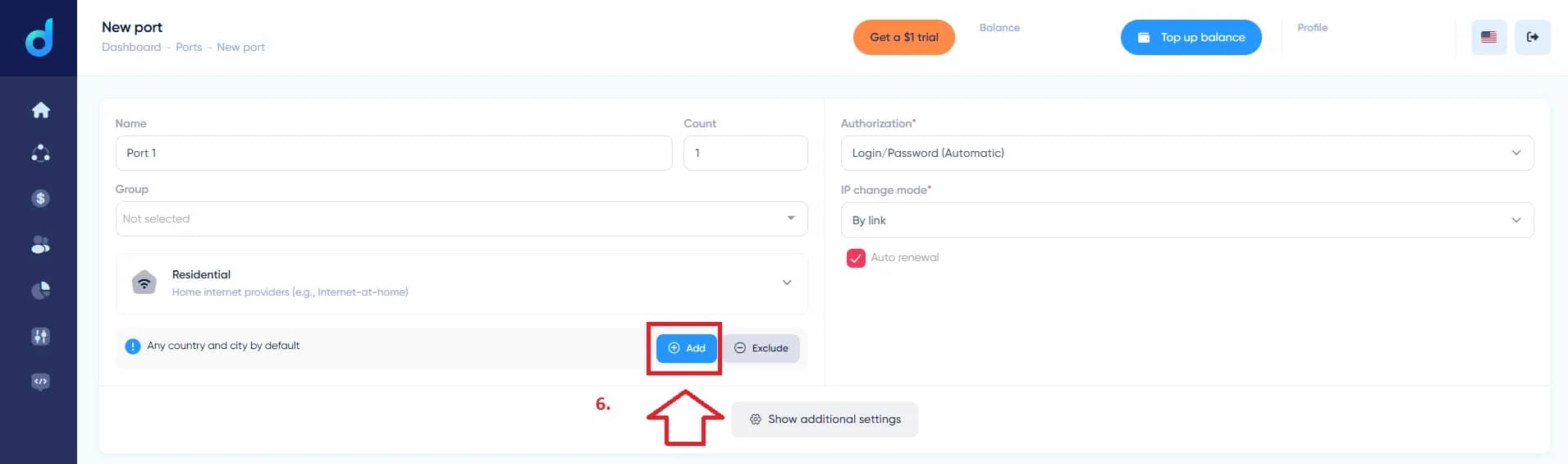
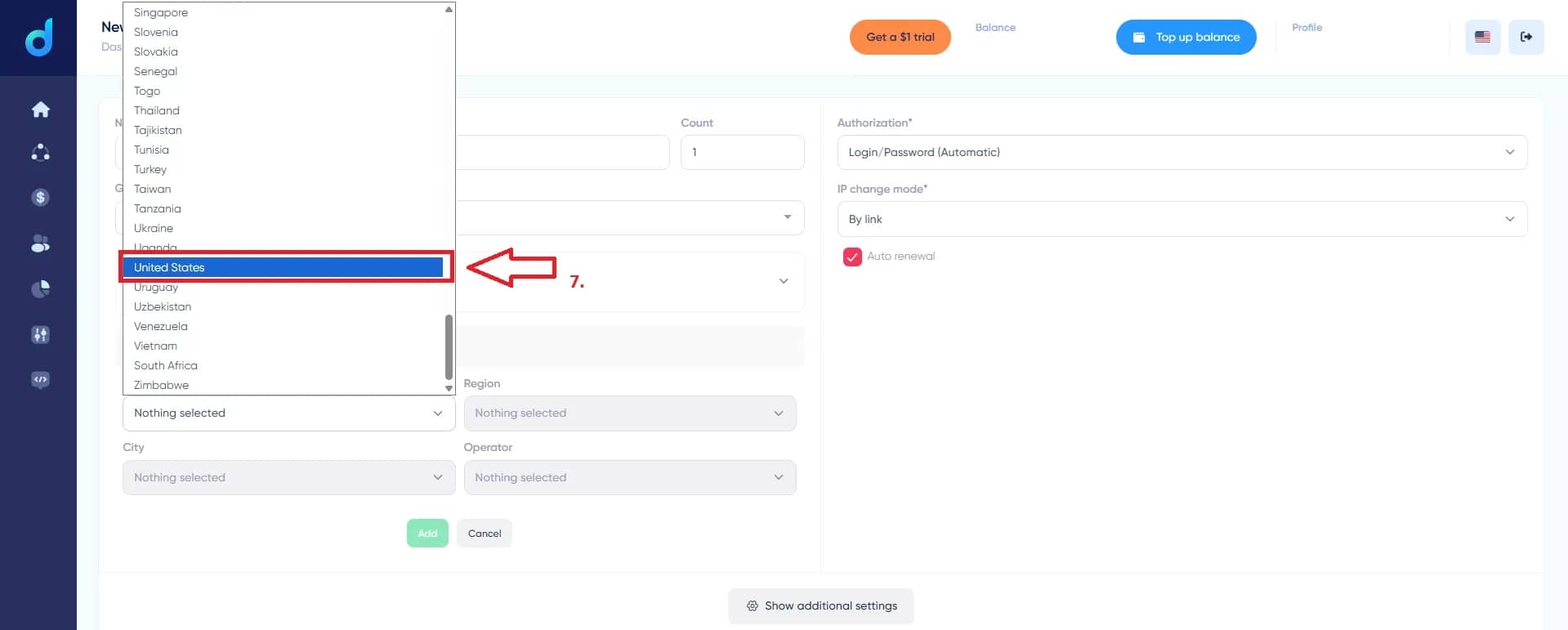
Step 6. To set geo, click Add (6) on the Any country and city by default row (or Exclude to remove specific regions).
Step 7. In the country list, pick the one you need – for example, United States (7). Below, refine region, city, and operator if necessary.
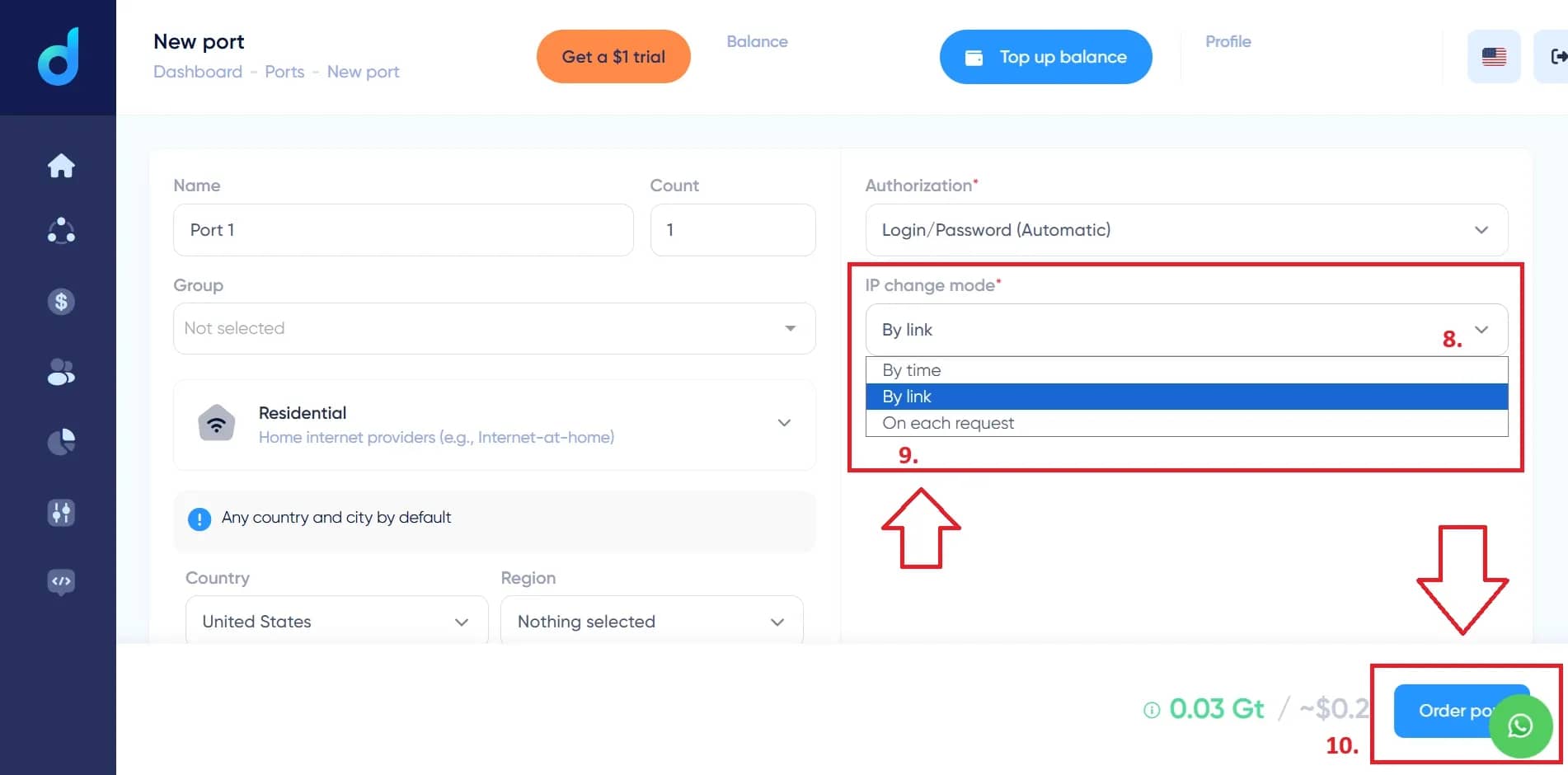
Steps 8–10. In the IP change mode block (8), choose a mode from the list (9): By time, By link, or On each request. The cost is shown at the bottom (for example, 0.03 Gt / ~$0.2), after which you click Order port (10). The port is ready – the credentials can be connected in Linken Sphere.
Practical scenarios for the Dexodata network
Local SERP collection (for example, Berlin from outside Germany)
Choose residential IPs, set the country to DE and narrow it down to Berlin, route requests through SOCKS5 or HTTP(S), with IP change on each request. The search engine treats the query as a request from a local user, so rankings, local results, ads, and SERP features match what residents of the city actually see. The same logic scales to any city.
Localized data for training ML models
Without a distributed proxy network, requests get blocked, datasets lose integrity, and model accuracy drops. Stable geotargeted results and uninterrupted collection pipelines produce clean regional datasets and a reliable input for training, with no manual recovery between runs.
Getting past Cloudflare protection
A scraper on a single IP: the first few hundred requests go through, then come 403 and 429 responses, and header spoofing and user-agent rotation stop working the moment the address is flagged at the network edge. The solution is residential IP rotation: if an address belongs to a hosting provider, the request is treated as a bot; consumer-provider addresses change that assessment.
Consistency of the IP and the whole stack
Anti-fraud flags setups where signals contradict each other: a residential IP in Germany with an en-US browser and an America/New_York timezone, a mobile IP in Tokyo with a headless-Chrome fingerprint and clicks every 400 ms, a datacenter IP with an iPhone canvas hash active at 3 a.m. What passes as a real user is a setup where the IP, browser language, timezone, and rhythm of actions all match one place.
Rotation mistakes that lead to bans
- Changing the IP between two clicks by the same user → bans right inside the session.
- The same cookies from a new IP → session invalidation and a forced re-login.
- One request per IP at strictly equal intervals → limits that never lift.
IP reputation and account reputation
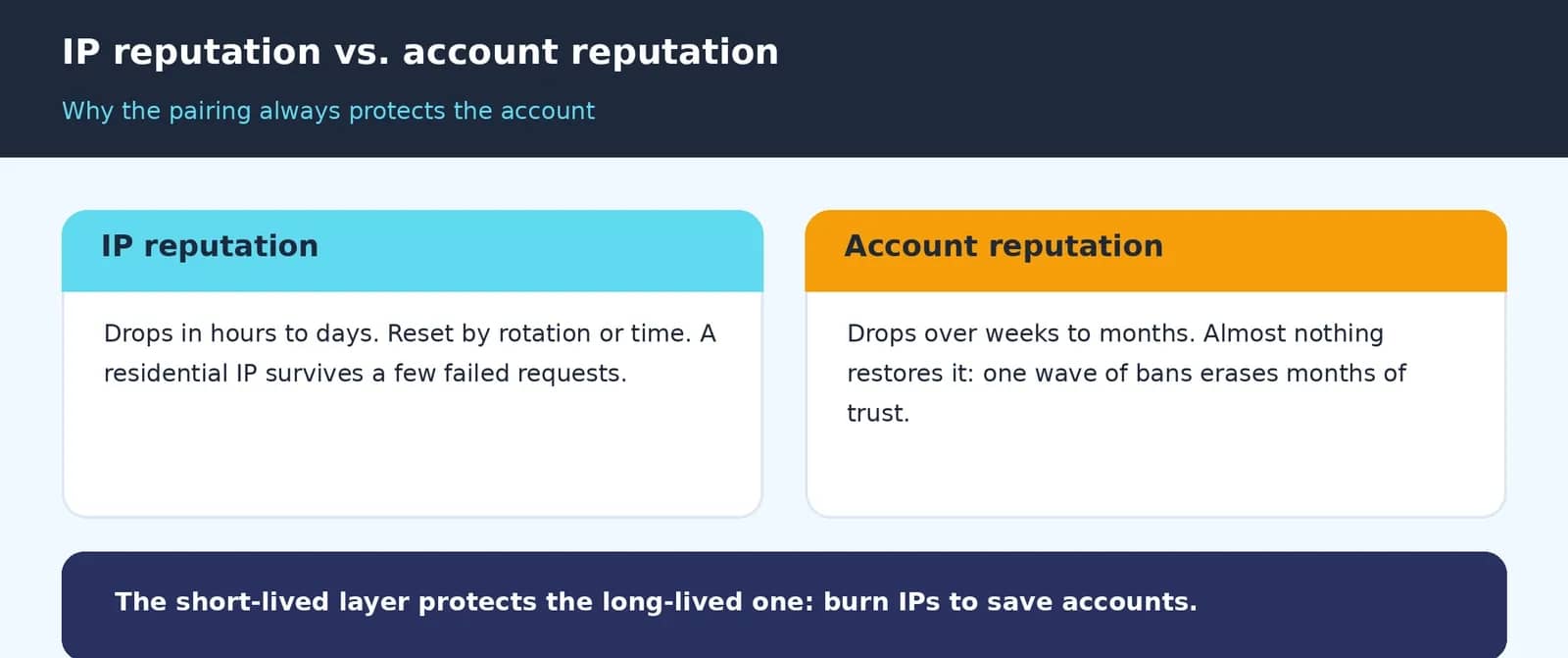
These are two layers with different time scales, and understanding the difference directly shapes your rotation strategy.
What an antidetect browser covers, and what it does not
The antidetect browser isolates cookies, randomizes canvas, and spoofs the user-agent, but it does not touch the Chromium engine's TLS handshake, script request timings, or the link between IP and fingerprint. A common cause of failure is that the antidetect setup is per profile while the IP layer is shared across all of them; each profile needs its own IP with matching geo.
What tasks the Dexodata network is suited for
- Advertising and research: ad verification, price comparison and aggregation, affiliate and CPA testing, brand monitoring and protection.
- SEO and search: SERP and rank monitoring by region, site availability checks, working around search engines, data collection.
- Data collection and AI/ML: large-scale web scraping, parsing and crawling, datasets for training LLMs, localized SERP results worldwide.
- Social media, e-commerce, access: multi-accounting (Facebook, Instagram, Reddit, YouTube), working with Amazon, eBay, Shopify, and access to region-dependent services.
Connecting Dexodata proxies in Linken Sphere
Once you have rented a port in Dexodata, all that is left is to connect it in a Linken Sphere session – the antidetect browser that masks your digital fingerprint as you visit websites. Below is the real, step-by-step path.
Protocols that work with Linken Sphere: SOCKS5 (routes almost any traffic), HTTP (works with web traffic only), SSH (secure tunneling), Live SOCKS5 and HTTP (dynamic IPs that change at set intervals), and FREE PROXY (Linken Sphere's built-in proxies). The most common are SOCKS5 and HTTP(S).
Setting up a proxy in a Linken Sphere session
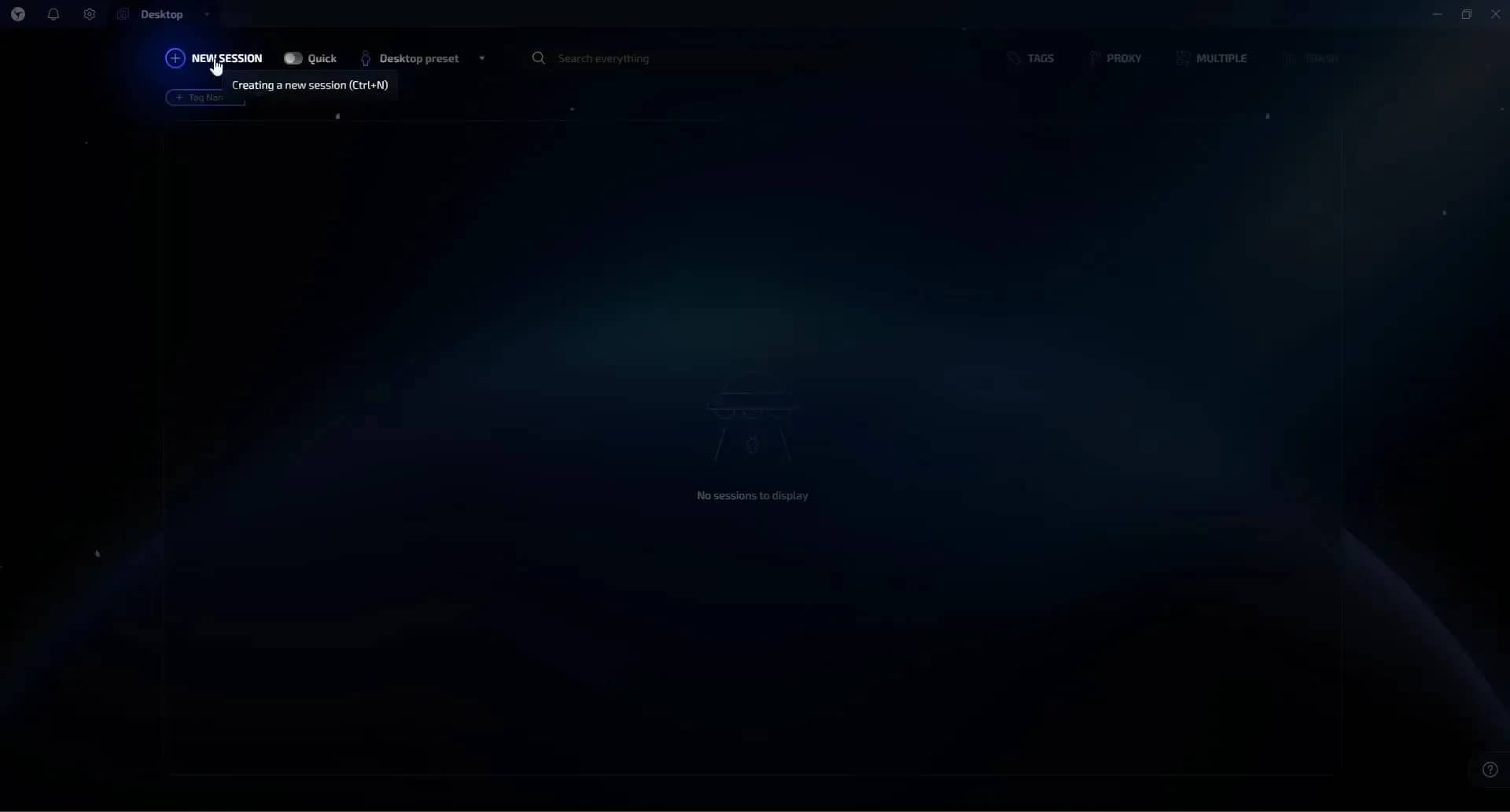
Step 1. Create a session with the NEW SESSION button (tooltip: Creating a new session, Ctrl+N).
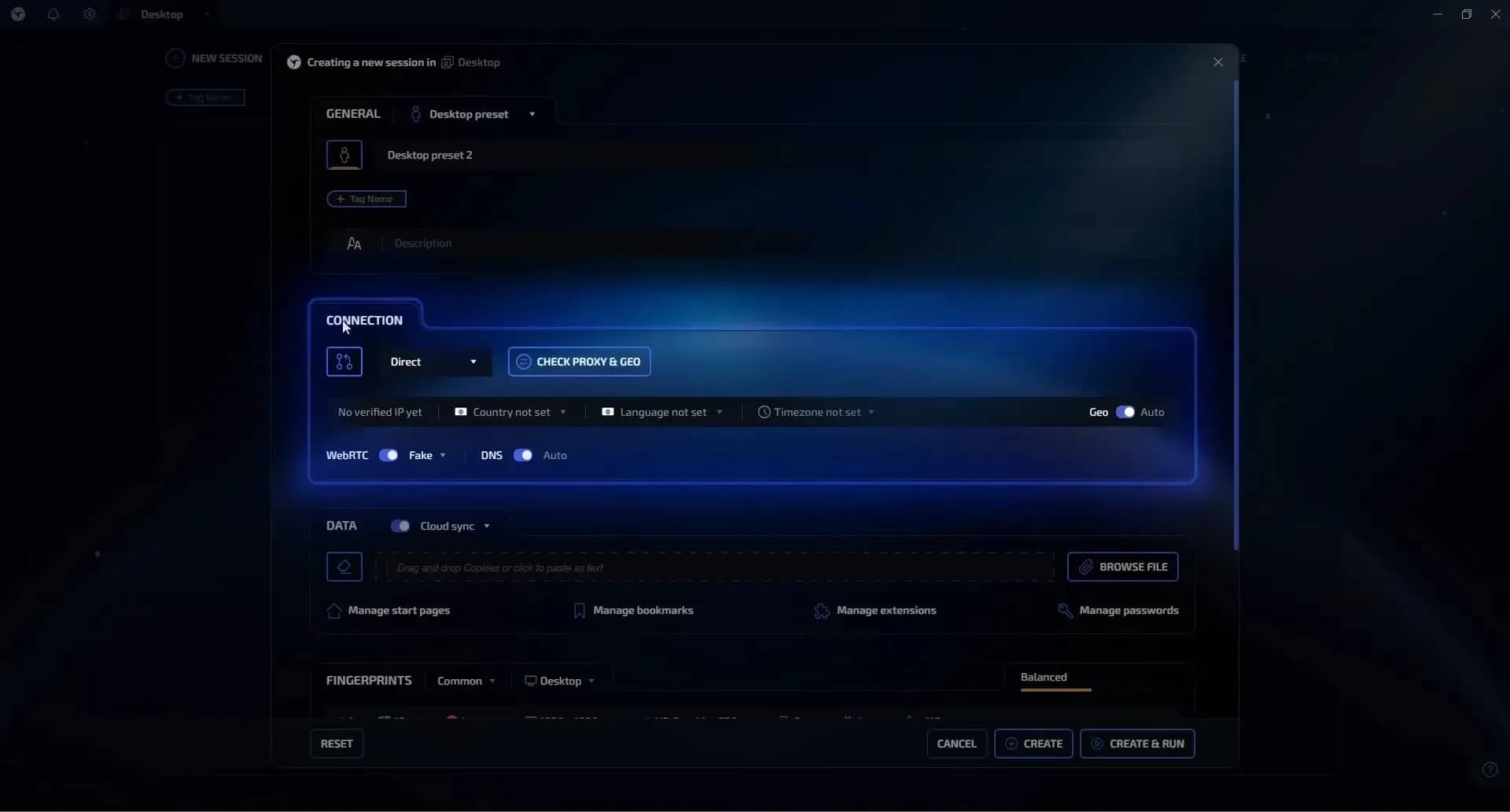
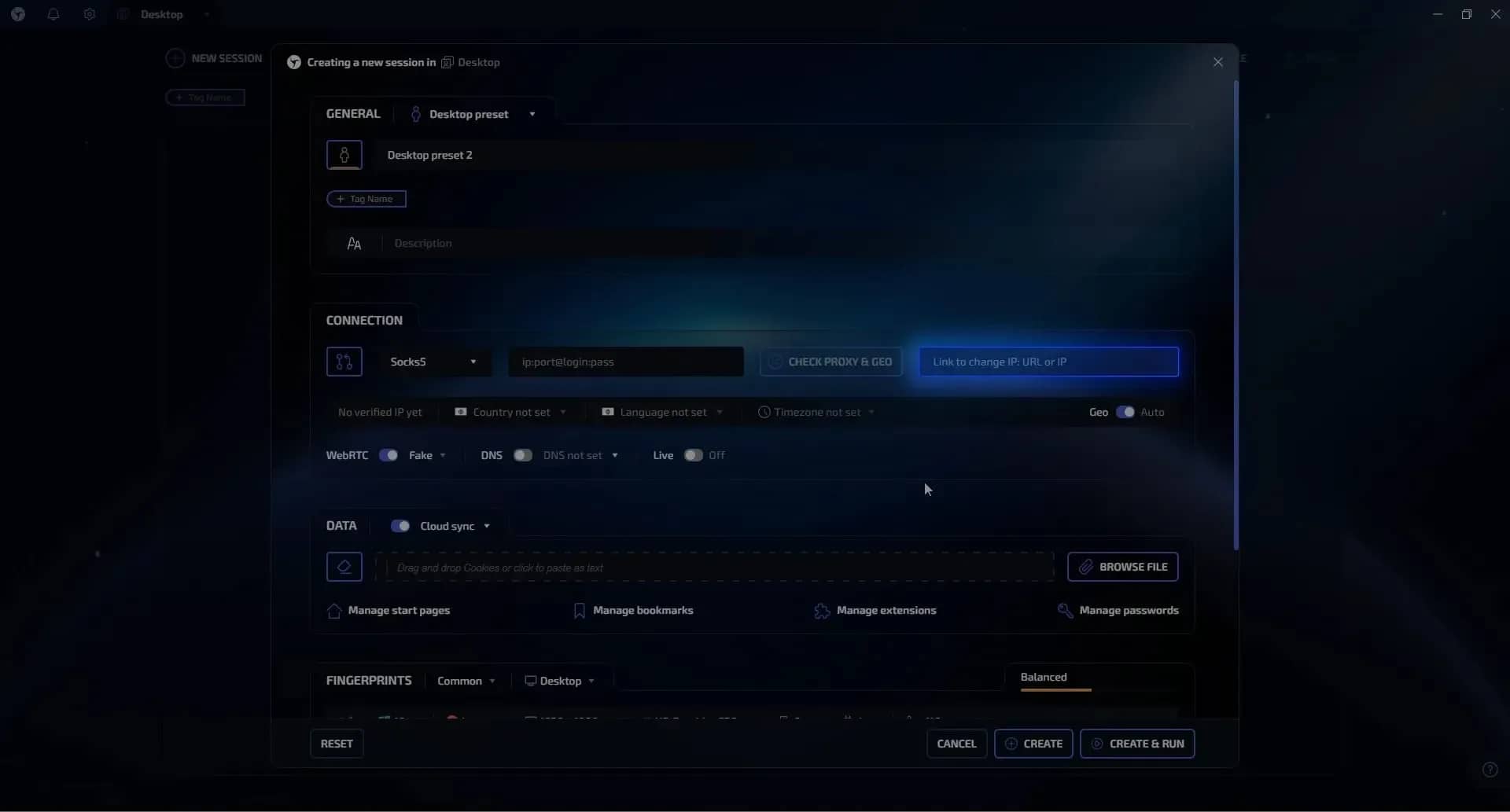
Step 2. In the setup window, find the CONNECTION block. By default the connection type is Direct; next to it are the CHECK PROXY & GEO button and the WebRTC (Fake) and DNS (Auto) toggles.
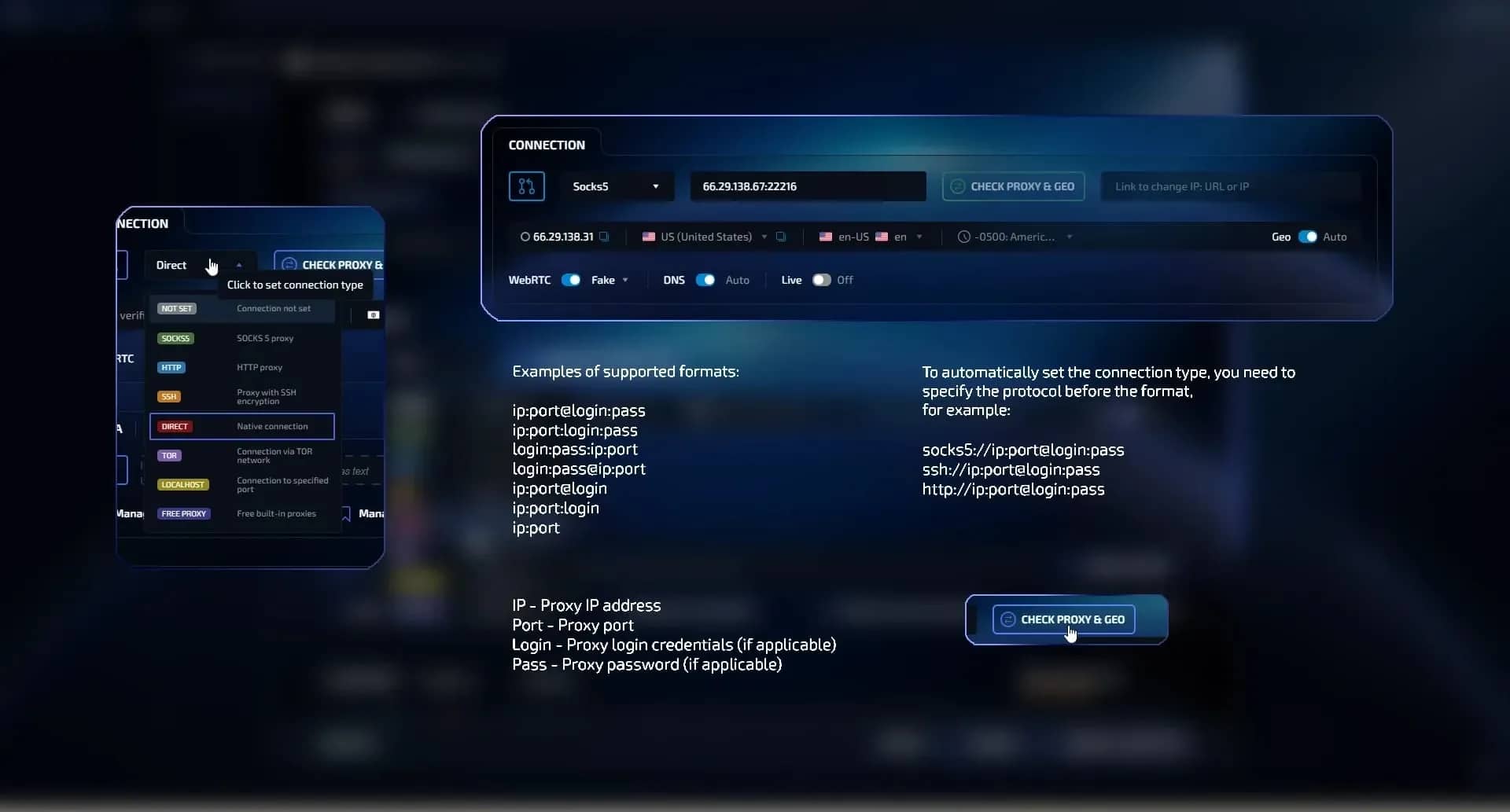
Steps 3–5. Choose a protocol from the list (NOT SET, SOCKS5, HTTP, SSH, DIRECT, TOR, LOCALHOST, FREE PROXY) and paste the proxy in a supported format – for example, ip:port@login:pass, ip:port:login:pass, or socks5://ip:port@login:pass. Verify it with the CHECK PROXY & GEO button.
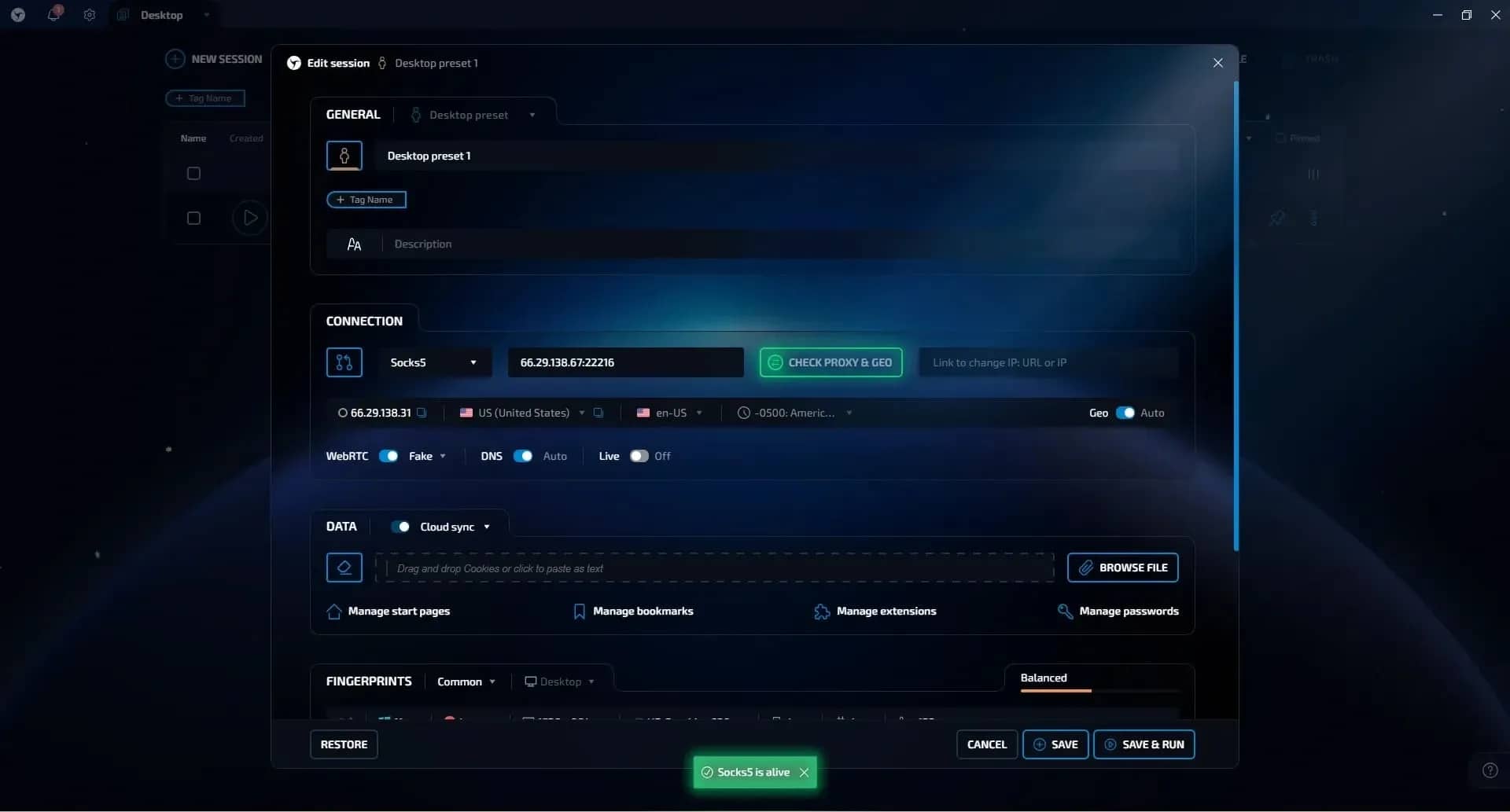
Step 6. After a successful check the button turns green, the Socks5 is alive status appears, and the current outgoing IP address is shown on the right (in the screenshot – 66.29.138.31, US, en-US).
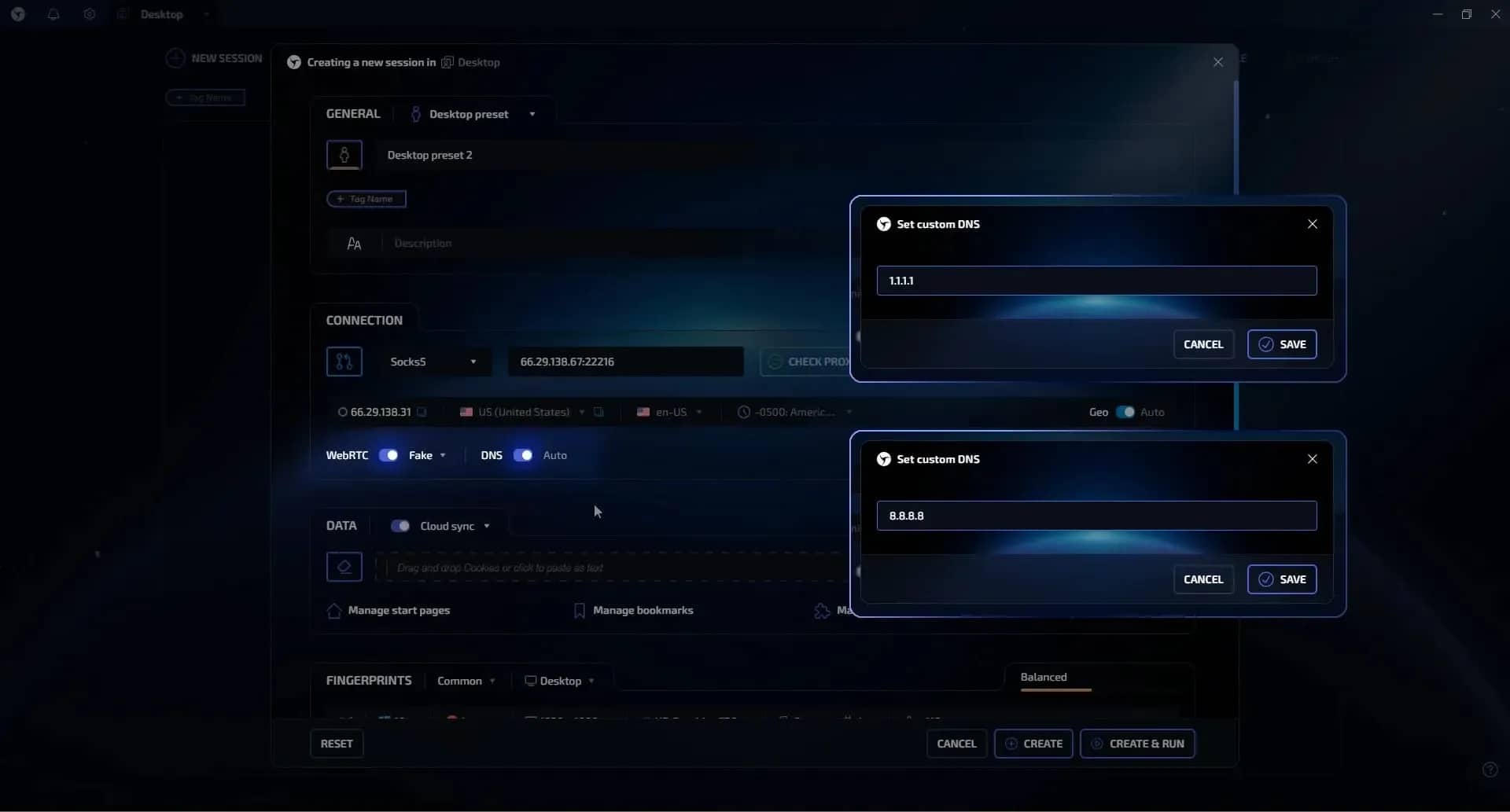
Step 7. Configure WebRTC and DNS. When working through a proxy, WebRTC is best set to Fake, and DNS defaults to Auto (set your own if needed, for example 1.1.1.1 or 8.8.8.8). Save the session with the CREATE button.
Mobile proxies with IP change by link
The setup is the same, except for the extra Link to change IP: URL or IP field, where you paste the provider's link for changing the outgoing IP.
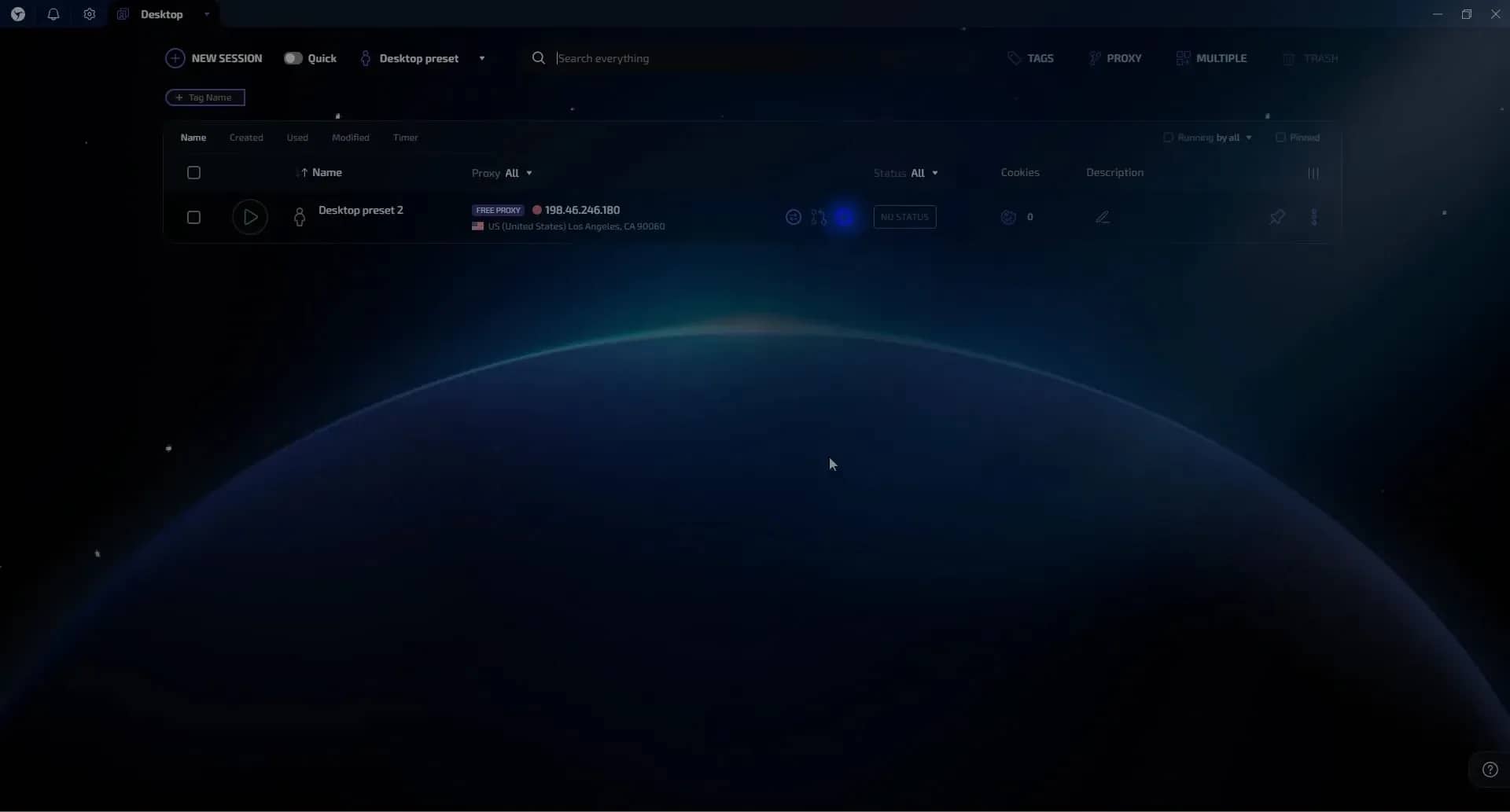
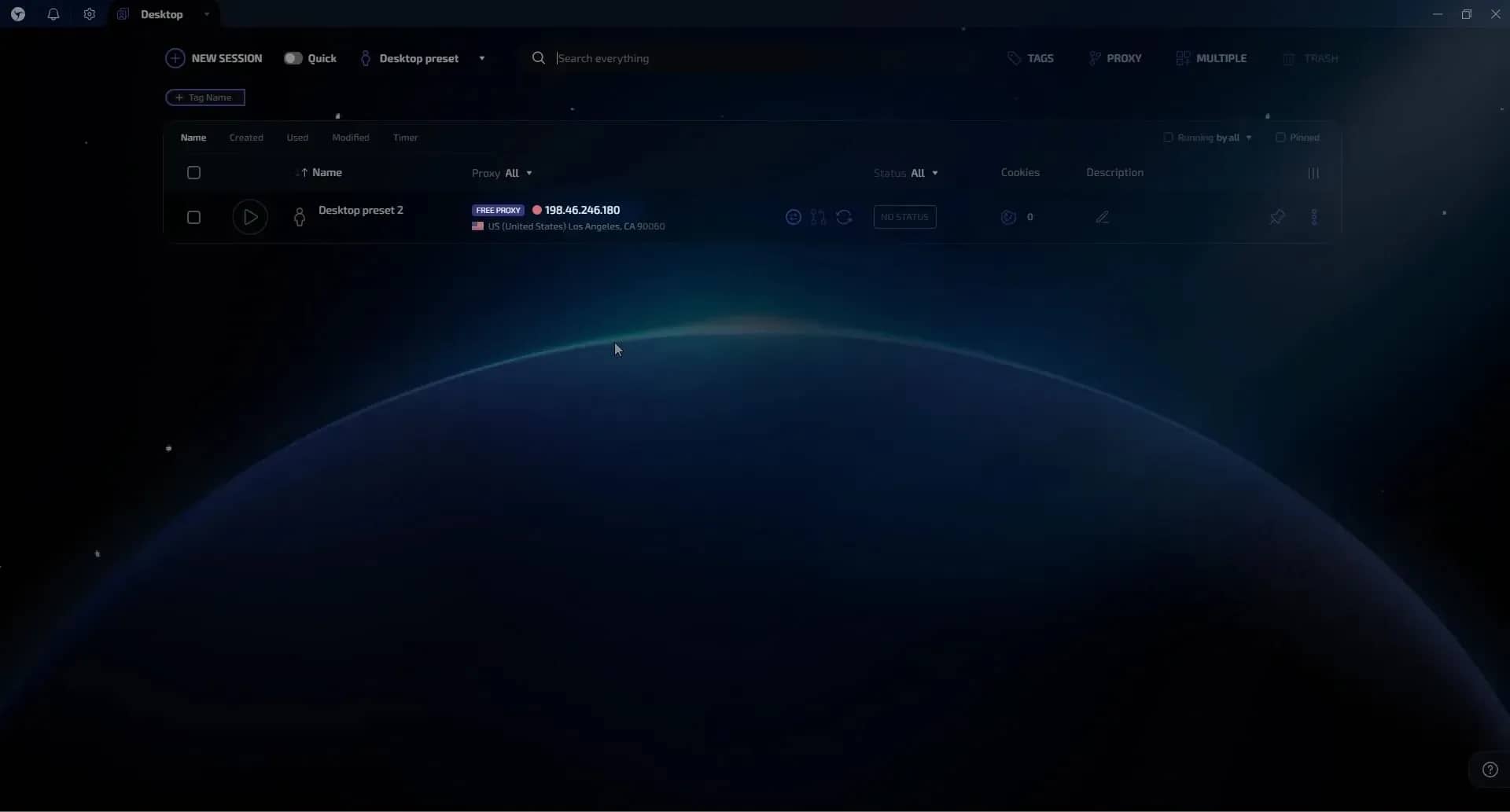
Once the session is saved, you can change the outgoing IP without opening settings – just press the button in the session list (in the screenshot – the Desktop preset 2 session, IP 198.46.246.180, US, Los Angeles).
Quick proxy swap right inside a session
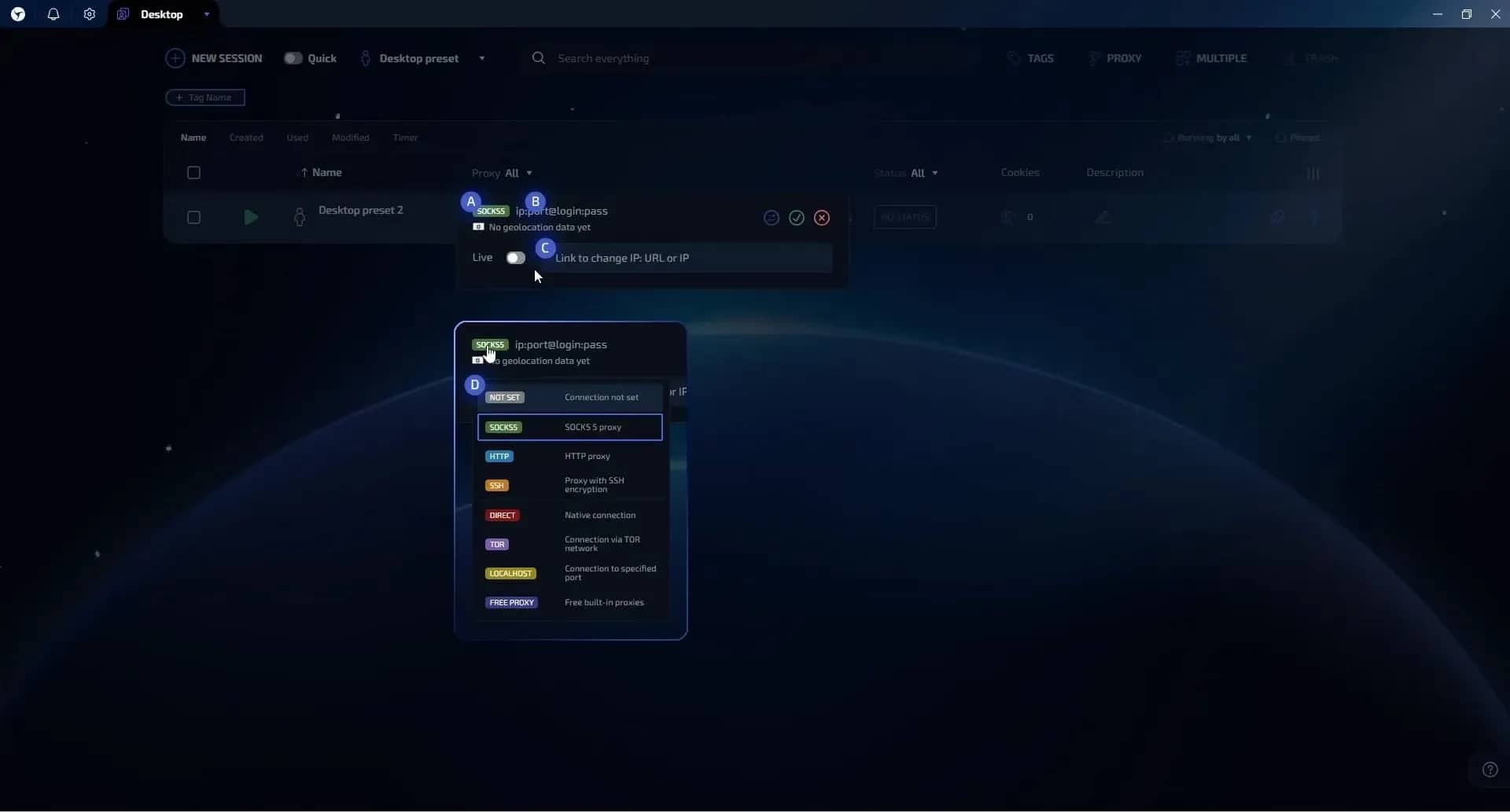
Click a session's IP address, and in the popup you can swap the proxy on the fly, change the protocol, or paste an IP-change link: A – protocol list, B – ip:port field, C – IP-change link, D – list of open protocols.
The quick-swap popup: A – protocols, B – ip:port, C – IP-change link, D – protocol list.
Conclusion
Pairing the Dexodata network with the Linken Sphere antidetect browser closes the full proxy workflow: relevant residential, mobile, and datacenter IPs with precise geotargeting and flexible address changes on the Dexodata side, and correct digital-fingerprint masking on the Linken Sphere side. You can start with a $1 balance, and the promo code LINKENSPHERE adds +5% to your deposit.
Frequently asked questions
- Residential IPs come from home and public Wi-Fi connections and blend naturally into real user traffic. Mobile proxies are 4G/5G IPs on carrier networks with one of the highest trust levels among anti-fraud systems. Datacenter proxies are based on hosting providers and LIRs and suit large-scale, automated tasks where price matters.
- On the dashboard, open Ports, click + Add port, choose the proxy type, set the geo (country, region, city, and operator if needed) and the IP change mode, then click Order port.
- Three modes, exactly as in the interface: by time, by link, and on each request.
- Create a session (NEW SESSION), choose a protocol in the CONNECTION block, paste the proxy in a supported format, and click CHECK PROXY & GEO. Once the SOCKS5 shows an "Alive" status, configure WebRTC (Fake) and DNS (Auto), and save the session with CREATE.
- Ad verification, SERP and rank monitoring by region, price comparison, web scraping and parsing, building datasets for AI/ML training, social-media multi-accounting, e-commerce work, and access to region-dependent services.
Why Google Blocks Accounts and What Your Antidetect Has to Do With It
Google has once again complicated the mechanisms of digital identification by deploying a new, more sophisticated layer of protection based on proprietary HTTP headers. This quiet change caught most of the market off guard, triggering a wave of rushed updates. While others hastily released superficial 'fixes', we realized that we were dealing not with a minor issue but with a fundamental shift that required deep and comprehensive analysis.
SOCKS vs HTTP Proxy: What’s the Real Difference and Which One to Choose?
There are times when you don’t want a website to link the request back to your device. That’s where a proxy comes in, it acts like a middle layer and sends the request for you. The site sees the proxy’s info instead of yours. It’s a go-to trick when you’re trying to see a page that’s not available in your region, pull content that’s restricted by location, or avoid hitting a wall when sending lots of requests.

The Best Alternative to OBS Studio
Working with a webcam on many online platforms can turn into a real challenge. A strict oval or rectangular frame appears on the screen, but your image doesn’t align perfectly with it. As a result, the system blocks further progress, demanding perfect alignment, and your workflow is disrupted before it even begins.