How to Install OpenClaw: Connecting Local and Cloud AI Models
The main advantage of OpenClaw lies in its flexibility: the user can connect a free local model or use powerful cloud solutions like GPT, Claude, or Gemini.
In this guide, we will break down the entire process: from installing OpenClaw to connecting various AI models and verifying their performance.
What Is OpenClaw
OpenClaw is a shell for launching AI agents. Essentially, OpenClaw acts as a sort of control center that unites the interface, automation tools, and the neural network chosen by the user.
Unlike regular chat-bots, OpenClaw is capable of:
- working with files;
- executing tasks in the browser;
- analyzing documents;
- launching chains of actions;
- using various AI models;
- interacting with external services via API.
What Is Required for Installation
The requirements for the computer strongly depend on the chosen method of operation: the platform itself consumes relatively few resources, however, when running local models via Ollama, the load increases significantly.
To install OpenClaw you will need:
- a computer running Windows, Linux, or macOS;
- a stable internet connection;
- several gigabytes of free disk space.
Running Cloud Models
When working with GPT, Claude, Gemini, and other cloud AIs, the main computational load is performed on the provider's servers. For this scenario, the following is usually sufficient:
- 8–16 GB of RAM;
- a modern processor;
- an SSD drive.
Running Local Models via Ollama
If the computational loads fall on your computer, the requirements are several times higher. For small models up to 7–8 billion parameters, you will need:
- from 8–16 GB of RAM;
- a graphics card with 6–8 GB of VRAM;
- a modern processor.
For models of the 13–14B class:
- from 16 GB of RAM;
- a graphics card with 8–12 GB of VRAM;
- an SSD drive.
If you plan to fully use OpenClaw as an AI agent with browser automation, work with documents, and complex tasks, prepare:
- 32 GB of RAM;
- an Intel Core i7 / AMD Ryzen 7 processor or more powerful;
- a graphics card of the level of NVIDIA RTX 3060 12 GB, RTX 4070, or more productive.
It is the volume of video memory that is usually the main limitation when running local models.
How to Install OpenClaw
OpenClaw works on Windows, macOS, and Linux. The difference between the systems is only present during installation: the commands and the way of launching differ, but the subsequent configuration of models follows the same principle.
After installation, the user launches the setup wizard openclaw onboard, selects the AI provider, and connects the desired model. This is the recommended configuration method specified in the OpenClaw documentation.
Installation on Windows
Several installation options are available for Windows. The most convenient for beginners is Windows Hub. This is a native OpenClaw application for Windows with an interface, settings, diagnostics, and agent management. You can download it at the link. Also, OpenClaw can be installed via PowerShell. To do this, execute the command:
iwr -useb https://openclaw.ai/install.ps1 | iex
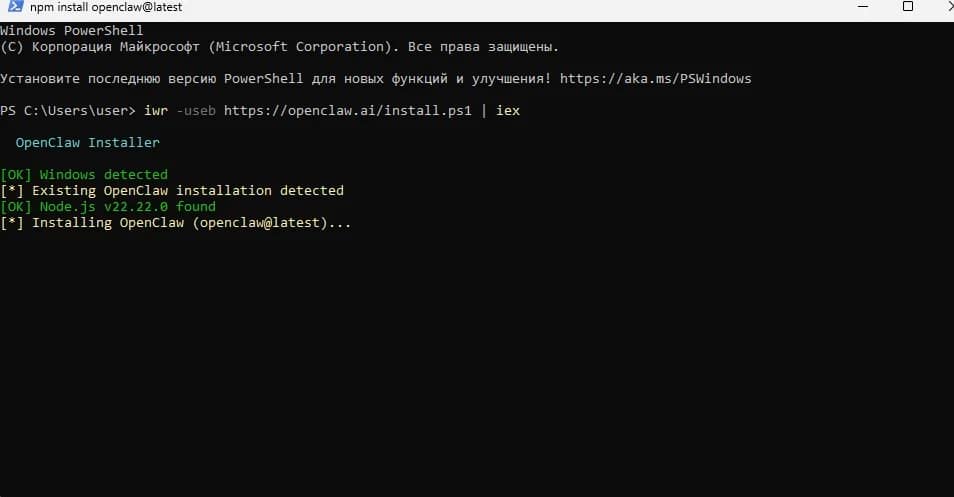
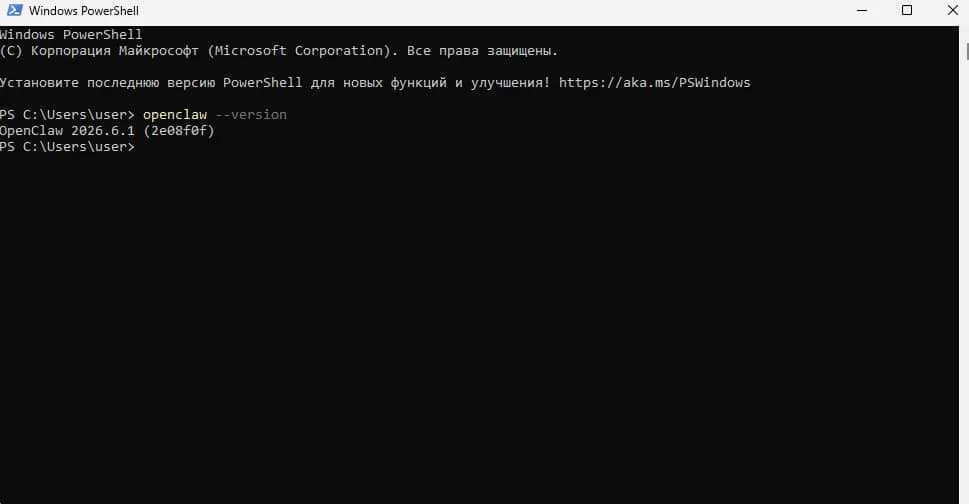
After installation, verify that OpenClaw is available in the system:
openclaw --version
Installation on macOS and Linux
On macOS, open the Terminal application via Spotlight search or find it in the "Applications — Utilities" folder.
On Linux, open the system terminal: in most distributions, this can be done with the keyboard shortcut Ctrl + Alt + T or through the applications menu. After that, enter the command:
curl -fsSL https://openclaw.ai/install.sh | bash
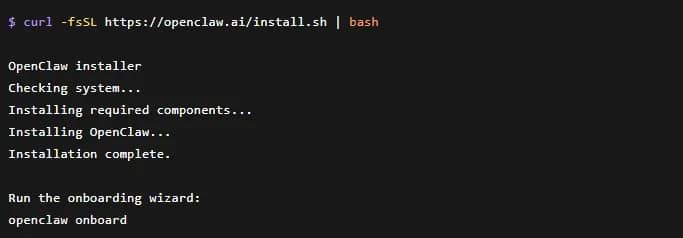
The script will automatically download the necessary components and install OpenClaw on your computer. To verify that the program installed correctly, enter:
openclaw --version
If the OpenClaw version appears in response, then the installation completed successfully.
Connecting AI Models to OpenClaw
After installing OpenClaw, you need to connect a model to run the agent: a local option via Ollama or a cloud one like ChatGPT and Gemini. For this, the initial setup wizard openclaw onboard is used — open the terminal or PowerShell and enter:
openclaw onboard
Next, OpenClaw will prompt you step-by-step to select a model:
- local model via Ollama;
- OpenAI;
- Anthropic Claude;
- Google Gemini;
- OpenRouter;
- another available provider.
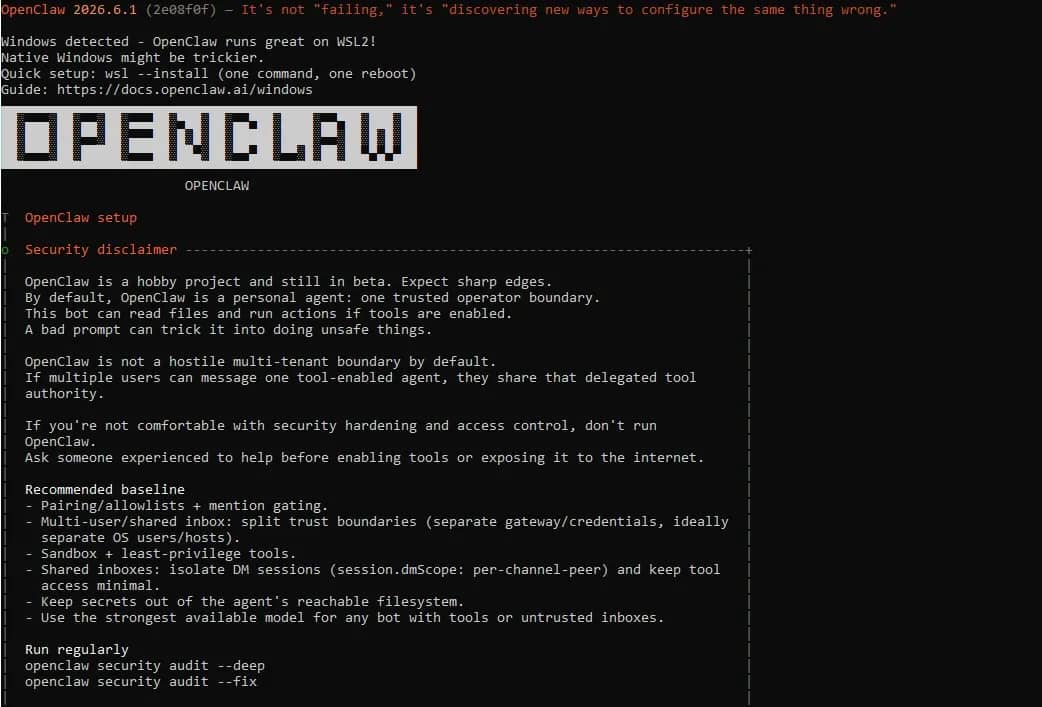
The user does not need to manually write down data in configuration files. At the configuration stage, it is enough to select a provider, paste the API key if a cloud service is used, and specify the model that OpenClaw will use by default.
Connecting Local Models via Ollama
Ollama is a program that makes it possible to run neural networks right on your computer. It is through it that OpenClaw most often works with local models.
First, install Ollama from the official website, and then verify that the program is running (in terminal or command line):
ollama --version
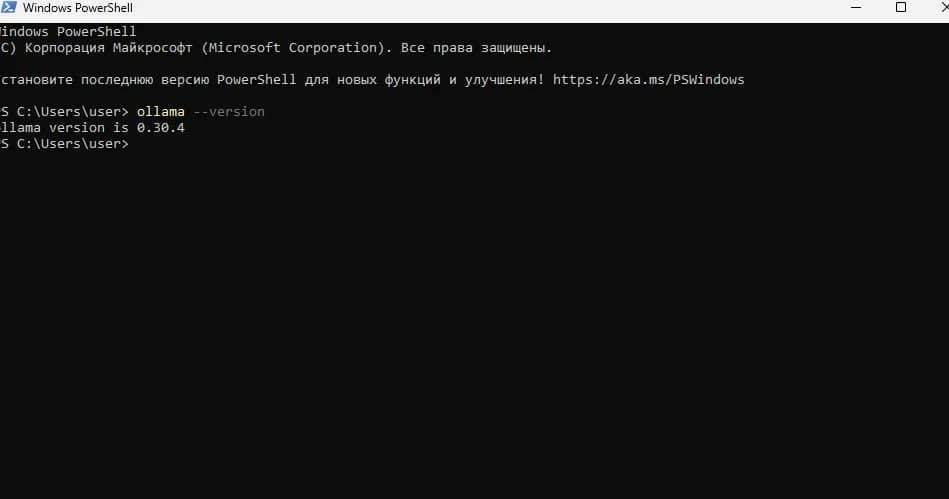
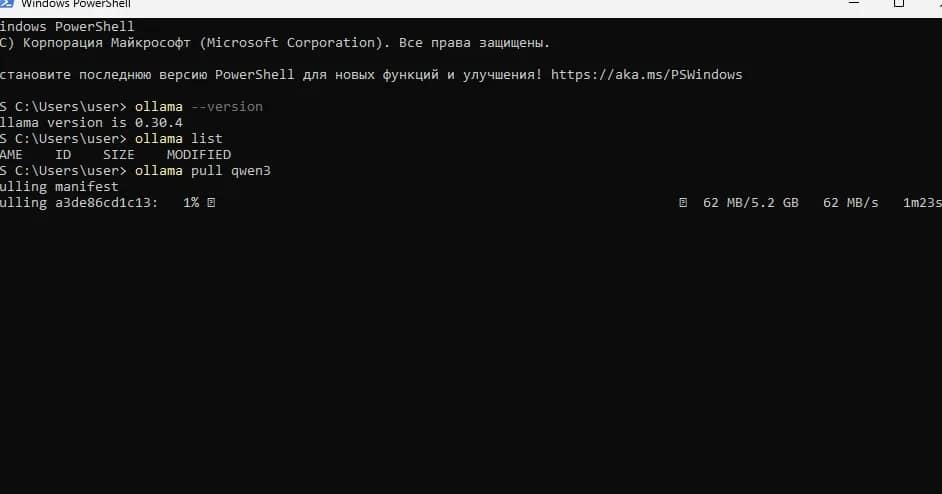
If the program version number is displayed in response, you can proceed to install the model. To download the model, enter one of the following commands (using Qwen and Llama as examples):
ollama pull qwen3
or:
ollama pull llama3
Ollama will automatically download the files to the computer. Check if the model has appeared in the list of installed ones:
ollama list
If Qwen, Llama, or another selected model is displayed in the list, it means it is installed correctly. Now you need to connect Ollama to OpenClaw — to do this, open the terminal or PowerShell again and launch the OpenClaw setup wizard:
openclaw onboard
In the setup wizard, follow the prompts: proceed to model selection, then to the More section, and then choose Ollama. Then specify the Local mode — this means that the model runs directly on your computer.
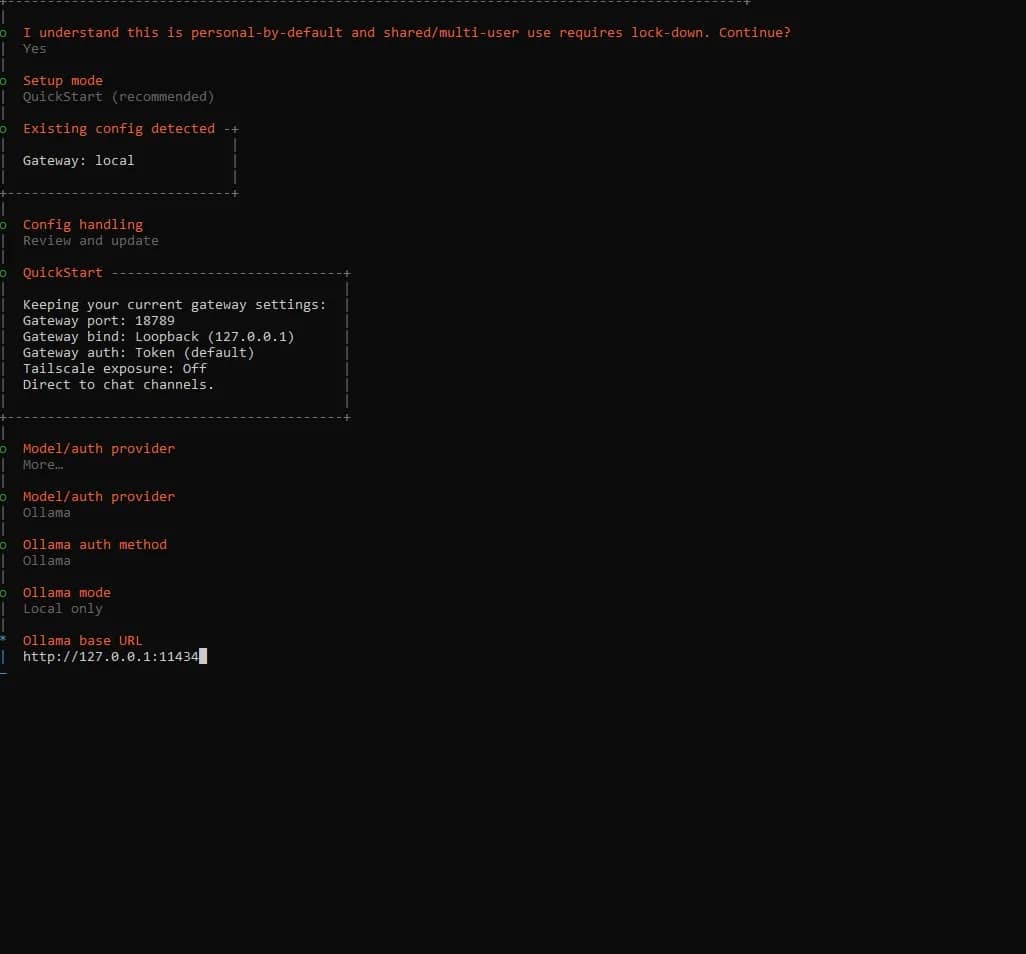
After this, OpenClaw should see the models that were downloaded via Ollama. Select the desired model, for example, Qwen or Llama, and set it as the primary one for the agent.
This completes the connection of the local model. Now OpenClaw will be able to use the neural network from your computer without accessing cloud services.
Connecting Cloud Models
The general principle of connecting cloud models is identical: first, the user registers on the website of the chosen provider, obtains an API key, and then adds this key to OpenClaw.
An API key is a special access token. By it, OpenClaw understands which account to access and which model to use. The key must not be published, sent to strangers, or kept in open access because money on your account can be spent through it.
To connect a cloud model, open the terminal or PowerShell and launch the OpenClaw setup wizard:
openclaw onboard
In the setup wizard, proceed to select a provider, and choose the appropriate option, for example, OpenAI, Anthropic, Gemini, or OpenRouter.
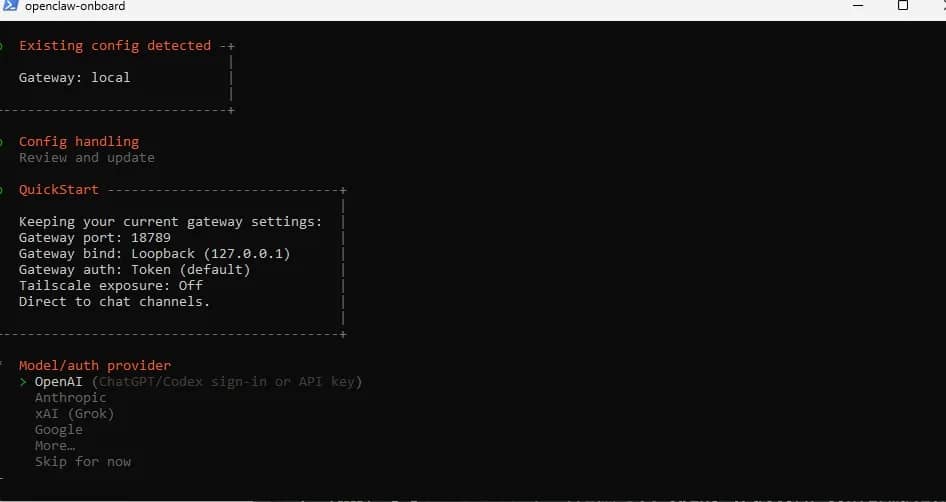
After this, OpenClaw will ask to paste the API key: copy it from the provider's personal account, paste it into the terminal window, and confirm the entry.
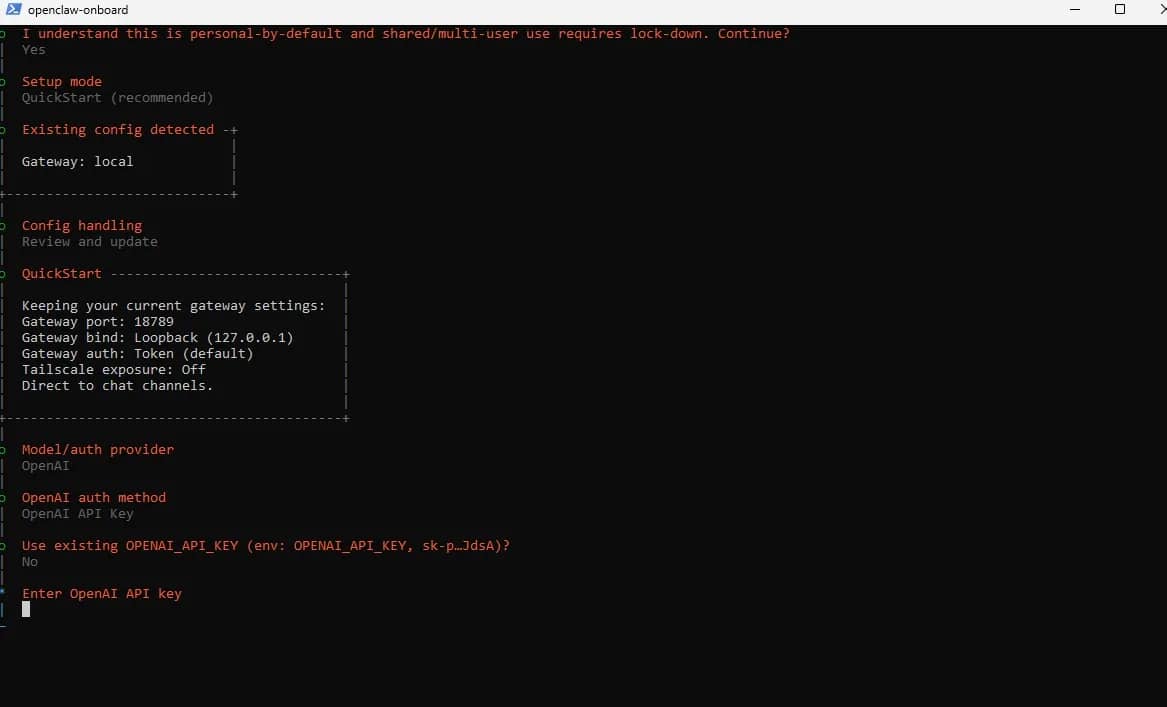
Then OpenClaw will suggest selecting a model to be used by default. For example, for OpenAI these could be GPT models, for Anthropic — Claude, for Google — Gemini, for OpenRouter — one of the models available inside the service.
After completing the configuration, OpenClaw will save the selected provider and model: from this moment, the agent will be able to use cloud AI to perform tasks.
Possible Errors During Installation and Configuration
Even when strictly following the instructions, errors and other issues may arise during the installation of OpenClaw. This is normal for tools that work through terminal, connect external models, use API keys, and depend on the settings of a specific system.
The reasons can be different: an outdated operating system version, access rights restrictions, internet connection issues, conflict with antivirus, incorrectly installed Node.js, errors in environment variables, and many others. If an error occurs in the terminal, do not try to fix it at random. It is better to copy the full text of the error and paste it into any modern chatbot: ChatGPT, Claude, and Gemini. In the prompt, specify that you are installing OpenClaw so that the neural network understands the context.
Also, in a number of cases, you need to write commands in new terminal windows, rather than constantly in the same one, and chatbots will also help you figure this out. On the whole, you can turn to them with any questions, even if you experience difficulties navigating through the sections of the OpenClaw setup wizard.
Precautions When Working with OpenClaw
OpenClaw works as an AI agent: it can access tools, files, the browser, and connected models. Because of this, it is better to configure it carefully: first grant minimum access, verify operation on simple tasks, and only then proceed to more complex scenarios.
For tests, it is advisable to create a separate working folder and a separate browser profile. In the working folder, there should only be those files that the agent is allowed to work with. In the browser profile, you should not store passwords, bank accounts, work accounts, crypto wallets, and other sensitive data. It is best to set up integration not with a regular browser, but with a good antidetect browser: the connection is configured via an extension from OpenClaw.
API keys from OpenAI, Claude, Gemini, OpenRouter, and other services must not be published, sent to strangers, or inserted in screenshots. If the key falls into wrong hands, money on your account can be spent through it.
To verify security settings, you can use the command:
openclaw security audit
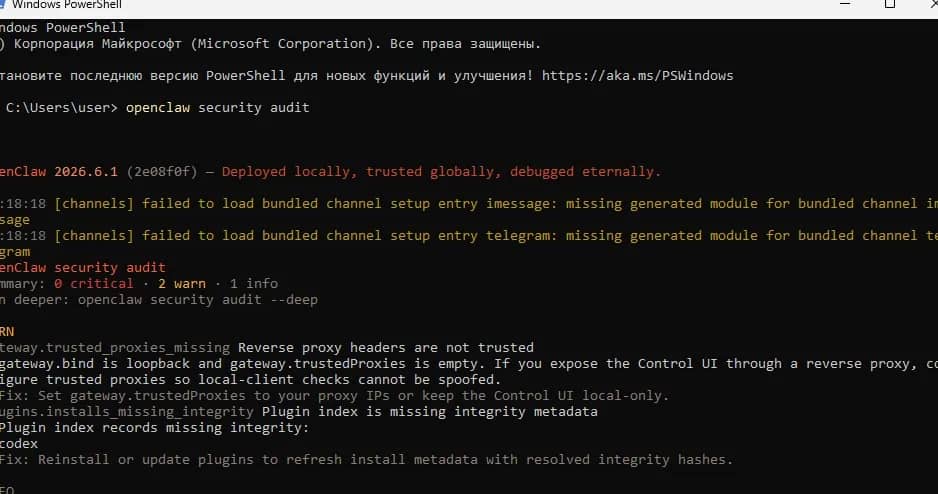
It helps to find potentially dangerous settings, redundant permissions, and issues with access to tools. After connecting new models, changing permissions, or moving OpenClaw to another computer, it is recommended to run such a check again.
When working with cloud models, you need to keep track of expenses. Agentic tasks can consume more tokens than a regular chat because the model performs multiple steps: analyzes the task, plans actions, and verifies the result. In the provider's personal account, it is better to set up limits in advance and regularly check the balance.
Conclusion
OpenClaw is convenient because you can assemble a working environment for your own tasks: a local model is enough for some for simple scenarios, while for others it is more important to connect cloud AI for more complex automation. In both cases, the logic remains the same: install OpenClaw, go through the initial setup, select or download a model, and verify the agent on a safe test task.
The main thing is not to perceive the AI agent as a fully autonomous program that can be immediately trusted with any actions on the computer. Its work should be controlled, especially when accessing files, the browser, the terminal, API keys, and paid cloud models.
Frequently asked questions
- For a standard installation via script, a beginner usually only needs to follow the installer prompts. When installing via npm, Node.js is required beforehand. The official OpenClaw documentation recommends Node.js 24, and Node 22.19+ is also supported. You can check the installed version with the node --version command.
- Gateway is a background component of OpenClaw through which the agent accesses the interface, models, tools, and connected channels. After installation, it must be launched and verified. The openclaw gateway status command is used for this in the documentation.
- Yes. OpenClaw can be connected to various communication channels. The official Getting Started mentions Telegram, Discord, Slack, WhatsApp, Signal, Matrix, Microsoft Teams, Zalo, and other options.
- This is an automatic mode of OpenRouter which itself selects the appropriate model for the request, taking into account cost and availability. This option can be convenient for beginners who do not want to manually select a specific model yet.
Why Google Blocks Accounts and What Your Antidetect Has to Do With It
Google has once again complicated the mechanisms of digital identification by deploying a new, more sophisticated layer of protection based on proprietary HTTP headers. This quiet change caught most of the market off guard, triggering a wave of rushed updates. While others hastily released superficial 'fixes', we realized that we were dealing not with a minor issue but with a fundamental shift that required deep and comprehensive analysis.
SOCKS vs HTTP Proxy: What’s the Real Difference and Which One to Choose?
There are times when you don’t want a website to link the request back to your device. That’s where a proxy comes in, it acts like a middle layer and sends the request for you. The site sees the proxy’s info instead of yours. It’s a go-to trick when you’re trying to see a page that’s not available in your region, pull content that’s restricted by location, or avoid hitting a wall when sending lots of requests.

The Best Alternative to OBS Studio
Working with a webcam on many online platforms can turn into a real challenge. A strict oval or rectangular frame appears on the screen, but your image doesn’t align perfectly with it. As a result, the system blocks further progress, demanding perfect alignment, and your workflow is disrupted before it even begins.