
How to transfer cookies to an antidetect browser
When working with an antidetect browser, it is important that the profile looks like a regular account with a history. During operation, the browser gradually accumulates sessions, site settings, and other user data. One of the main sources of such information for sites is cookie files. It is through them that active sessions, authorization data, and part of the profile's browser history are usually transferred.
In this article, we will show how to prepare cookies for transfer, choose the right format, and upload data to the antidetect without damaging the file structure.
What cookies are and how they work
Cookie files are small fragments of text data that the web server exchanges with the client's browser. It is cookies that made the modern functioning of websites possible: automatic login to accounts, saving settings, interface personalization, and many other features that are perceived as standard today.
How cookies and data transfer work
On a technical level, the process looks like this: when you first open a site, the server generates a unique session identifier and sends it in the Set-Cookie response header. The browser receives this header, saves the data to a local database (for example, the SQLite Cookies file in the profile directory), and attaches the Cookie header with the saved information to every subsequent request to the same domain.
The structure of a classic cookie file includes a name, value, domain, path, expiration time, and security flags — Secure, HttpOnly, SameSite. For example, the HttpOnly flag is critically important: it prohibits access to cookies via client-side JavaScript scripts, protecting the session from XSS attacks.
Classification of cookie files
Not all cookies are equally useful when transferring or exporting data. Some are responsible for authorization, others — for analytics, advertising, or user settings:
- Session cookies. They live only until the browser is closed. They often store intermediate information, for example, items in an unauthorized user's cart. When exported, they are usually lost.
- Persistent cookies. They remain in the browser even after the site is closed and work until the specified expiration date. Usually, they are the ones responsible for maintaining authorization, user settings, and the "Remember me" feature.
- Third-party cookies. They are created not by the site itself, but by external services connected to the page: advertising networks, analytics, or tracking pixels. It is through them that data on user behavior across different sites is collected.
Why transfer cookie files
Cookie export is used to save the browser session and user history between different devices or profiles.
How cookies help pass anti-fraud checks
The security systems of Google, Facebook, TikTok, and major platforms analyze hundreds of parameters. When a profile has spoofed fingerprints, but completely lacks cookies and accumulated browsing history, it can look suspicious.
Importing pre-prepared cookies is used to make the browser look like the device of a real user with accumulated browsing history.
Seamless authorization and multi-accounting
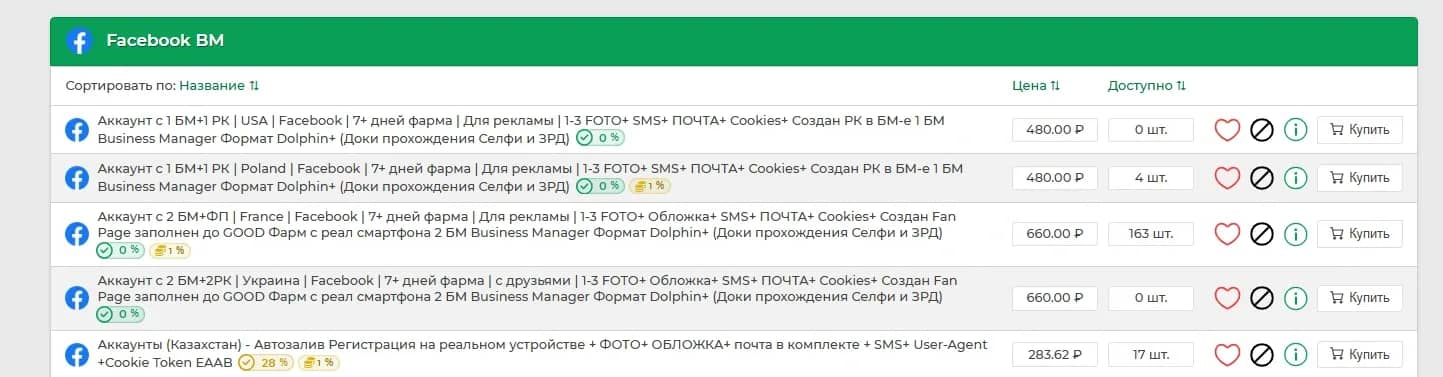
When buying ready-made accounts (farmed, auto-registered, logs), sellers deliver them as an archive containing a login, password, and a cookie file. Importing this file makes it possible to log into the account without entering credentials.
Modern platforms are extremely sensitive to new authorizations. When a user enters a login and password from an unknown device, the security system starts analyzing dozens of parameters: IP address, geolocation, browser fingerprint, cookies, activity history, and behavioral signals. Any discrepancy can lead to the launch of additional checks or a temporary session block.
Session cookies help avoid some of these problems, because the server perceives them as a continuation of an already existing trusted session. For the platform, it looks like the typical return of a user to a familiar browsing environment.
Security risks: session hijacking
Session cookies greatly simplify authorization work, but at the same time, they are one of the main targets for hackers. If an attacker gains access to such files, they can effectively "hijack" an already existing session and log into the account without going through standard authorization.
Cookie export procedure from regular browsers
Standard tools in Google Chrome, Mozilla Firefox, and Safari do not allow quick cookie export in a convenient format through the regular browser interface. This approach is not used by chance: developers restrict direct access to session data to reduce the risk of its theft through phishing, malicious extensions, or the actions of inexperienced users. Therefore, separate browser extensions and specialized tools are usually used to work with cookie export.
Popular tools for exporting
Most often, the following extensions are used for exporting cookies:
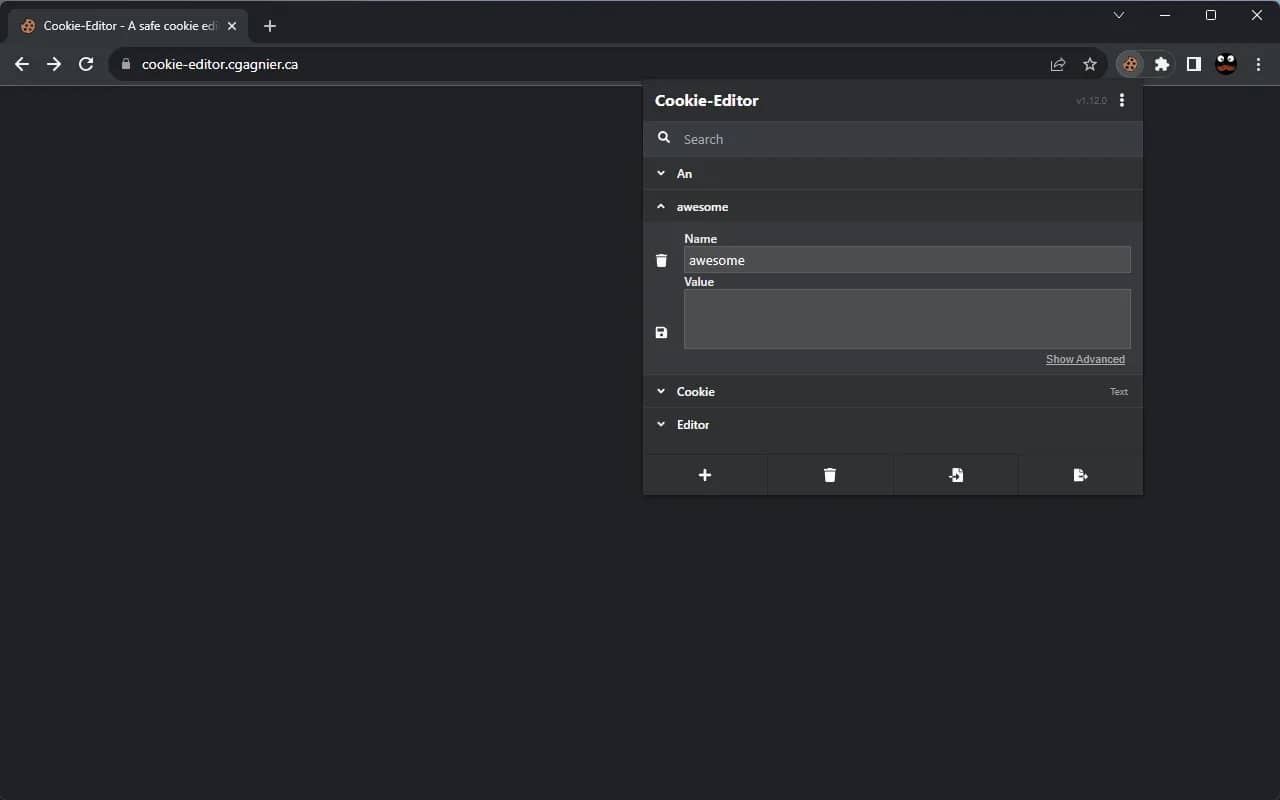
- Cookie-Editor — a popular extension for working with cookies. You can export, import, and manually edit browser session data. Through it, you can change cookie values, expiration dates, domains, and individual storage parameters.
- EditThisCookie — one of the most famous extensions for managing cookies in Google Chrome and other Chromium browsers. The plugin allows you to view, create, edit, delete, import, and export cookies right through the browser interface.
- Get cookies.txt LOCALLY — an extension tailored for clean export of cookie files in Netscape (txt) format. Optimal for old software and checkers that do not support JSON arrays.
Data formats: JSON vs. Netscape
Different tools and browsers use their own cookie import standards, so the file format upon export makes a big difference.
JSON (JavaScript Object Notation). A modern data storage format with a clear structure. Cookies in it are written as separate objects with parameters: name, value, domain, expiration date, and security flags. This format is well suited for automatic data processing and is used by most modern antidetect browsers and session managers.
Netscape (txt). This is an old text format for storing cookies, where all data is written line by line and separated by tabs. Despite its age, it is still supported by many browser tools and old software.
Cookie export algorithm using Chrome and the Cookie-Editor extension as an example
The whole process takes literally a few minutes. The procedure is as follows:
- Open the desired site in the Chrome browser.
- Install the Cookie-Editor extension from the Chrome Web Store.
- Pin the extension icon to the browser toolbar.
- While on the site tab, click the Cookie-Editor icon.
- In the window that opens, a list of all cookies for the current domain will appear.
- Click the Export button.
- Select the Export as JSON format for maximum compatibility.
- Copy the obtained data and save it in a text file with a .json or .txt extension.
For Firefox, the procedure is absolutely identical; extensions are available in the Mozilla Add-ons directory. If you need to export cookies from all sites at once, rather than just the active tab, use the mass export features in the settings of the extensions themselves.
How to import cookies into an antidetect browser using Linken Sphere as an example
Linken Sphere supports importing cookies in both JSON and Netscape TXT formats.
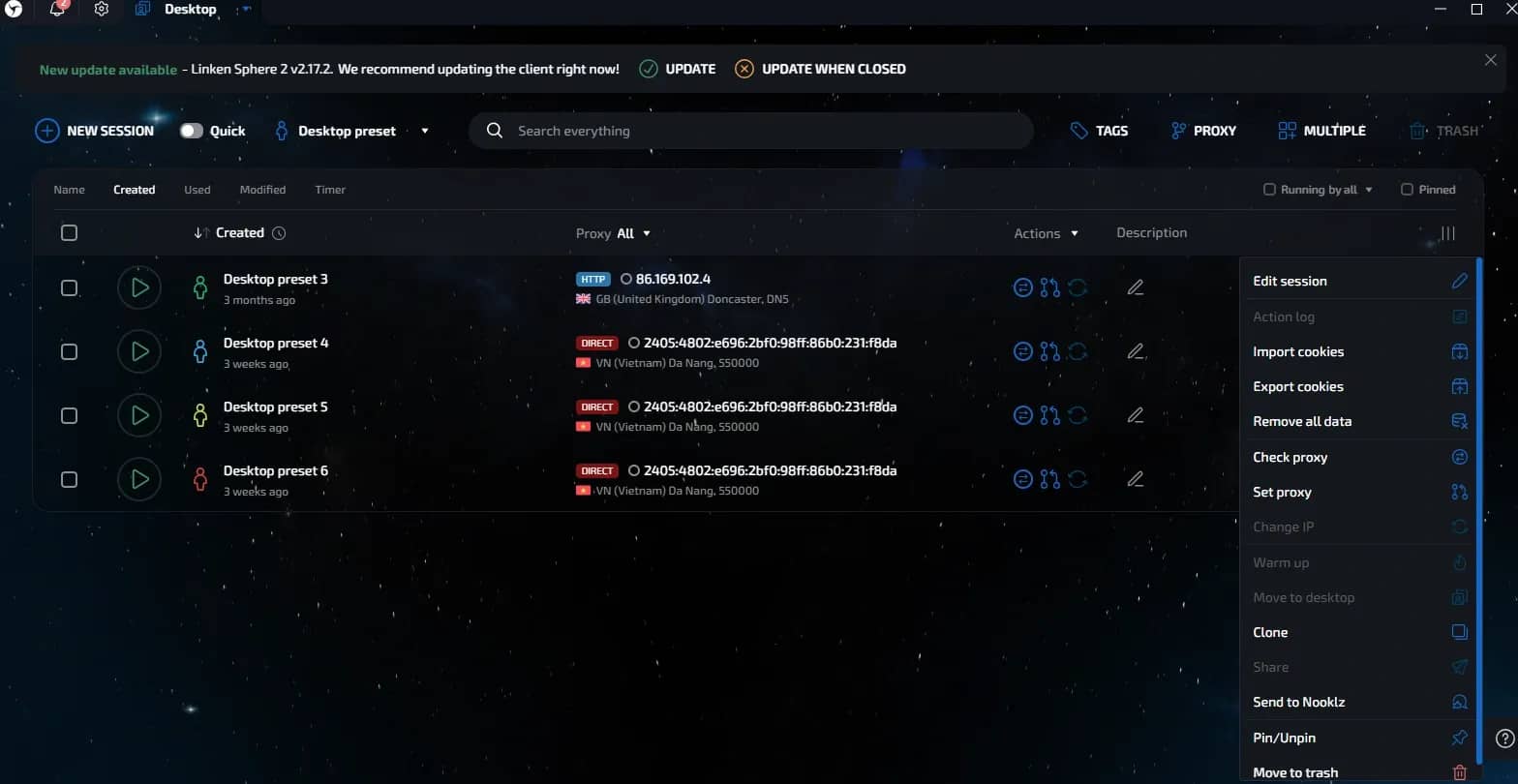
After authorizing in Linken Sphere, find or create the profile into which you want to load the cookies. Then, in the row of the desired session, click on the three dots on the right: the action menu for the profile will open, where you need to select the Import cookies option.
The cookie file import window will open. In the center of the screen, you will see the Browse file button: click on it and select the previously saved cookie file from your computer or simply drag and drop it directly into the import window.
The second option is to paste the cookies manually as text. To do this, simply copy the contents of the .json or .txt file and paste it into the field inside the import window using Ctrl + V. This method is convenient if the cookies are stored in a text editor or were transmitted without a separate file.
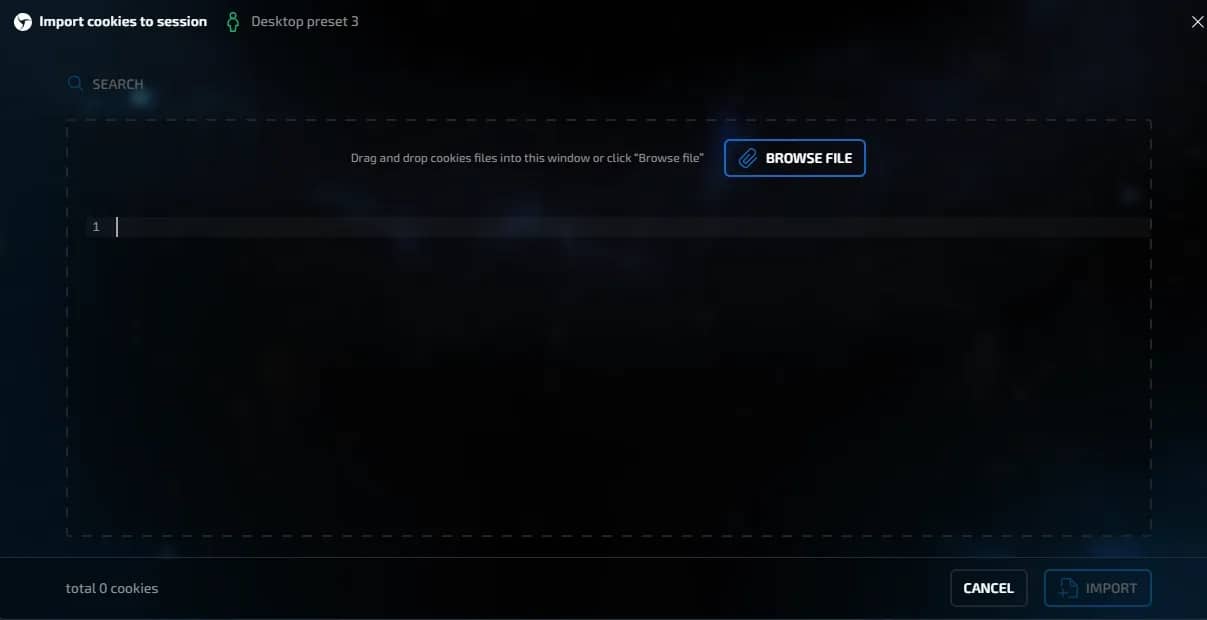
After loading or pasting the data, the Import button at the bottom will become active. Click it to save the cookies inside the selected profile. Then launch the profile and open the desired site. If the cookies are working and the server has not reset the session, the account will open already authorized without the need to re-enter the login and password.
Common errors when loading cookies
Despite the simple import mechanics, errors regularly occur when working with cookies. Most often, problems are associated with the file format, a corrupted data structure, or an already inactive session.
JSON format errors and import problems
One of the most frequent situations is the antidetect issuing an error when loading cookies or not seeing the file at all. Usually, messages like appear: "Cookies must be in JSON or Netscape format" or "Failed to parse cookies".
In most cases, the problem is caused by a corrupted JSON file structure. For example, when copying, a comma, quote, or closing bracket is accidentally deleted. Sometimes the error appears after manually editing the file through a text editor.
You can check this via any JSON validator. It is enough to paste the file contents into a JSON validation service: it will immediately show the place of the error in the structure.
Some Chrome versions automatically add new system fields to cookies, such as partitionKey. Because of this, old importers and some antidetect browsers may misread the file structure and reject working cookies.
Typically, the problem is solved manually: the file is opened through a text editor and the blocks with partitionKey are deleted via search and replace.
Issues with loading a file in Windows
Sometimes the antidetect browser accepts the file without errors, however, after launching the session, the site still requires a login and password. There are also situations when the import simply does not work visually.
The problem is sometimes related not to the cookies, but to the location of the file inside Windows. Some antidetect browsers poorly process paths with Russian characters or non-standard folder names. For example, a path like this might cause errors:
C:\Users\Александр\Desktop\cookies.json
In such a situation, it is easiest to move the file closer to the root of the drive, for example:
C:\cookies.json
In many cases, it is easier to refuse loading the file and paste the cookies manually. To do this, simply open the .json or .txt file using a text editor, copy the contents, and paste it into the import window.
Cookies were imported, but the site asks for a login and password
A fairly common situation: cookies load normally, but after opening the site, the account remains logged out.
Usually, the reason is that the server has already invalidated the cookies. For example:
- the session token's lifetime has expired;
- the account owner logged out from all devices;
- the password was changed;
- the platform reset the session due to suspicious activity;
- the account was simultaneously used on multiple devices or was resold.
It is important to understand that it is impossible to "revive" expired cookies. If the server has deleted or reset the session, it is no longer possible to restore it by editing the file. In this case, the only option left is to re-authorize using a login, password, and 2FA.
At the same time, you still shouldn't delete old cookies right away. Even inactive data can act as part of the browser history and make the profile less "empty" for anti-fraud systems.
Conclusion
Modern anti-fraud systems evaluate the browser comprehensively, so cookies have become an important part of working with multi-accounting. Properly transferring sessions helps preserve activity history, reduce the amount of suspicious signals, and make the profile more natural for the platform. At the same time, any errors in the cookie structure or incorrect import can lead to authorization loss and additional checks from services.
Frequently asked questions
- Technically, yes, the JSON format allows you to glue two arrays together in any text editor. But in practice, this is a direct path to an account ban. Anti-fraud systems will instantly see conflicting authorization tokens and incompatible behavior patterns within a single session. Data must always belong to one isolated profile.
- The cookie file itself does not contain hidden marks of manual import. For the server, it is just a set of text keys and values. The risk lies elsewhere: if your cookies are dated last year, and there is not a single click in the browser history over the last couple of months, the algorithms will regard this time gap as a severe anomaly and mark the profile as suspicious.
- No, cookies are exclusively text data for authorization and traffic attribution. Hardware fingerprints, fonts, and the User-Agent are generated by the antidetect browser itself. Therefore, the transfer must be accompanied by the proper configuration of a preset so that the hardware does not conflict with the loaded history.
- Absolutely. Otherwise, the server will simultaneously receive two different user identifiers, which will lead to an immediate connection termination. Before loading a fresh array, always delete old cookies through the profile data settings.

Why Google Blocks Accounts and What Your Antidetect Has to Do With It
Google has once again complicated the mechanisms of digital identification by deploying a new, more sophisticated layer of protection based on proprietary HTTP headers. This quiet change caught most of the market off guard, triggering a wave of rushed updates. While others hastily released superficial 'fixes', we realized that we were dealing not with a minor issue but with a fundamental shift that required deep and comprehensive analysis.

SOCKS vs HTTP Proxy: What’s the Real Difference and Which One to Choose?
There are times when you don’t want a website to link the request back to your device. That’s where a proxy comes in, it acts like a middle layer and sends the request for you. The site sees the proxy’s info instead of yours. It’s a go-to trick when you’re trying to see a page that’s not available in your region, pull content that’s restricted by location, or avoid hitting a wall when sending lots of requests.

The Best Alternative to OBS Studio
Working with a webcam on many online platforms can turn into a real challenge. A strict oval or rectangular frame appears on the screen, but your image doesn’t align perfectly with it. As a result, the system blocks further progress, demanding perfect alignment, and your workflow is disrupted before it even begins.