
How to Manage Linken Sphere from Chat with MCP
hen you discuss a task with an AI assistant, the chat already contains your requirements, clarifications, and decisions. We built our own MCP server for Linken Sphere so the same assistant can pick up where you left off and work directly with the browser. It can check the current session settings, carry out your request, and use the result to inform its next response. And because MCP (Model Context Protocol) is an open protocol, you can choose which assistant to work with.
The Linken Sphere browser can be managed from Codex, Claude Code, Cursor, GitHub Copilot in VS Code, and other AI assistants that support local MCP servers.
A visual example of how it works
Create two sessions from the active preset on the current desktop. Name them "Catalog" and "Cart". Launch only the "Cart".
Then compare these two sessions by OS settings, browser version, and screen resolution. Show only the differences.
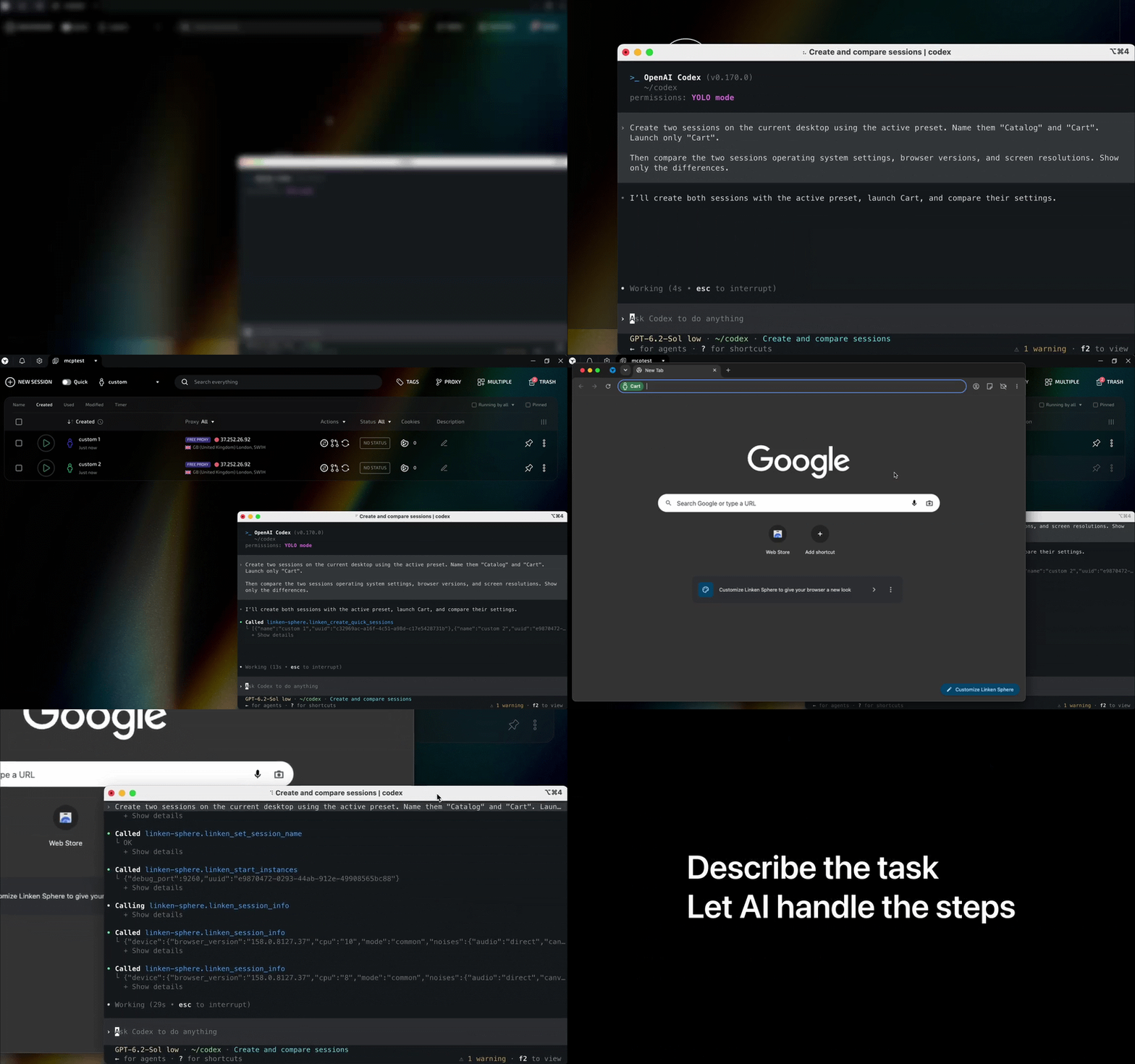
Both sessions appear on the desktop. The "Cart" window opens, while the "Catalog" remains stopped. You can immediately compare their settings in the same chat.
In our example, the OS and browser version matched. Only the screen resolution differed — 2560x1600 for the "Catalog" and 4480x2520 for the "Cart". To find this out, we didn't even have to open the session settings.
When you need to work with the mobile version of a site, ask the agent to create a session using your mobile preset, set the required proxy, and check the connection before launching.
If you need to send a session to a colleague to continue working, this can be done through the same chat. Here you can also ask the agent to show the latest entries in the action log of this session.
How to connect Linken Sphere MCP
You will need Node.js version 20 or higher and an AI assistant with support for local MCP servers. Launch Linken Sphere on the same computer where the MCP server will run, log into your account, and copy the value of the Api port field from the general browser settings.
To connect in Cursor, save the configuration below in the `~/.cursor/mcp.json` file, replacing `40080` with your port. If the file already has an `mcpServers` section, add only the `linken-sphere` entry to it.
```json
{
"mcpServers": {
"linken-sphere": {
"command": "npx",
"args": ["-y", "linken-sphere-mcp@latest", "--linken-port", "40080"]
}
}
}
```
Restart the MCP client. On the first launch, `npx` will download the Linken Sphere MCP package. On subsequent restarts, `@latest` will allow you to get the latest version.
Start with the message "Show my desktops". Select a desktop from the response and write which sessions to create on it and which one to open first. The assistant will prepare them in Linken Sphere according to your description.
Conclusion
With Linken Sphere MCP, you can automate your work without scripts. Describe the task just as you would assign it to a colleague — which preset to take, what to check before launching, and which session to open. The check result will appear in the chat, and the selected session will open in the browser.
Frequently asked questions
odex, Claude Code, Cursor, and GitHub Copilot in VS Code will work. You can also use another assistant if it supports local MCP servers.
Type "Show my desktops". If your desktops appear in the response, the connection is working. If the request fails, check that Linken Sphere is running on the same computer as the MCP server, you are logged into your account, and the port in the MCP configuration matches the Api port value in the general browser settings.
It is enough to specify the name you see in Linken Sphere. For example, type "Open the 'Cart' session". The assistant will find its ID on its own. You can also refer to desktops and presets by name in the same way.
Specify the preset, session names, and which one to open in a single message. For example, "Create two sessions from the active preset on the current desktop. Name them 'Catalog' and 'Cart'. Launch only the 'Cart'."
You do not need to launch sessions to compare their settings. Type "Compare 'Session_1' and 'Session_2' by OS, browser version, and screen resolution. Show only the differences", specifying your session names. The result will appear in the chat.
Name the mobile preset, specify the required proxy, and ask the assistant to check the connection before launching. If you want to see the result first, add "Show the check result in the chat and wait for my command to launch".

Why Google Blocks Accounts and What Your Antidetect Has to Do With It
Google has once again complicated the mechanisms of digital identification by deploying a new, more sophisticated layer of protection based on proprietary HTTP headers. This quiet change caught most of the market off guard, triggering a wave of rushed updates. While others hastily released superficial 'fixes', we realized that we were dealing not with a minor issue but with a fundamental shift that required deep and comprehensive analysis.
SOCKS vs HTTP Proxy: What’s the Real Difference and Which One to Choose?
There are times when you don’t want a website to link the request back to your device. That’s where a proxy comes in, it acts like a middle layer and sends the request for you. The site sees the proxy’s info instead of yours. It’s a go-to trick when you’re trying to see a page that’s not available in your region, pull content that’s restricted by location, or avoid hitting a wall when sending lots of requests.
The Best Alternative to OBS Studio
Working with a webcam on many online platforms can turn into a real challenge. A strict oval or rectangular frame appears on the screen, but your image doesn’t align perfectly with it. As a result, the system blocks further progress, demanding perfect alignment, and your workflow is disrupted before it even begins.