Passkeys in Linken Sphere for Secure Passwordless Login
Traditional passwords are vulnerable to leaks and phishing, while one-time codes slow down the login process and rely on SMS or email. When working with a large number of accounts, this kind of authorization quickly turns into a routine.
Meet Passkeys — a built-in cryptographic key storage in Linken Sphere with cross-device synchronization. Passwordless authorization that is resistant to hacking and significantly increases session trust.
What is a Passkey
A passkey is a cryptographic key for logging into a website without a password.
During registration, a key pair is created. The private key remains in the encrypted Linken Sphere storage, while the public key is saved on the website's side. During authorization, the website sends a request that can only be confirmed using the private key. After this, access to the account is granted without entering a password or a one-time code.
Passkeys are resistant to phishing: the key is linked to the website's domain and will not work on a fake page. At the same time, the website does not store a shared secret that could be stolen from a database and reused.
Why Passkeys are becoming the standard
The technology is already supported by Apple, Google, Microsoft, major browsers, and third-party password managers. Against this backdrop, phishing, automated attacks, and the cost of account recovery are growing. For websites, Passkeys mean fewer account takeovers, faster logins, and fewer support requests. According to the FIDO Alliance, around 5 billion Passkeys will be in use by 2026.
For security systems, a Passkey also confirms user control over the account at every login. In scenarios where a website takes this signal into account, regular authorization using a registered key looks more natural than constantly entering a password.
How to use Passkeys
The built-in storage is available to all users of the current version of Linken Sphere and requires no additional configuration.
- Create a key. Open the Passkey settings on the desired website and select LS from the list of available storages.
- Log in to the account. During your next authorization on this website, select the required Passkey from the list.
You can manage keys in the session settings: Access management > Passkeys.
Here you can change the name of the key for convenience, view the domain for which the key was issued, or delete outdated records.
The name is visible only in Linken Sphere and is not transmitted to the website, so changing it does not affect the key's operation.
Synchronization under your control
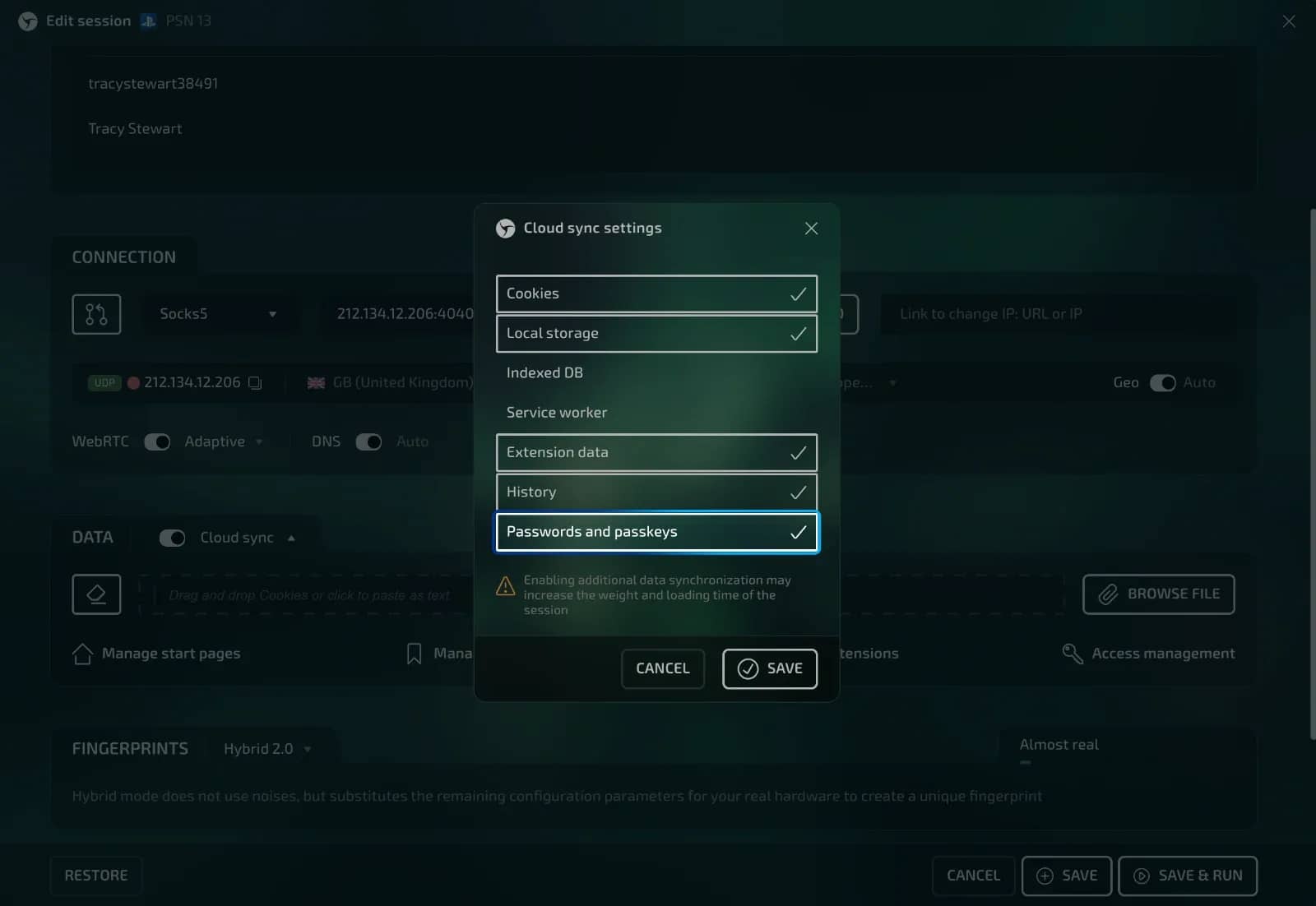
Passkeys are synchronized along with the Passwords and passkeys storage. As with other profile data, Linken Sphere allows you to manage each data type separately.
Enable synchronization if you need to continue working with the same keys across multiple devices. If you work with sensitive accounts or crypto wallets, disable the upload of Passwords and passkeys to the server. In this mode, keys and passwords remain only on your local computer.
You choose which data should be available across devices and which should remain local. For additional protection, continue to follow basic security rules and control access to the computer itself.
Flawless emulation
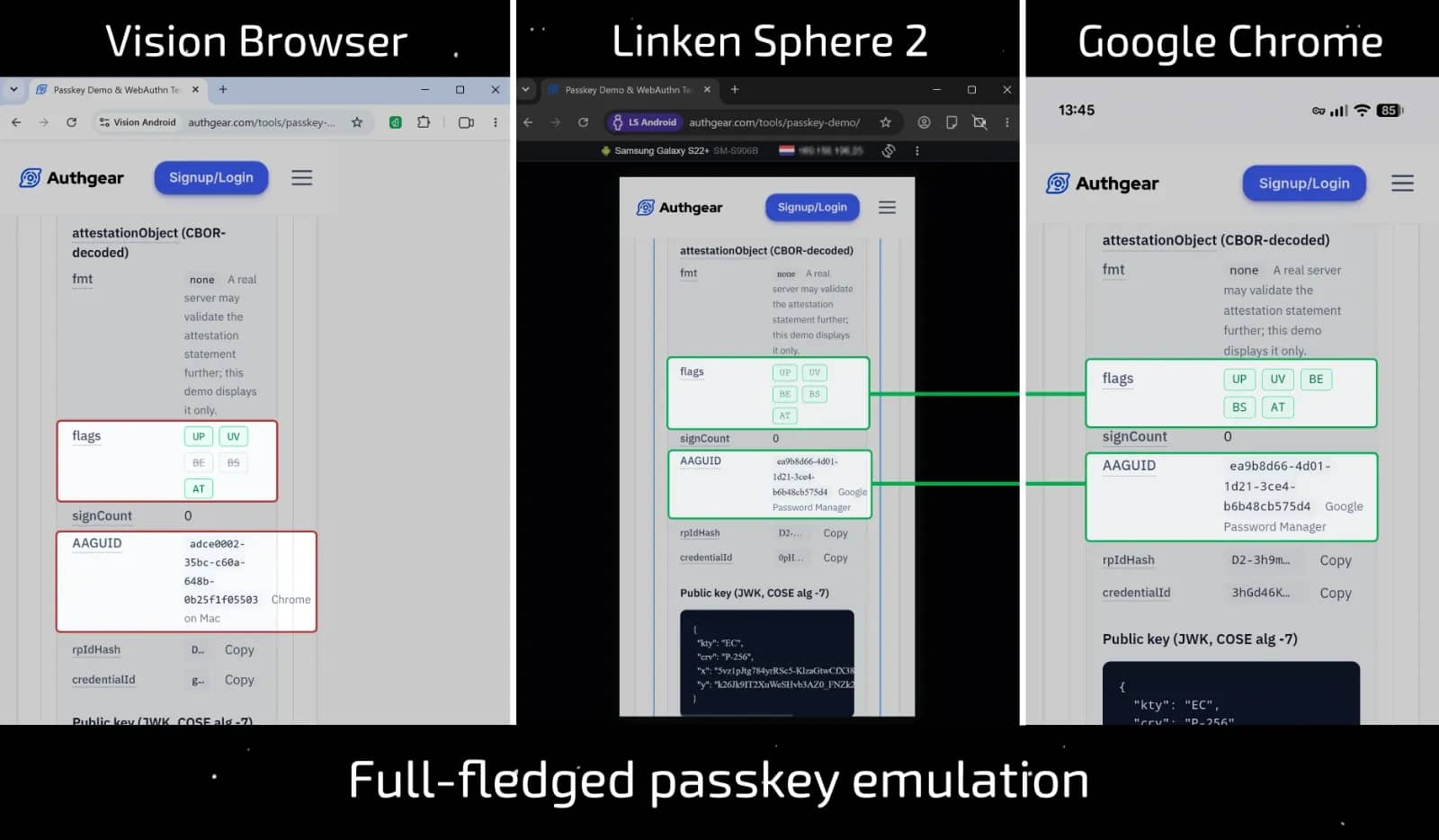
Superficial support for Passkeys is not enough: security systems can detect mismatches in the flags and behavior of the emulated authenticator. Therefore, Linken Sphere reproduces not only the fact of key creation itself but also the mechanics of popular storages used by regular devices.
The system automatically selects the authenticator for emulation depending on your session's platform. For Windows, this will be Windows Hello, for macOS and iOS — Apple Passwords, and for Android — Google Password Manager.
Along with the storage name, its characteristic parameters, flags, and behavior during the authentication process are emulated. Passkeys work on desktop and mobile configurations of Android and iOS without manual provider selection.
You can check the result yourself on the Passkey Demo by Authgear. Create a key in a new session and examine attestationObject: the authenticator identifier, flags, and behavior will match the selected configuration.
Conclusion
Passkeys replace outdated passwords and SMS codes. Linken Sphere stores keys inside the session, synchronizes them according to your rules, and automatically matches the authenticator to a real device.
You get instant login to websites, reliable protection against phishing, and maximum trust from security systems. Fewer checks. More successful authorizations.
Frequently asked questions
- A passkey is a cryptographic key for secure passwordless login. During registration, a key pair is created: the private key is stored in Linken Sphere, and the public key is on the website. It is impossible to steal such a key from the website's database.
- No. In the current version of Linken Sphere, passkey storage is available to all users immediately. When creating a passkey on a website, select LS.
- No. Linken Sphere automatically selects the authenticator based on the OS and session configuration type, including the corresponding flags and behavior.
- Open the session settings and go to Access management > Passkeys. There you can change the key's name, check its domain, or delete the record.
- Yes. You can disable cloud synchronization for the password and Passkey storage. In this case, the keys will be stored exclusively on your local computer, which completely eliminates the risks of cloud leaks.
- No. The name is used only for navigation in the Linken Sphere interface and is not transmitted to the website.
Why Google Blocks Accounts and What Your Antidetect Has to Do With It
Google has once again complicated the mechanisms of digital identification by deploying a new, more sophisticated layer of protection based on proprietary HTTP headers. This quiet change caught most of the market off guard, triggering a wave of rushed updates. While others hastily released superficial 'fixes', we realized that we were dealing not with a minor issue but with a fundamental shift that required deep and comprehensive analysis.
SOCKS vs HTTP Proxy: What’s the Real Difference and Which One to Choose?
There are times when you don’t want a website to link the request back to your device. That’s where a proxy comes in, it acts like a middle layer and sends the request for you. The site sees the proxy’s info instead of yours. It’s a go-to trick when you’re trying to see a page that’s not available in your region, pull content that’s restricted by location, or avoid hitting a wall when sending lots of requests.
The Best Alternative to OBS Studio
Working with a webcam on many online platforms can turn into a real challenge. A strict oval or rectangular frame appears on the screen, but your image doesn’t align perfectly with it. As a result, the system blocks further progress, demanding perfect alignment, and your workflow is disrupted before it even begins.