Sticky Notes in Linken Sphere for Session Notes
When actively working with profiles, it is important to always keep credentials, tokens, or instructions at hand. Constantly switching between the main program window, third-party notepads, and the browser breaks focus and wastes time. Third-party browser extensions for notes also do not solve the problem — they change the page viewport size and take the browser window out of focus, which is instantly detected by anti-fraud systems.
Now everything you need is inside the session. Without unnecessary switching.
This is Sticky Notes — a built-in interactive notes window right inside the active session. All the necessary information is now always right in front of your eyes.
How Sticky Notes Works
The note works in conjunction with the session's Description field. Any text changes are instantly synchronized in both directions in real time.
To access your notes, simply click the Sticky Notes button in the upper right corner of the active session, next to the video stream spoofing icon.
The note window can be freely moved around the screen, resized, minimized, or completely hidden. Linken Sphere will remember the specified position and scale parameters for each specific session — you won't have to configure the interface again the next time you launch the profile.
Advantages of Sticky Notes
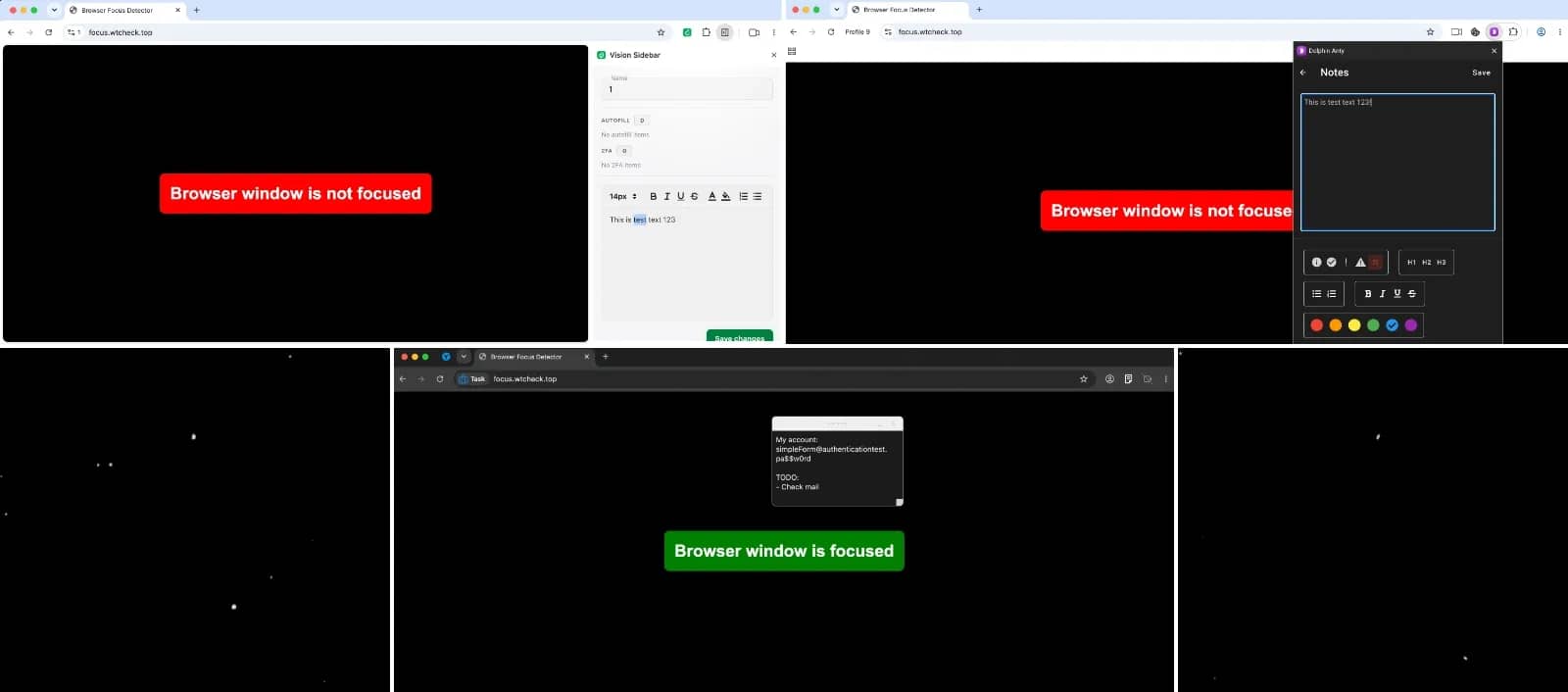
Safe for anti-bot systems. Unlike custom browser extensions and sidebars, interacting with Sticky Notes does not take the page out of focus and does not affect the size of its visible area (viewport) in any way. From the point of view of website protection, your behavior remains exemplary and does not differ from the behavior of a regular user. You can verify this yourself at https://focus.wtcheck.top/.
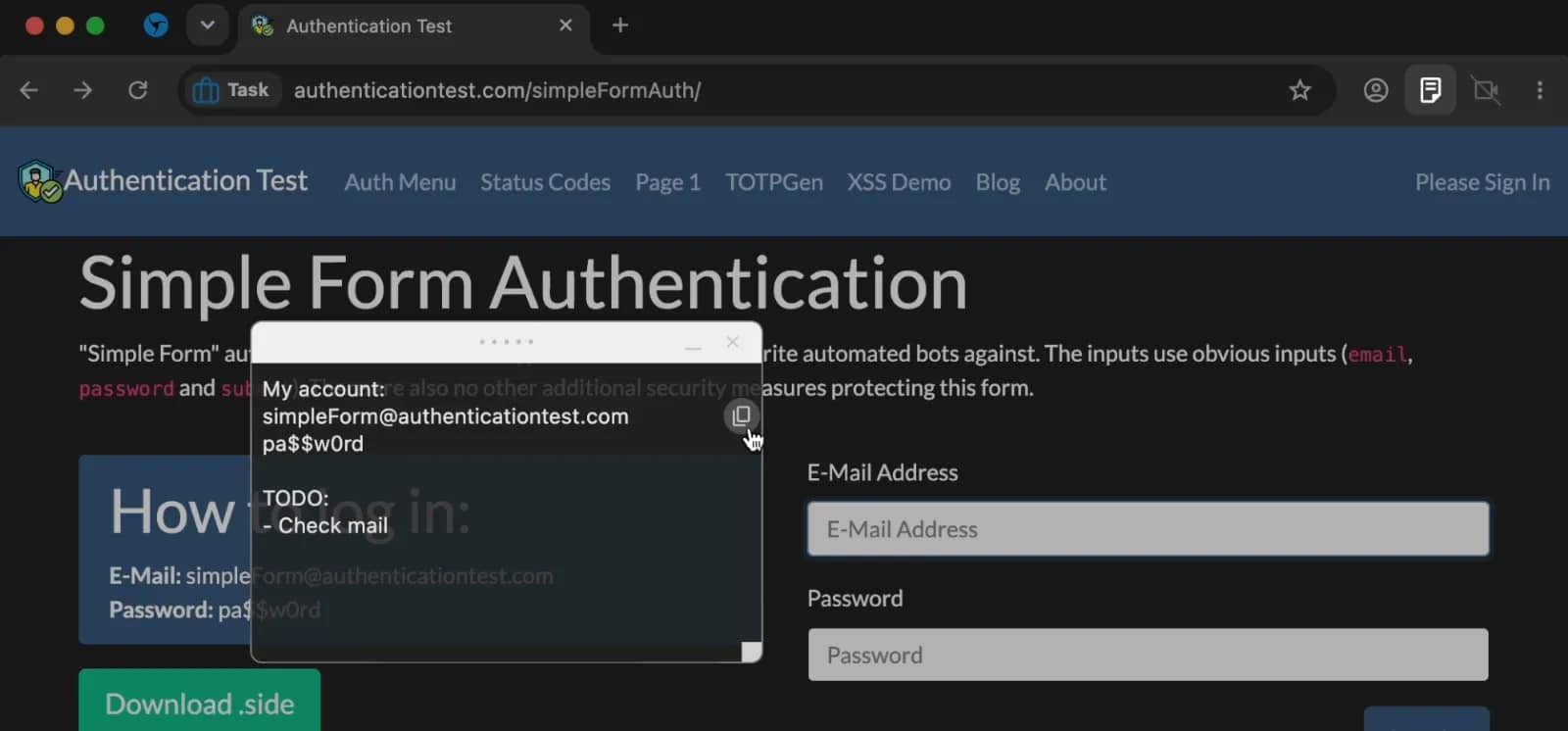
One-click line-by-line copying. No more manual text selection. Hover your cursor over any line in the note — a button will appear to instantly copy it. Ideal for quickly pasting logins, passwords, or tokens into websites using human-like input (HLI).
Configuring Sticky Notes
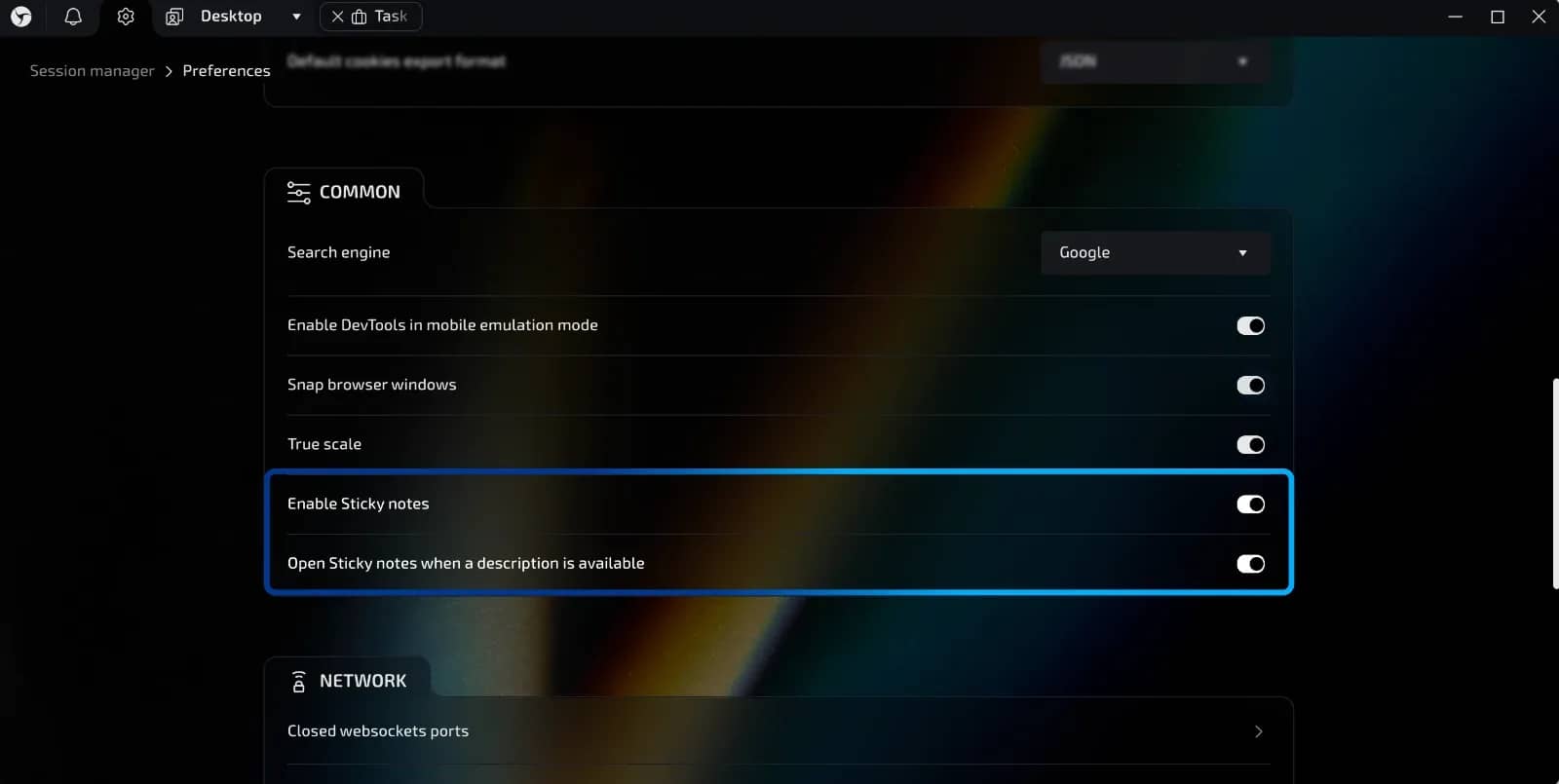
The Sticky Notes feature is activated by default for all users on current versions of Linken Sphere.
You can manage the options in the global program settings (click on the gear icon in the upper left corner > Common):
- Enable Sticky Notes — fully enables or disables the feature.
- Open Sticky notes when a description is available — automatically opens the note window when starting a session if the Description field has been previously filled out for it.
Conclusion
Sticky Notes eliminates unnecessary switching between windows. The data you need is always at hand, and the session remains reliably protected from anti-bot system checks. Less routine for data transfer. More focus on target tasks. Feel the difference.
Frequently asked questions
- ticky Notes is a built-in notes window inside an active Linken Sphere session. You can open it using the Sticky Notes button in the upper right corner of the session, next to the video stream spoofing icon.
- Yes. Sticky Notes works in conjunction with the Description field: text changes are instantly synchronized in both directions in real time.
- No. Unlike browser extensions and third-party sidebars, Sticky Notes does not change the viewport size or take the page out of focus. The session behavior remains similar to the actions of a regular user.
- Hover your cursor over the desired line. A copy button will appear, allowing you to copy a login, password, token, or other fragment with a single click.
Why Google Blocks Accounts and What Your Antidetect Has to Do With It
Google has once again complicated the mechanisms of digital identification by deploying a new, more sophisticated layer of protection based on proprietary HTTP headers. This quiet change caught most of the market off guard, triggering a wave of rushed updates. While others hastily released superficial 'fixes', we realized that we were dealing not with a minor issue but with a fundamental shift that required deep and comprehensive analysis.
SOCKS vs HTTP Proxy: What’s the Real Difference and Which One to Choose?
There are times when you don’t want a website to link the request back to your device. That’s where a proxy comes in, it acts like a middle layer and sends the request for you. The site sees the proxy’s info instead of yours. It’s a go-to trick when you’re trying to see a page that’s not available in your region, pull content that’s restricted by location, or avoid hitting a wall when sending lots of requests.
The Best Alternative to OBS Studio
Working with a webcam on many online platforms can turn into a real challenge. A strict oval or rectangular frame appears on the screen, but your image doesn’t align perfectly with it. As a result, the system blocks further progress, demanding perfect alignment, and your workflow is disrupted before it even begins.