Unloading (exporting) cookies
You can export cookies from your sessions in several convenient ways:
Method 1: Export via the session context menu
Select the desired session.
Click on the icon with three dots (settings menu).
Select "Export cookies."
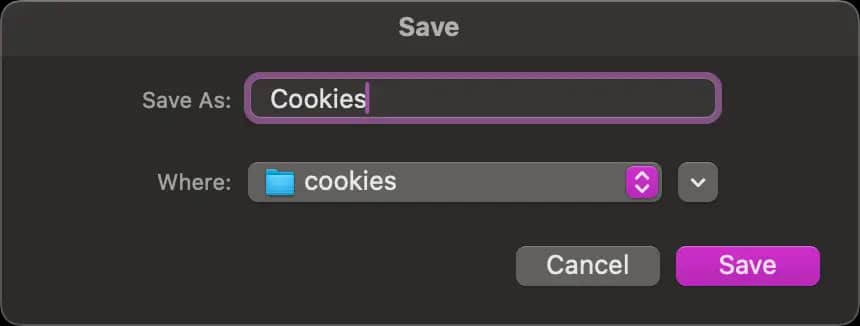
Specify the path where the cookie file will be saved.
Method 2: Direct access to cookies via the Cookies manager
Go to your desktop, where active sessions are displayed.
Find the desired session.
On the right side of the interface, click on the "Cookies" icon (the cookie icon).
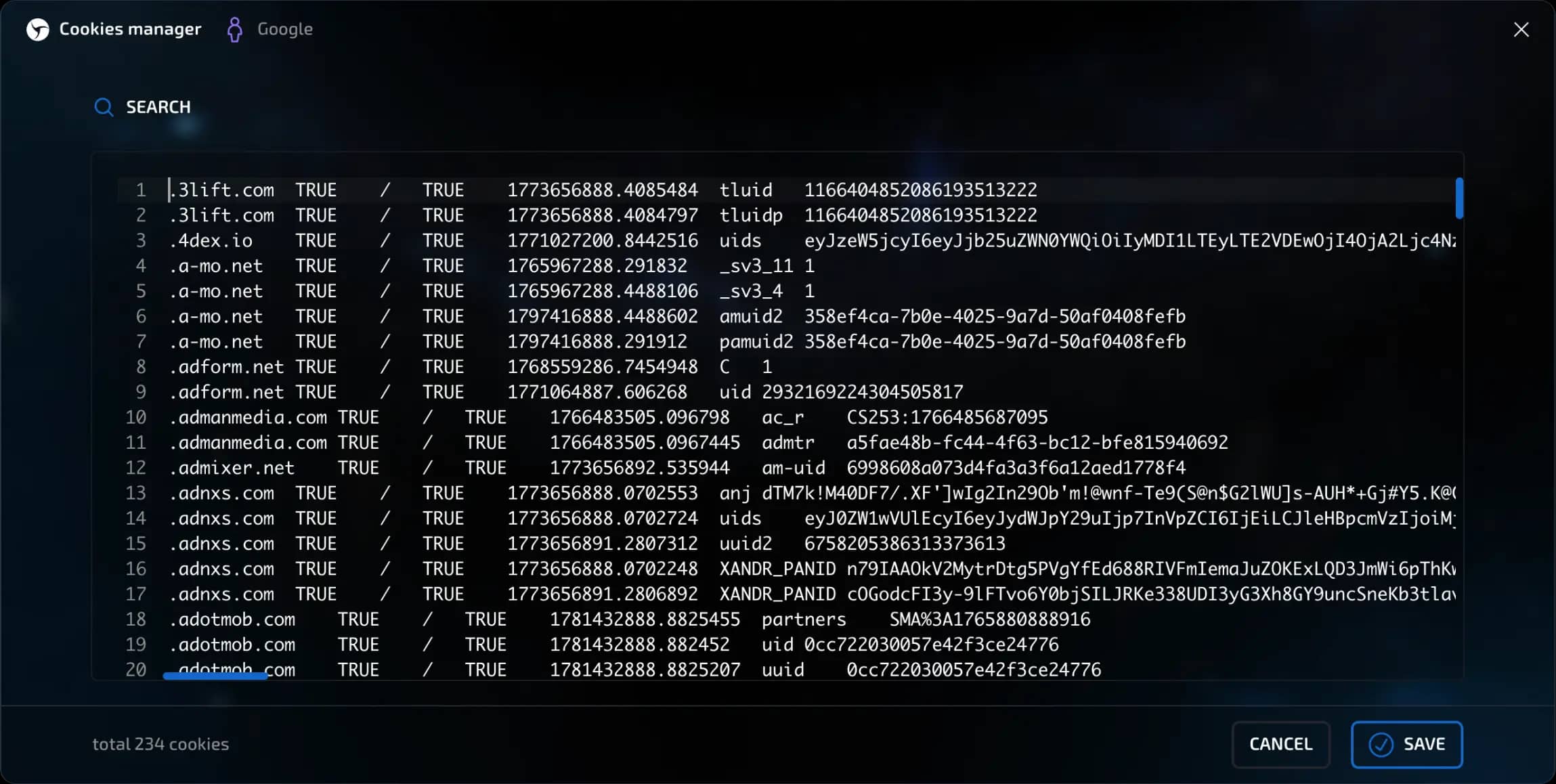
IMPORTANT!!! The cookies manager column is only available if you select the Informative interface setting or if you manually enable the display of this column.A window will open with all the cookies for this session.
Select all cookies in this window using Ctrl+A (Windows) or Cmd+A (macOS), copy and paste them into any convenient text editor.
Method 3: Mass export of cookies
On the desktop, select several sessions by clicking on the checkbox in the upper left corner of the screen.
An action menu will appear at the bottom of the screen.
Click the "All Actions" button.
Select "Export Cookies" and specify the folder where you want to save the files.
All cookies will be exported automatically—a separate file will be created for each session with the session name and cookie export date in the file name.
invisible text for space
Note: Make sure you have the rights to save files to your device and enough free space.

Previous page
Next page