Installation and registration
1. Download the program
Go to the official website: ls.app
Click the “Download” button and select the version for your operating system (Windows, MacOS (ARM), or MacOS (Intel)).
2. Installation
Windows: run the downloaded .exe file and follow the installer's instructions.
MacOS: open the .dmg file and move the application to the Applications folder.
3. Launching the program
After installation, open the Linken Sphere program by double-clicking on the shortcut.
4. Registering in the application
When you launch the program for the first time, a login window will open.
Click the “Register” button.
Enter your email address, create a password, and confirm your registration.
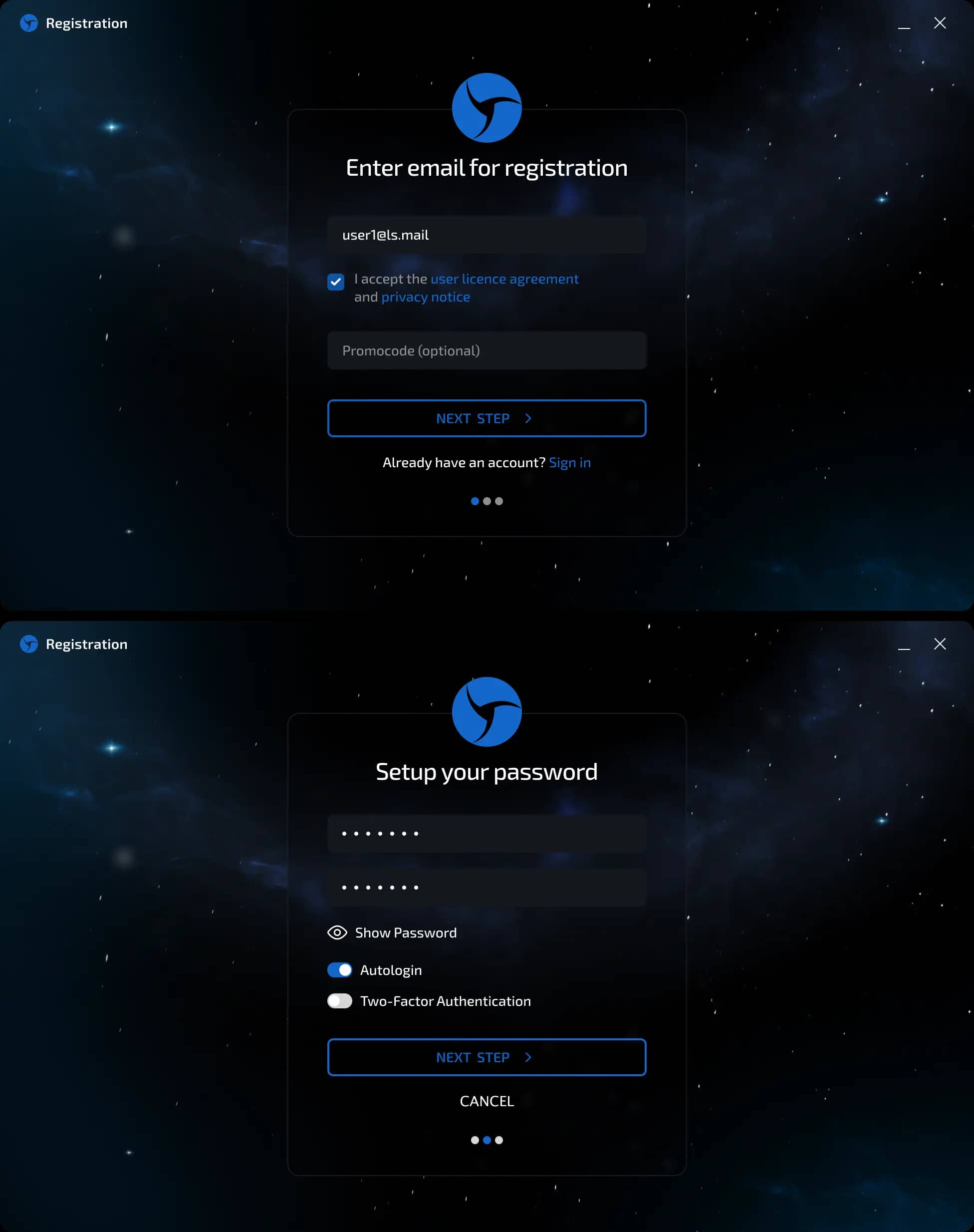
If you have a valid promo code, you can enter it in the Promo Code window and receive a discount when purchasing a license.

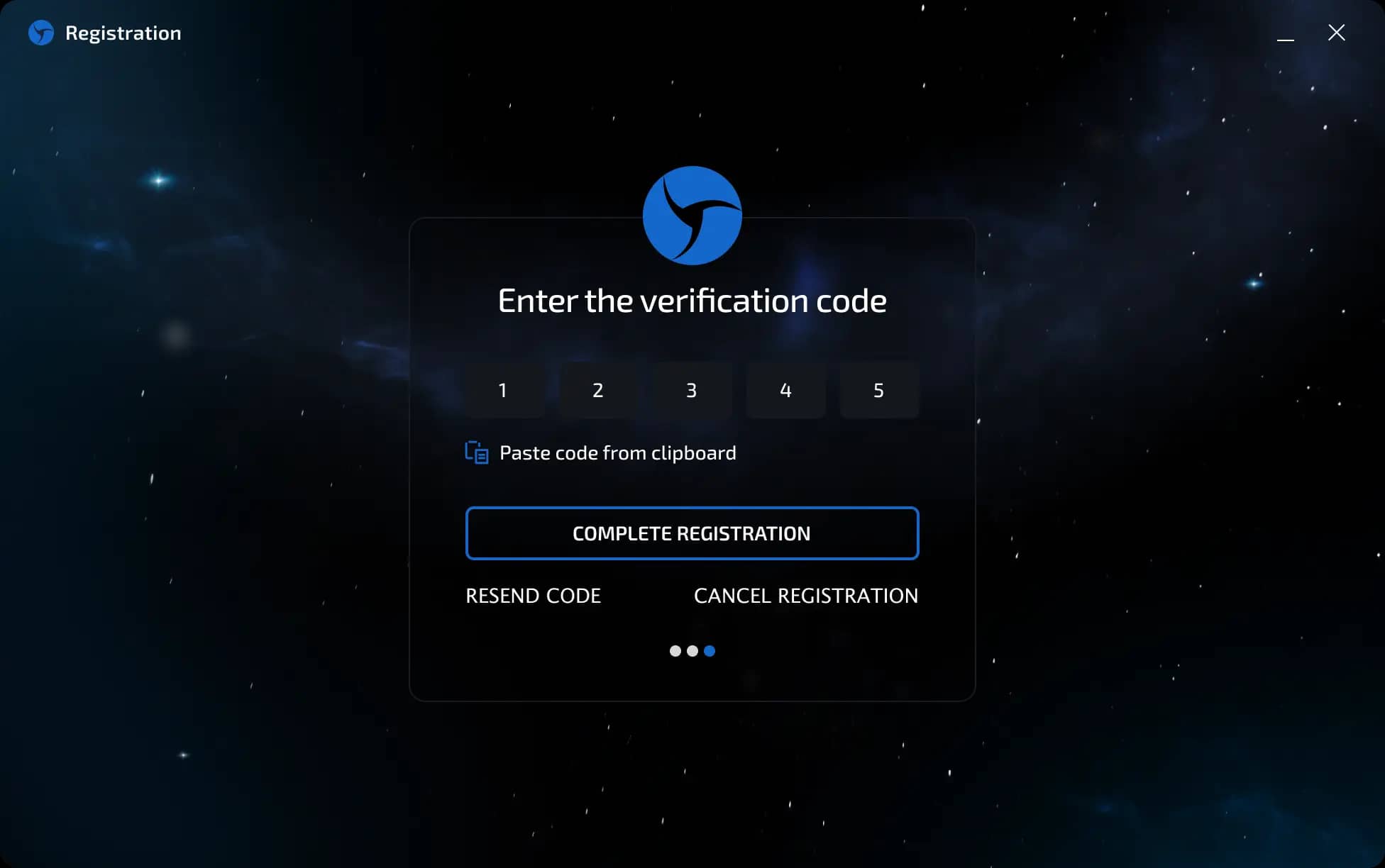
Next, an email with a five-digit confirmation code will be sent to the email address you provided during registration. Copy it and enter it in the registration window, then click the “Complete Registration” button.
You can also set up two-factor authentication. An email with a five-digit confirmation code will be sent to your email address. Copy it and enter it in the confirmation window.
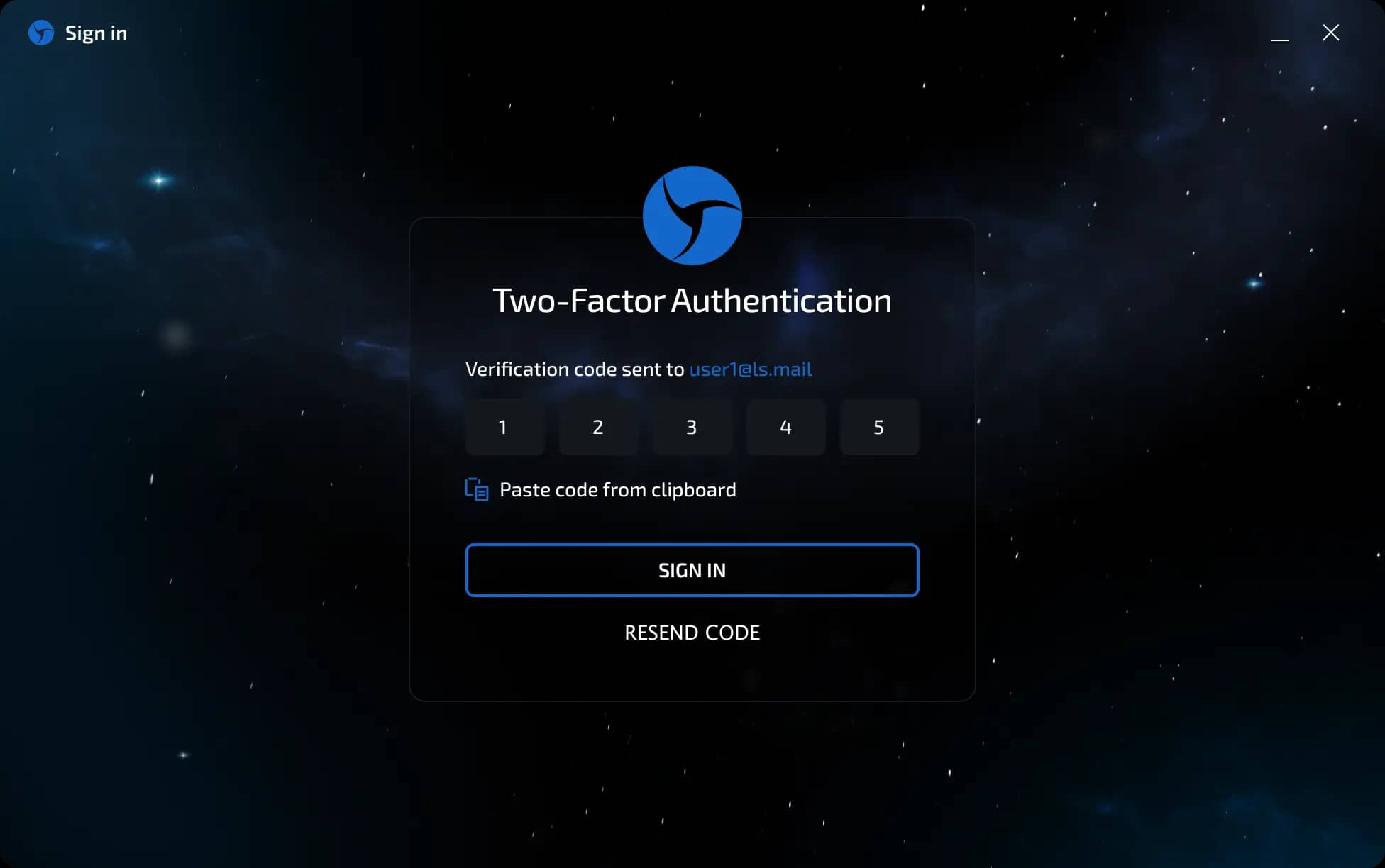
You can also activate “Automatic Authorization” so that you do not need to enter your login and password when you restart Sphere in the future.

After confirmation, you will be able to log in to your account and start working.
Previous page
Next page