Teamwork
What are teams
Linken Sphere supports full-fledged teamwork. This is especially convenient for agencies, marketing and arbitrage groups, where several users work with sessions, proxies, and profiles simultaneously.
Team mode features:
Collaborative work with sessions;
Flexible access rights configuration;
Connecting participants even with a free license;
Managing participants and roles;
Using shared space for desktops and proxies.
Team function availability
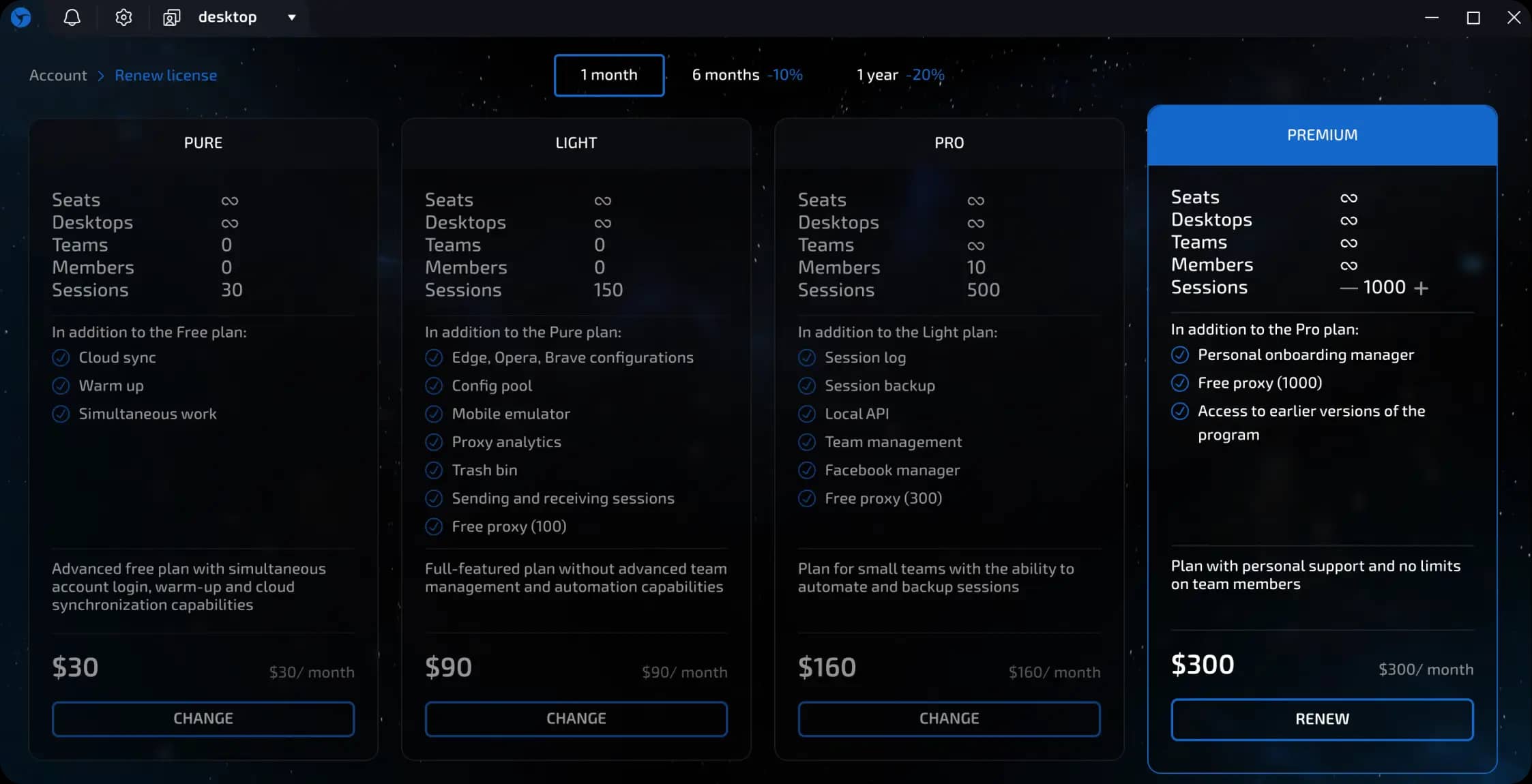
The team function depends on your pricing plan:
Free, Pure, and Light - you cannot create teams, but you can join them.
Pro - you can create a team with up to 10 members.
Premium - teams with an unlimited number of members.
invisible text for space
Important: You can join a team even without a paid license. You will use the team owner's limits (e.g., sessions and proxies).
Where are the team settings in the interface
Open the main menu in the upper left corner of Linken Sphere.
Go to the "Teams" section.
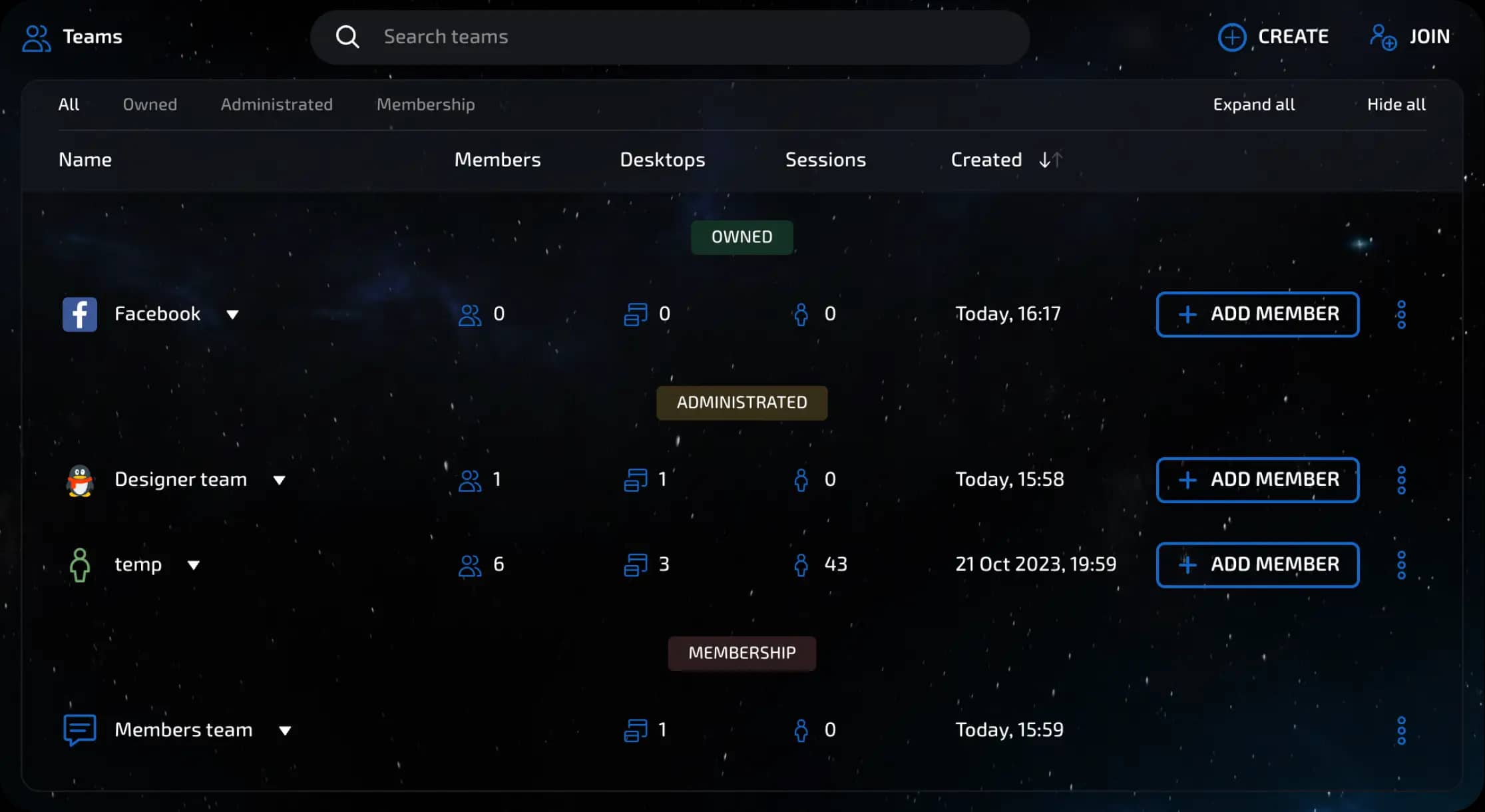
You will see all the teams where you are the owner, administrator, or member.
How to create a team
Go to the "Teams" section.
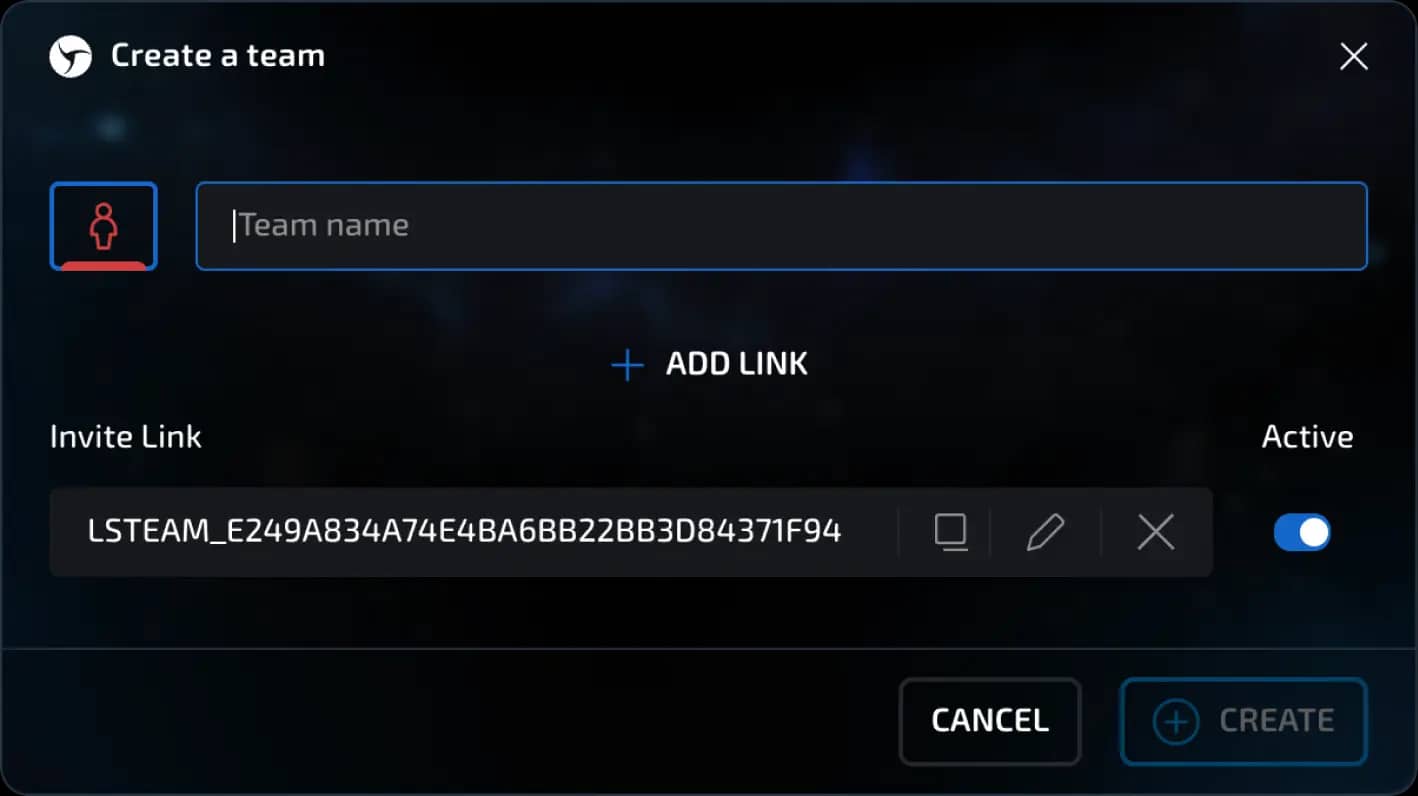
Click the "Create Team" button.
Specify the name and icon.
Confirm the creation.
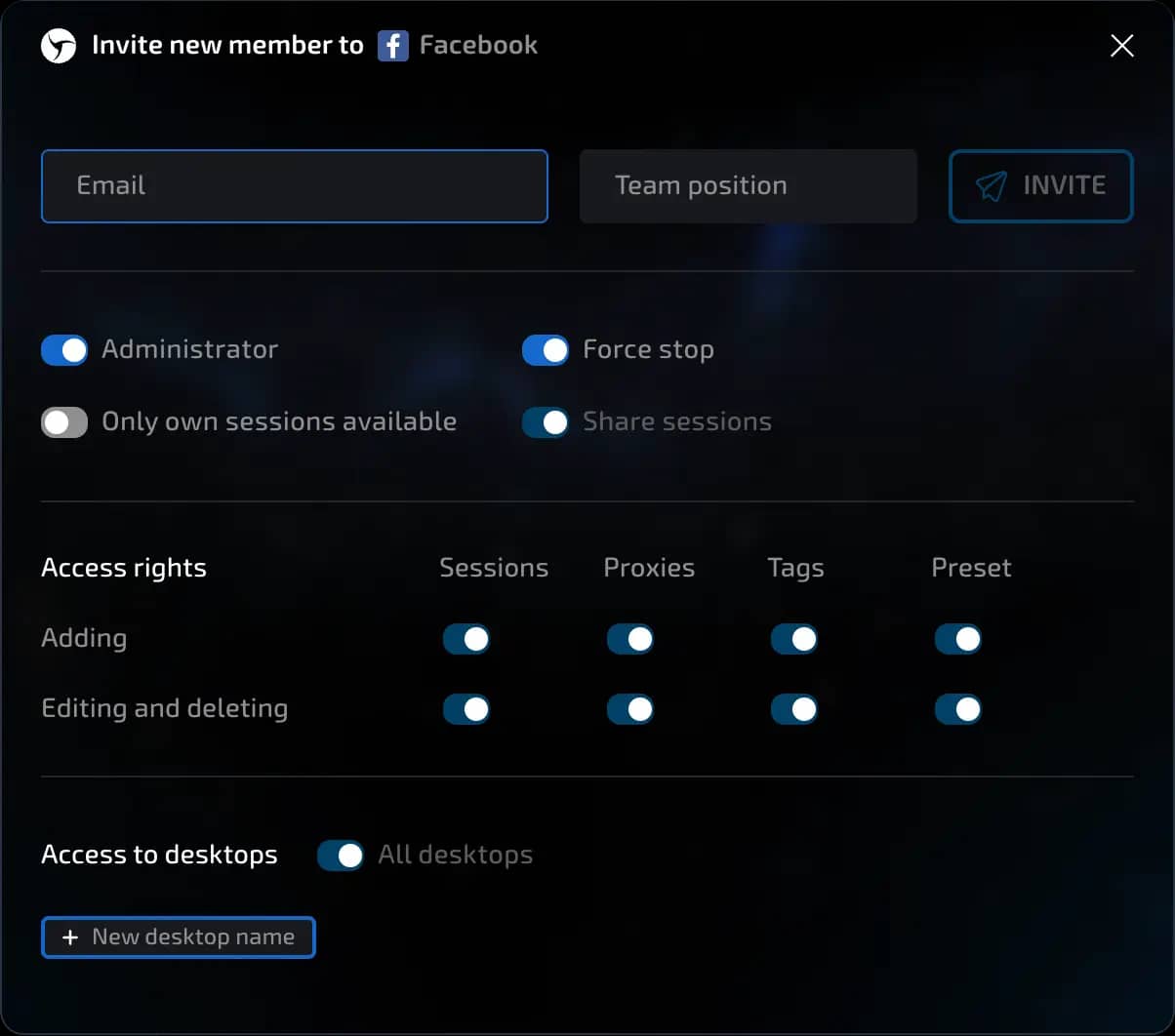
Invite members by email or invitation link.
invisible text for space
Example: A marketer on the Pro plan creates a team called "TikTok Ads," invites 3 farmers and 1 team lead, assigns access rights, and allocates a shared desktop.
How to join a team
There are two ways:
Via link:
Click "Join Team."
Paste the link and confirm your membership.

Via email invitation:
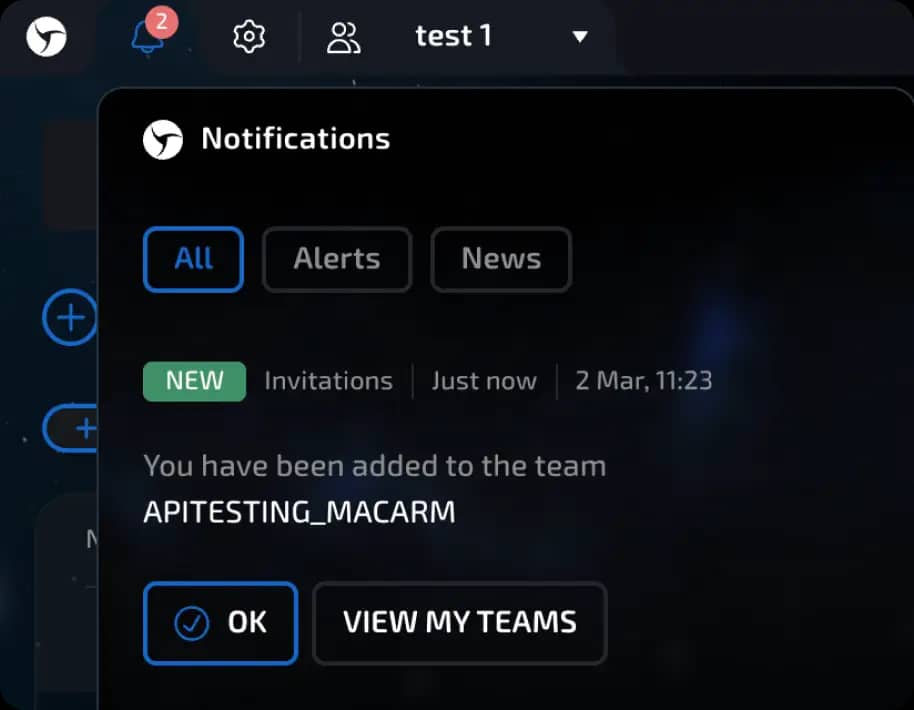
If you were invited via email, you will see a notification available via the bell icon in the upper left corner inside Sphere about your invitation to join the team.
Important!!! You can work even with a free plan if you have been invited to a team with an active license.
Roles and rights in the team
The following roles are available in teams:
Member - work with sessions, access to proxies and configurations (within the scope of rights).
Administrator – member rights plus user rights management and inviting new members.
Owner – administrator rights plus exclusive access to data and desktop management (create/change/delete).
invisible text for space
Roles can be assigned when adding a member or changed later.
Example: A team lead (administrator) can manage team member rights and delegate authority, while a farmer (participant) can only launch ready-made sessions.
Invitation links
Allow you to quickly add new participants with specified rights.
You can:
Create separate links for different roles (e.g., for team leads and farmers);
Edit or disable links.
Personal and team desktops
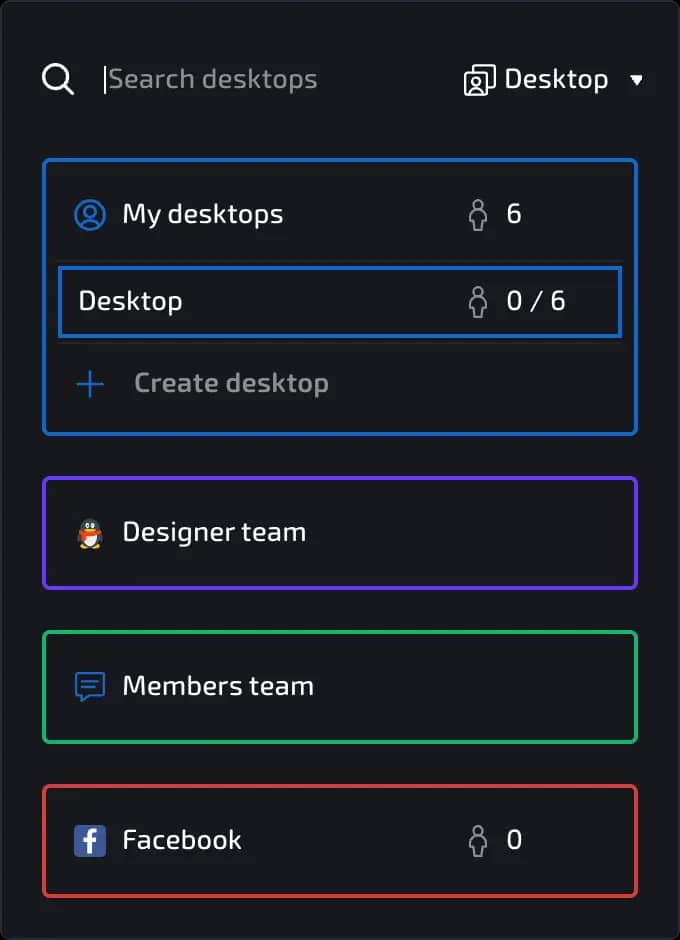
There are two types of desktops in Linken Sphere:
Personal desktops - are only accessible to the owner and are not available to the team.
Team desktops - accessible to all participants with permissions.
Only users with owner permissions can create team desktops.
Only the owner can manage desktops in the team.
Working with sessions in a team
What is available to the Owner (team owner):
Full access to all sessions and data.
Managing members and roles (adding, removing, assigning Admin).
Access to financial settings and licenses.
Managing proxies, fingerprints, session settings.
What is available to the Admin (team administrator):
Access to all team sessions (provided that the “Only own sessions available” setting is not active).
Creating, editing, and deleting sessions.
Working with cookies, extensions, bookmarks, and start pages.
Managing session tags and statuses.
Access to member and role management.
What is available to team members (provided they have the rights to create sessions):
Working with sessions on available desktops;
Copying and launching sessions;
Editing sessions;
Creating presets (if access is available);
Adding tags;
Sending sessions to another user;
Transferring sessions if rights are available;
Warming up sessions;
Setting up proxies and cookies.
Billing in teams
All participant actions are billed according to the team owner's limits:
Number of sessions that can be stored and used simultaneously;
Use of Free Proxy and Sphere Proxy (if licensed).
invisible text for space
This allows participants to work without having to purchase their own plan.
Additional features
Filtering the list of teams by role (owner, admin, participant);
Action history and backup (on Pro and Premium plans);
Access to the local API for automation.
invisible text for space
Tip: Use the API to integrate Linken Sphere into automated workflows.
Previous page
Next page