General application settings
After registering and logging into Linken Sphere, you can customize the application to suit your needs, from the interface language to technical parameters. All available options and sections are listed below.
invisible text for space
IMPORTANT!!! All application settings only affect your local client settings.
Application interface settings
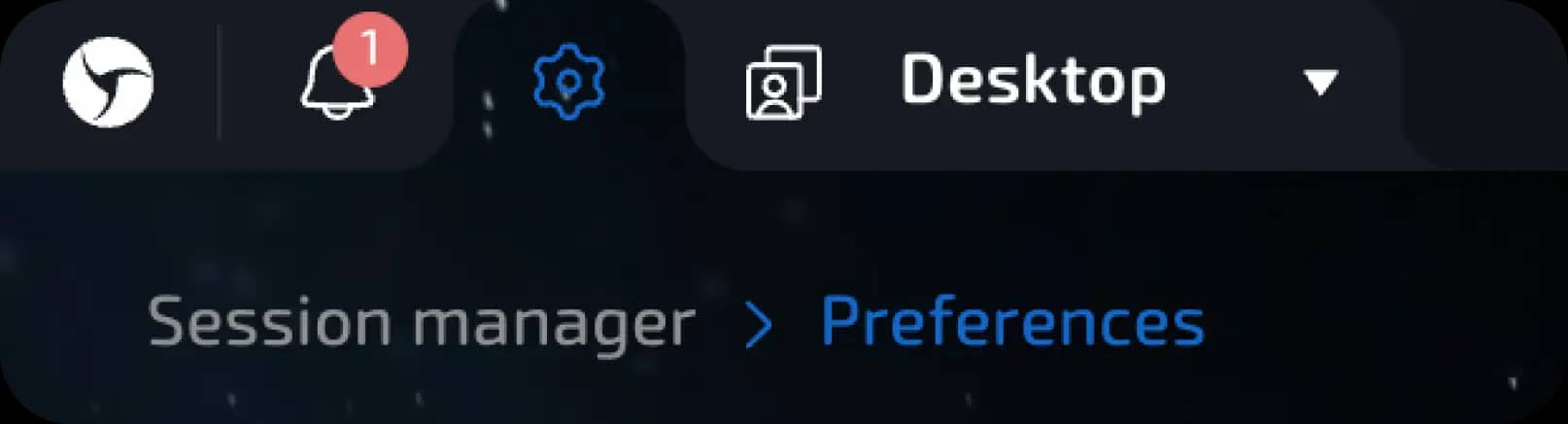
Click on the gear icon in the upper left corner. An advanced settings menu will open.
Languages
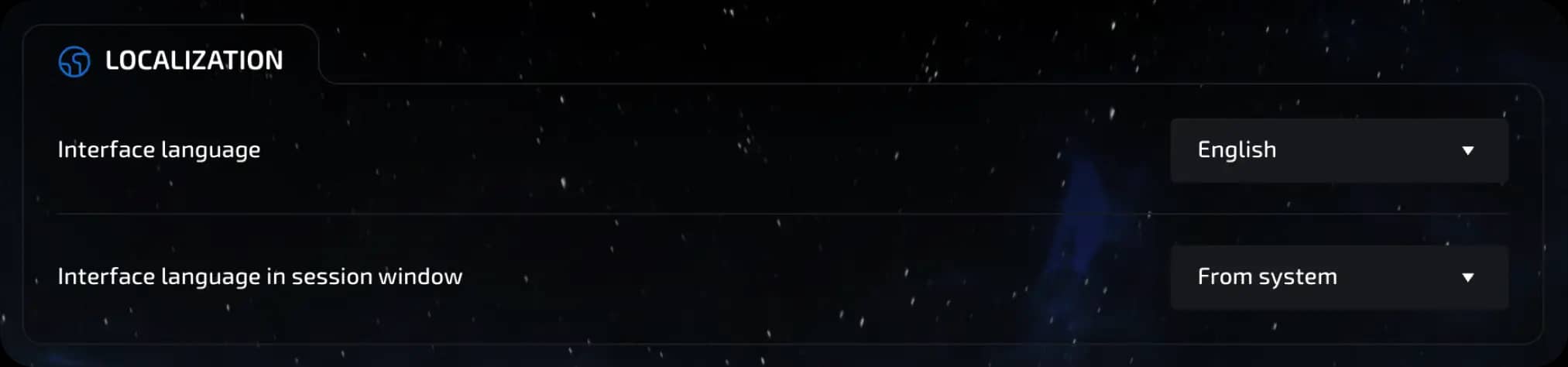
Interface language - 10 languages are available.
Session interface language - you can choose:
system language
interface language
connection language (this is the best option, as the settings will always match the proxy used in the session and will not attract unnecessary attention from anti-bot systems).
IMPORTANT!!! The interface language does not affect the data used in the session and is only visible to you.
Appearance
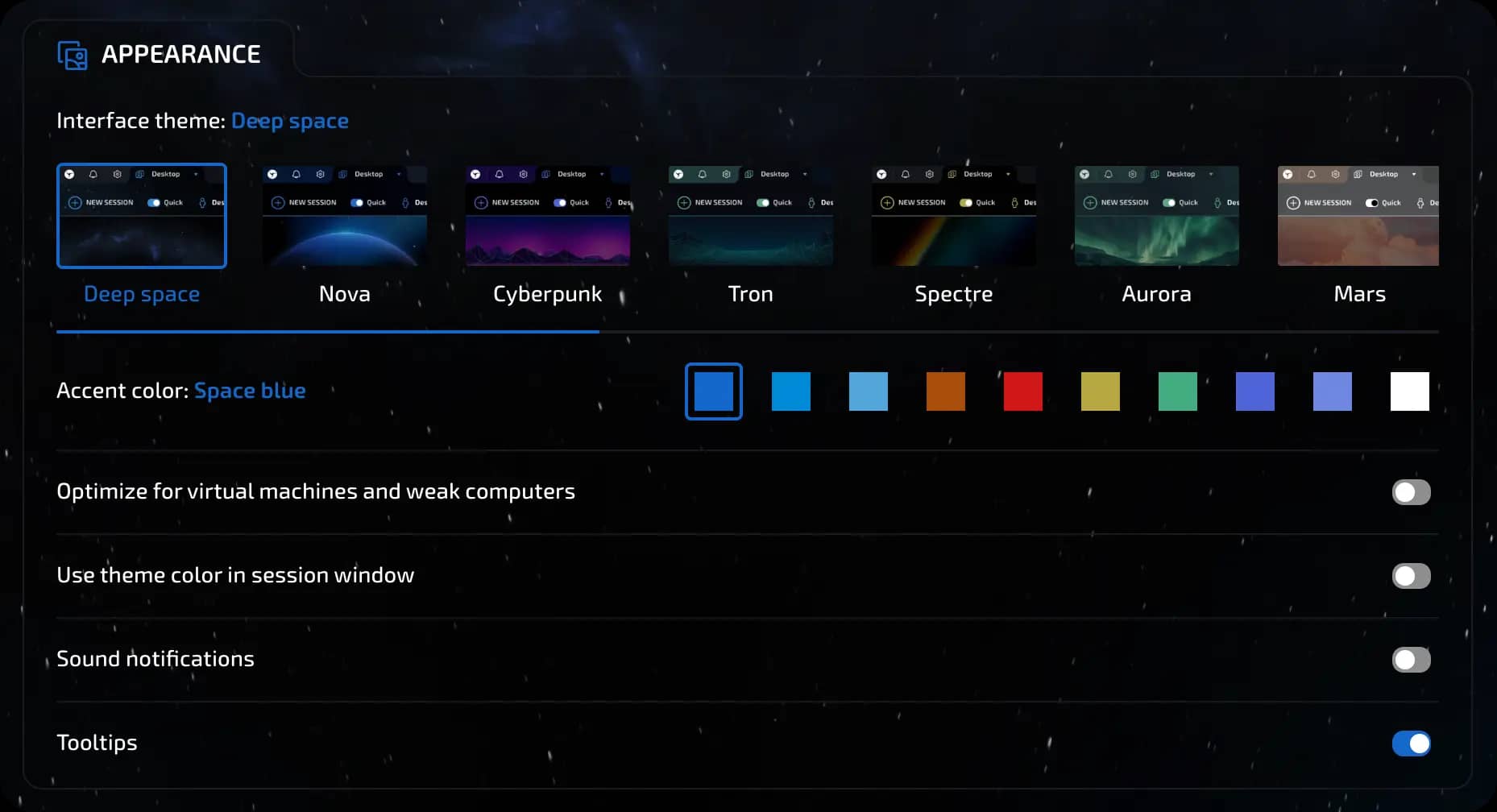
Themes - you can choose a color scheme and visual style.
Additionally:
Optimization for virtual machines and low-end PCs
Use of theme colors in the session window
Enabling/disabling sound notifications
Pop-up hints (highlighting and tips within the interface)
Working with cookies and data
To optimize your storage, click the “Optimize“ button. This will clear the cache, temporary files, session garbage, and unused data from already deleted sessions.
When you click the “Clear” button, the local copies of the profile will be deleted.
invisible text for space
IMPORTANT!!! If cloud synchronization is not used, data recovery will be impossible.

Viewing and extending the validity period of cookies. Linken Sphere allows you to automatically extend the validity period of expired cookies.
invisible text for space
To enable or disable this feature:
Move the slider in the "Extend expired cookies" section to the right or left, respectively.
invisible text for space
IMPORTANT!!! This feature is enabled by default, but you can disable it if necessary.

You can also select the format of cookies for further export. JSON and Netscape formats are available.

General settings
1. Select the default search engine: Google, Yandex, DuckDuckGo, Bing

2. Smart Window Control - enable/disable (available for Windows).
You can manage Smart Window Control (SWC) mode in the General section of the global settings. To do this, click on the gear icon in the upper left corner of the interface.
invisible text for space
How it works:
SWC mode is off
Session windows are displayed as separate independent windows.
The screen resolution strictly corresponds to the parameters specified in the configuration.
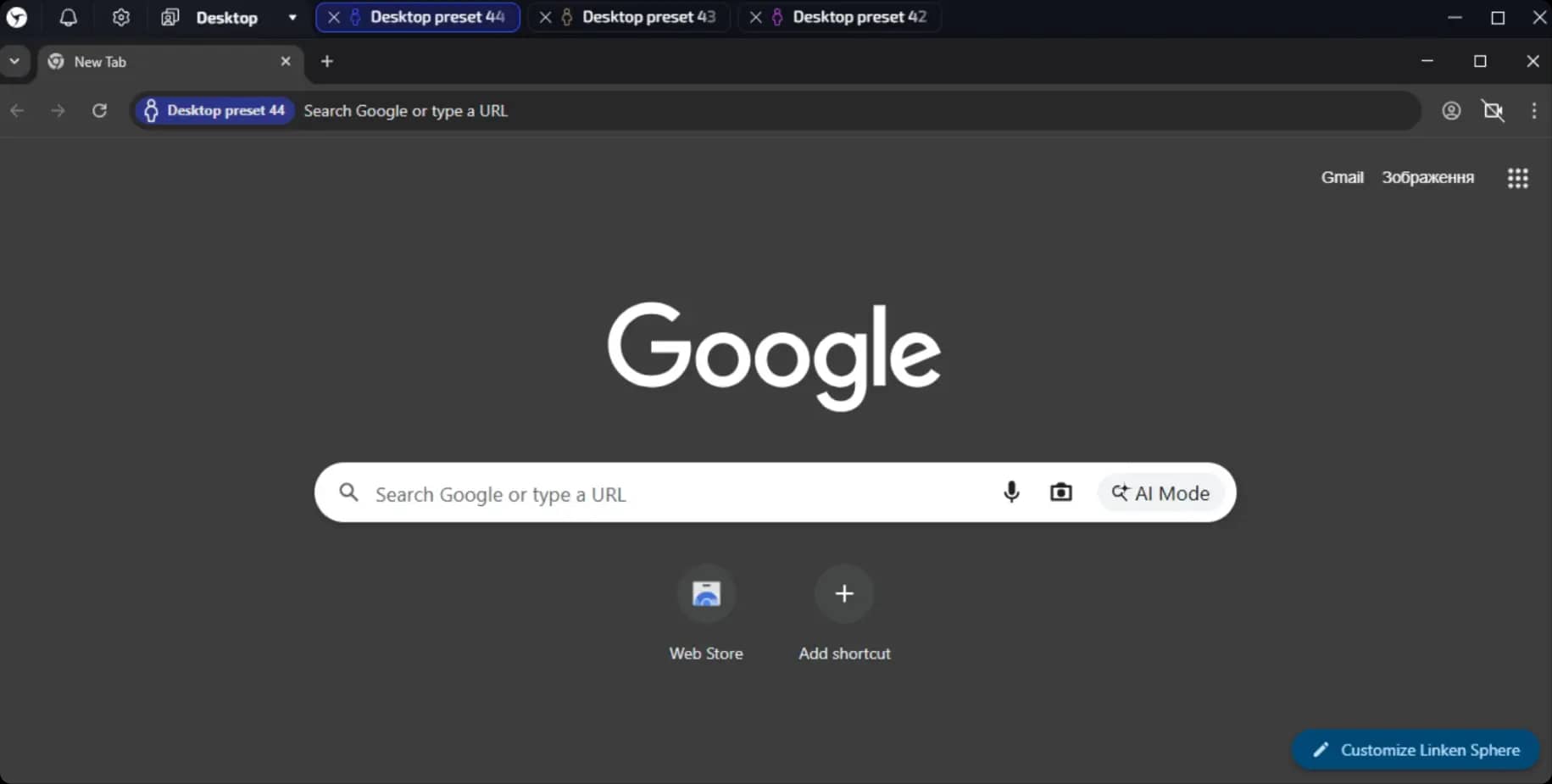
SWC mode is enabled, but the “Use config resolution” option is disabled
Session windows are organized as tabs, making it easy to switch between them.
The screen resolution in sessions is set to the actual resolution (as on your PC, without changes), ignoring the configuration settings.
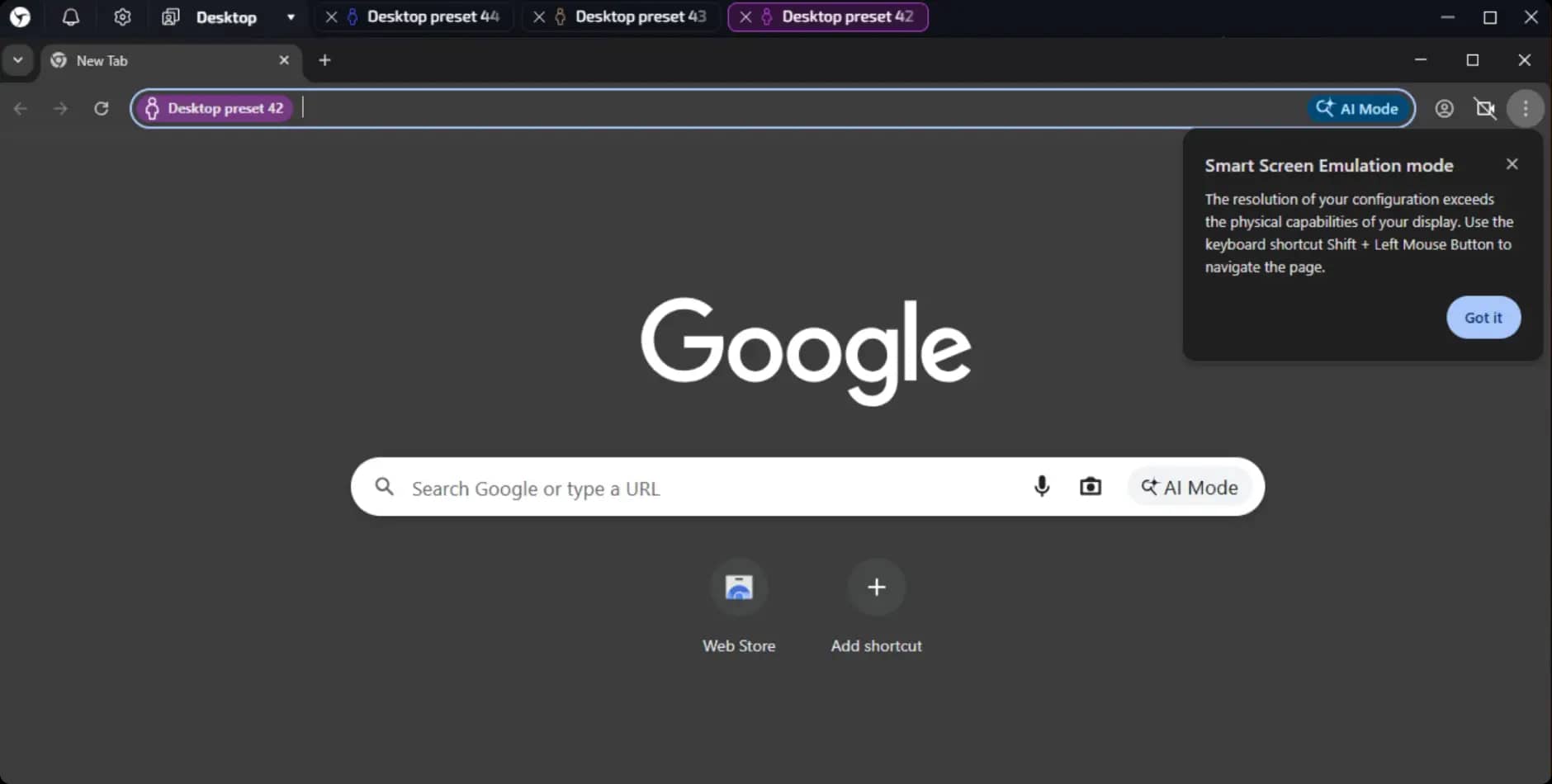
SWC mode is enabled, and the “Use config resolution” option is enabled
Sessions are still displayed in tabs.
The screen resolution fully matches the configuration settings.
If the resolution from the configuration exceeds the physical resolution of the screen, you can move around the visible area by holding down Shift and the left mouse button.
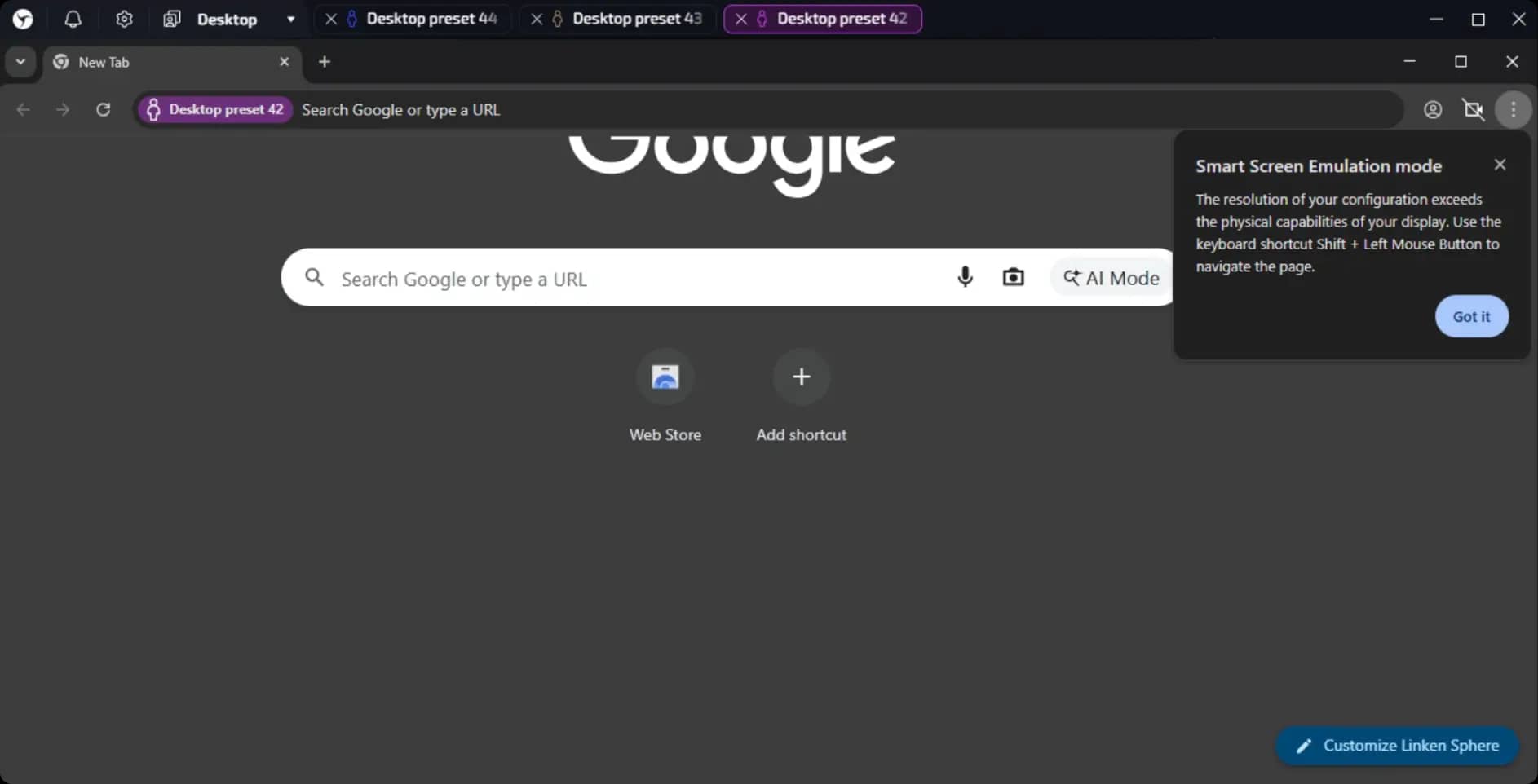
Note:
The last setting in the screenshot, the keyboard shortcut hint for working with smart screen emulation, is for reference only and can be turned off. All the main aspects of how the mode works are described above.
invisible text for space
3. Key combination hint - for working with smart screen emulation
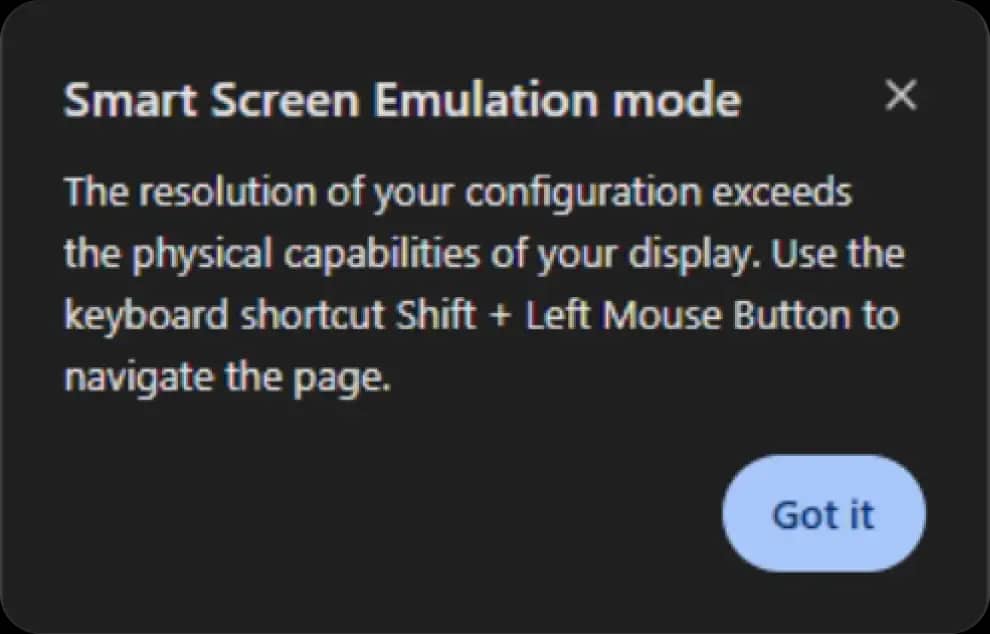
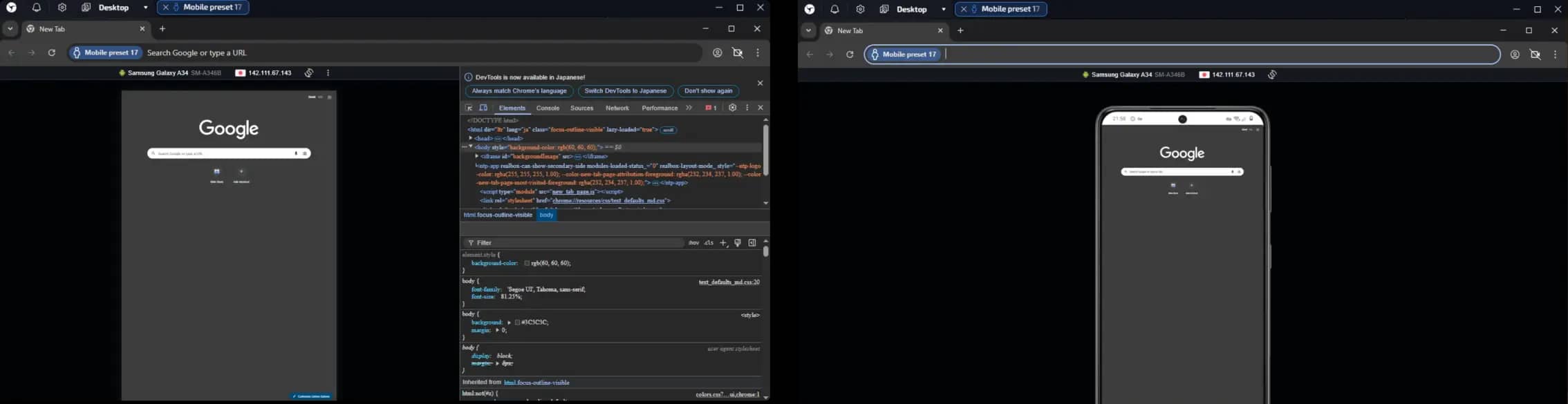
4. DevTools in mobile emulation - enable/disable. When this option is enabled, the browser windows will have no borders, and the problem of not being able to click on some elements on the page will be solved.
Network
The “Network” section in the Linken Sphere settings allows you to set closed WebSocket ports and specify the API port for connecting external services.
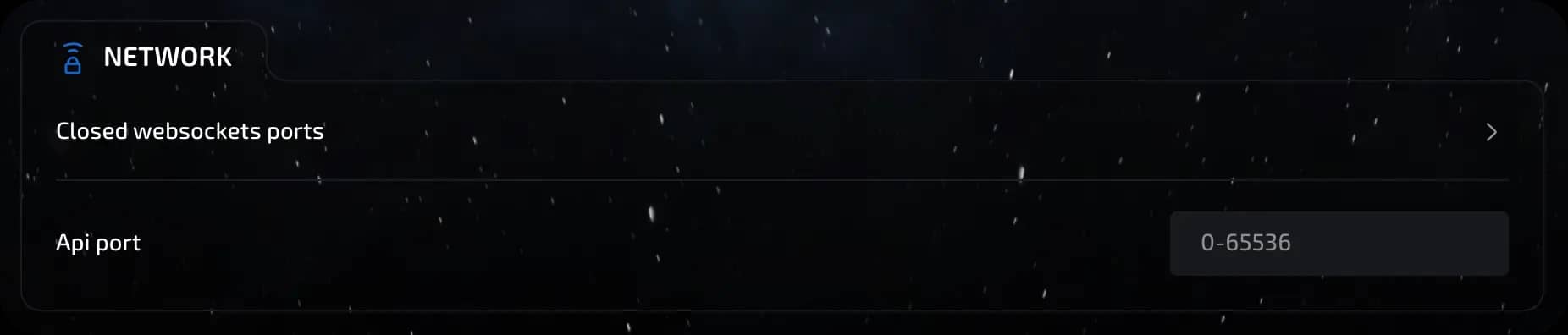
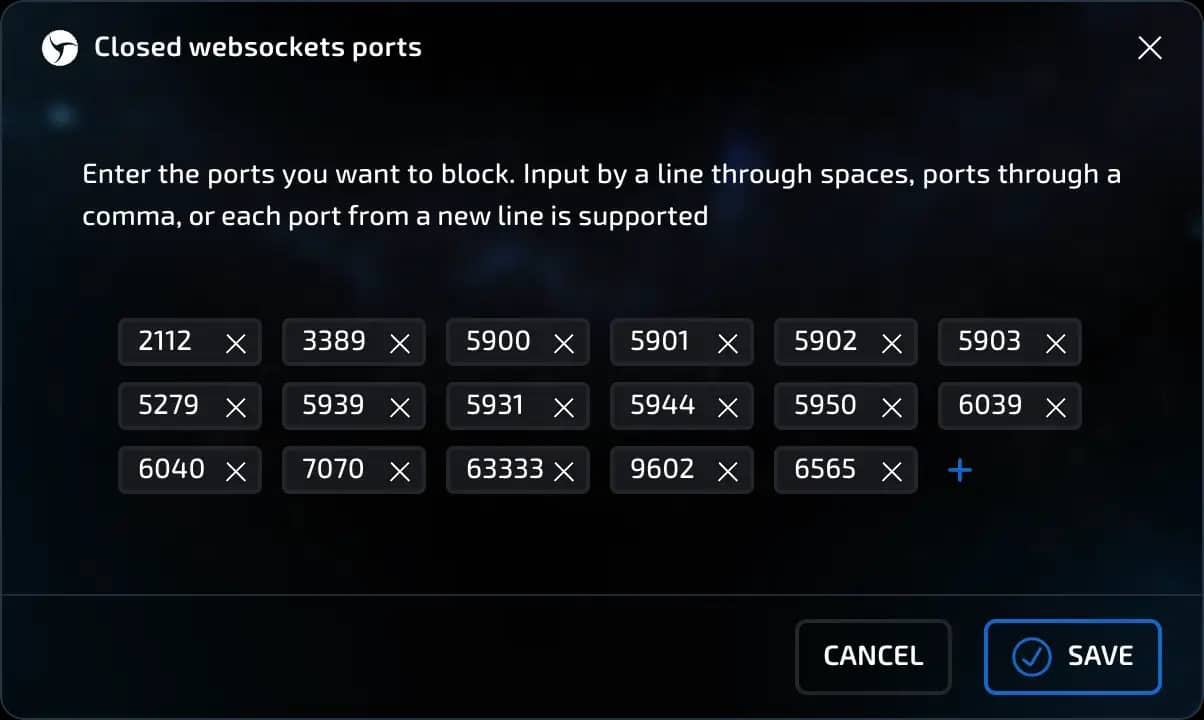
Closed WebSocket ports
Allows you to manually specify ports that will be considered inaccessible, making session behavior more realistic.
invisible text for space
Why is this needed:
Emulation of normal OS behavior;
Protection from anti-fraud systems;
A more natural network footprint.
invisible text for space
How to configure:
In the “Block WebSocket port” field, enter the desired ports (for example, 3389 (Windows RDP) - 5931 (TeamViewer) - 5900 (VNC)).
Save.
API port
Used to automate actions in Linken Sphere using external scripts and programs.
invisible text for space
How it works:
The API is available locally at 127.0.0.1 on the specified port;
Allows you to perform actions on sessions/desktops/presets, etc.;
The API is available to users with Pro licenses and above.
invisible text for space
How to configure:
In the “Network” section, enter the desired port (for example, 5001)
Save
Use in scripts: http://127.0.0.1:5001/

Integrations
In the “Integrations” section, you can connect external services to automatically check IPs, work with session statuses, and send sessions to the Facebook auto-fill service.
Enable IP statistics
This option is enabled by default. Allows you to analyze and check the quality of IP addresses through built-in services.

IPQualityScore API key
Allows you to check the reputation of IP addresses using the IPQualityScore service.
invisible text for space
To connect:
Register on ipqualityscore.com
Use the API key that was sent to your email after registration.
For more information, see How does IP Quality Score work and its integration into Linken Sphere | Linken SpherePaste it into the IPQualityScore API key field in the settings.
After that, IP addresses will be automatically checked when used.

Nooklz token
Integration with the Nooklz system is designed to transfer cookies and proxies to the auto-fill system, and you can also enable session status changes.
invisible text for space
To connect:
Get the token in your Nooklz personal account.
Paste it into the Nooklz token field.
If needed, enable the "Set Nooklz status after sending" switch.

Reset settings
If you want to return all parameters to their original state, use the “Reset settings” button. This will restore the default local settings of the application.

Previous page
Next page