
How to Bring Order to Your Anti-Detect Browser: 3 Levels of Profile Organization
Updated: October 2026
As long as you are working with 5–10 accounts, it is easy to keep them in a single list and remember each one by sight. However, as soon as the number of sessions exceeds 50 or a second person joins the project, operational chaos begins. Below, we will break down a three-level profile organization system using the Linken Sphere architecture as an example. This model scales just as effectively for 30 sessions run by a solo specialist as it does for 10,000+ profiles inside a large media buying holding or agency.
Why structure matters
Attempting to store hundreds of accounts without formatting standards hurts both your budget and the survival rate of your infrastructure. A lack of hierarchy leads to direct losses:
- Mistakes. In a rush, it is easy to mix up identical-looking sessions: logging into the wrong ad account or accessing an account through a proxy from the wrong GEO, triggering an anti-bot system alert.
- Wasted time. If finding out which account is linked to a session and which card is inside requires launching a browser window and waiting for tabs to load every single time, a specialist wastes working hours on pointless clicks.
- Overpaying. In an unlabeled list, banned profiles sit around for months with paid residential or mobile proxies still attached to them, while your plan's session limit gets clogged with digital clutter.
- Security risks. When account farmers, media buyers, and trainees work in a single undivided space, any participant can accidentally log out of someone else's account, upload different cookies over it, unintentionally alter the digital fingerprint settings of an already warmed-up profile — leading to an instant ban — or walk away with the database of active accounts.
To eliminate these risks, profile management in a professional antidetect browser is built on three isolated levels:
- Level 1. Standardization inside the profile card itself — informative naming, structured notes, and pre-configured creation templates.
- Level 2. Navigation within the list — separating statuses and tags, custom columns, and bulk actions.
- Level 3. Environment isolation and team pipeline — independent desktops, role-based access control, and seamless profile transfers between departments.
Level 1. The ideal profile
Order in the browser starts the moment a session is created. The main goal of the first level is to set up the profile so that a specialist never has to launch it just to check what is inside.
Naming convention
Names like FB_new, Test 2, or Acc from Alex stop working after just a week. A profile name should read like a technical passport and allow you to find the right batch via the search bar in a second.
The universal formula for an informative name goes from general to specific:
[ID/Sequence Number][Platform/Project][GEO][Type/Seller][Date/Identifier]
- 042_FB_DE_King+BM250_SellerMax_1026
- W089_Tier2_EVM-0x38B...1F_TestnetOnly
- Client-Nord_Reddit_US_WarmKarma_04
When bulk-creating or importing profiles in Linken Sphere, you do not need to type in index numbers manually — built-in auto-numbering and naming templates let you generate a batch of 50 sequentially numbered sessions in a couple of seconds.
Notes
Keeping an Excel spreadsheet open on a second monitor and constantly copying passwords or backup codes from it is a direct path to clipboard mix-ups. The notes field inside a profile is designed so that all operational information is displayed right in the session row or in a pop-up window while you work.
What makes sense to put in the notes:
- The date of birth from the account's documents and the city (critical if hit with a sudden selfie verification or social media checkpoint).
- The last 4 digits of the linked payment card and the name of the billing service (for example, PST *4821).
- Two-factor authentication backup codes.
Templates
To avoid spending 5 minutes on the routine addition of extensions and bookmarks to every new profile, Linken Sphere uses configuration templates and a provider manager. You set the baseline standard for a specific task once:
- Start tabs and bookmarks — for example, for an affiliate marketing profile, links to Ads Manager, billing, the account quality check page, and a web 2FA generator are pinned right away.
- Extension pack — the required crypto wallets or helper plugins are loaded automatically into all newly created sessions of the selected type.
- Proxy pool — by connecting a proxy list to the manager or integrating a provider, you can distribute clean IPs across new profiles automatically, preventing accidental duplication of a single address across two accounts.
Level 2. Tags, statuses, and bulk actions
Once profiles are properly named, the second level comes into play — managing a flow of dozens and hundreds of sessions on a single screen. The main mistake here is trying to use either only tags or only statuses, mixing up an account's attributes with the stages of its lifecycle.
Statuses and tags
In a well-designed system, these two tools answer completely different questions and work in tandem.
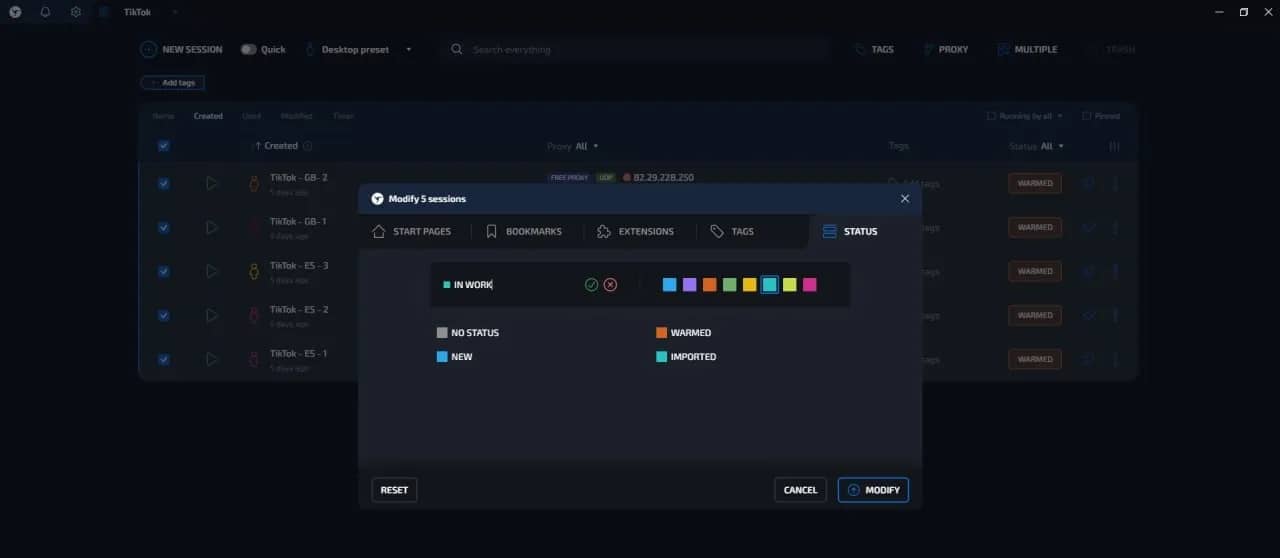
A status is the stage of the funnel where the account currently sits. A status is dynamic and changes as work progresses. For quick visual scanning, each status can be assigned its own color:
- Farm / Warmup (blue) — the account is accumulating cookies and activity history.
- Ready to Run (teal) — the technical setup is complete, awaiting transfer to a media buyer.
- Active / Working (green) — ads are running or target actions are being performed.
- Checkpoint / In Review (yellow) — flagged for verification, micro-spend, or appeal.
- Hold / Cooldown (gray) — temporarily paused, waiting for the next stage or budget top-up.
- Banned / Spent (red) — the account is permanently blocked, ready for proxy detachment and deletion.
Tags are permanent characteristics and filters of a profile. A single session can have 4–5 tags at once, allowing you to filter the exact selection you need in the table in two clicks. Tag examples: #Nutra, #BM250, #FB_King, #Brocard.
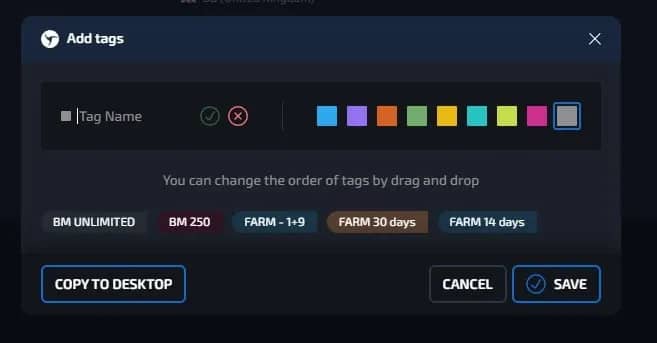
When you have 300 profiles and the payment gateway of a specific card service suddenly goes down, you simply click the #Brocard tag and within a second see all 45 affected sessions with the Active status so you can pause the campaigns.
Working table and bulk operations
To prevent the profile table from turning into a cluttered airplane cockpit, unnecessary columns are hidden, leaving only the data needed for decision-making: name, status, tags, proxy, notes, and last activity time.
After filtering by the desired tag or status, routine tasks are handled with bulk actions:
- Mass warmup — select 30 fresh profiles with the Farm status, specify a list of popular websites for the target region, and launch background cookie farming in batches without manual clicking.
- Bulk proxy and tag updates — if a batch of 20 accounts switches proxy providers or the entire batch moves from Farm to Ready to Run, updating takes 10 seconds via the mass editing panel.
- Export and backup — exporting cookies or transferring a group of profiles is done in a single action.
The clean browser rule: profiles with the Banned status should not sit in the main working list for more than 48 hours. Once a week, switch the filter to the red Banned status, detach live proxies from spent sessions to return them to the available pool or stop billing, and then send the profiles to the trash. In Linken Sphere, deleted sessions are stored in the trash in case an account suddenly gets unbanned via an old appeal and needs to be restored in one click.
Level 3. Scaling
At the 200–300 session mark or when multiple people are working together, even perfect tags inside a single list stop being enough. Confusion begins between different projects, verticals, and departments. This is where the third level comes into play — dividing into independent desktops and roles.
Desktops
In many older browsers, organization is limited to basic folders inside a shared window where all tags, proxies, and team members are dumped into a single database. Linken Sphere implements an architecture of fully isolated desktops that you can switch between in one click on the top bar of the interface.
Each desktop is a separate workspace with its own:
- session lists and trash bin;
- unique set of tags and statuses;
- dedicated pool of saved proxies and providers;
- individual list of connected team members and their access permissions.
Account transfer without losing trust
Transferring ready-made accounts within a team via text files with logins, passwords, and cookie archives in Telegram is the main cause of invalidated sessions and checkpoints upon a media buyer's first login.
In a three-level architecture, the process operates like an assembly line:
- Farming department — account farmers create profiles, attach proxies, warm up sessions, link cards, and bring accounts to the Ready to Run status.
- One-click transfer — when a media buyer requests 10 new accounts, the team lead simply selects the required sessions and moves them to that specific buyer's desktop.
- Instant start — the media buyer opens their desktop and sees ready-to-use sessions with already logged-in ad accounts, saved local storage, active tabs, and working proxies. There are no repeated password prompts, 2FA requests, or suspicious digital fingerprint changes that would alert anti-fraud systems.
Inside each desktop in Linken Sphere, access permissions are configured for participants. You can clearly separate responsibilities. For example, allow junior specialists only to launch and work inside already created sessions while blocking the ability to delete profiles, change fingerprint configurations, or export cookies externally, while granting team leads permission to create sessions, manage proxies, and distribute profiles within their desktop without access to global billing or neighboring teams.
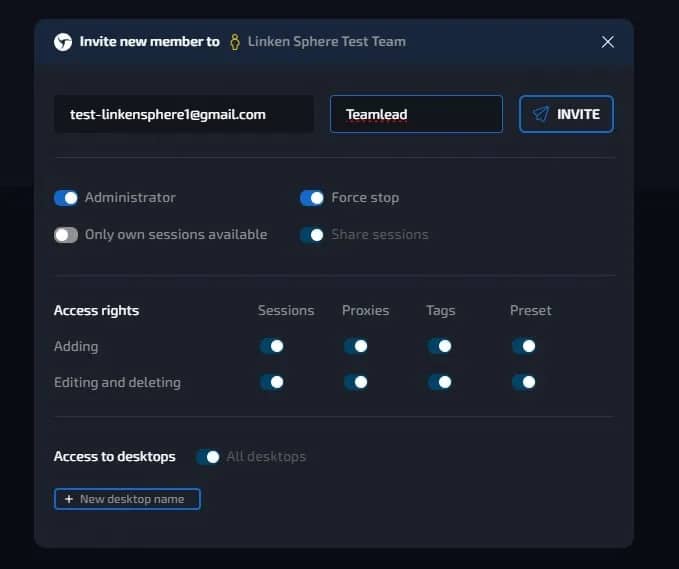
If an employee leaves the company, the administrator revokes their access in two clicks — all accumulated sessions, proxies, and credentials remain inside the team's secure cloud.
Checklist: auditing your antidetect browser
If hundreds of unnamed sessions have piled up in your browser right now, you can bring everything into perfect order in literally 15 minutes.
- Drop the dead weight. Filter out spent and blocked accounts, detach working proxies from them, and delete the dead sessions.
- Create separate desktops for different areas. Move unrelated projects, different clients, or separate media buying teams to independent desktops to declutter your main screen.
- Reduce the number of statuses to 5–6. Keep only the statuses that reflect actual funnel stages from creation to ban, and assign contrasting colors to them. Move all other attributes into the tag system.
- Standardize the names of active sessions. Using bulk selection and searching by proxies or notes, bring the names of live profiles into a unified formula: [ID]_[Platform]_[GEO]_[Type].
- Save templates for new launches. Configure default bookmarks, start pages, extension packs, and proxy pools inside each desktop so that every subsequent profile is created to standard right out of the box.
Why Google Blocks Accounts and What Your Antidetect Has to Do With It
Google has once again complicated the mechanisms of digital identification by deploying a new, more sophisticated layer of protection based on proprietary HTTP headers. This quiet change caught most of the market off guard, triggering a wave of rushed updates. While others hastily released superficial 'fixes', we realized that we were dealing not with a minor issue but with a fundamental shift that required deep and comprehensive analysis.
SOCKS vs HTTP Proxy: What’s the Real Difference and Which One to Choose?
There are times when you don’t want a website to link the request back to your device. That’s where a proxy comes in, it acts like a middle layer and sends the request for you. The site sees the proxy’s info instead of yours. It’s a go-to trick when you’re trying to see a page that’s not available in your region, pull content that’s restricted by location, or avoid hitting a wall when sending lots of requests.

The Best Alternative to OBS Studio
Working with a webcam on many online platforms can turn into a real challenge. A strict oval or rectangular frame appears on the screen, but your image doesn’t align perfectly with it. As a result, the system blocks further progress, demanding perfect alignment, and your workflow is disrupted before it even begins.