Working with extensions
In Linken Sphere, you can add extensions to a session in three ways: when creating a session, in the settings of an existing session, and directly in the session window (Chrome Web Store).
IMPORTANT!!! Extensions are only available for sessions with desktop configurations.
Method 1: Adding extensions when creating a session
Make sure that Quick session creation mode is disabled. Click the New Session button in the upper left corner.

The session settings window will open.
Find the “Data” tab.
Click on “Manage extensions”.

Select the desired extension from the list.
You can also use the search bar to find the desired extension by name.
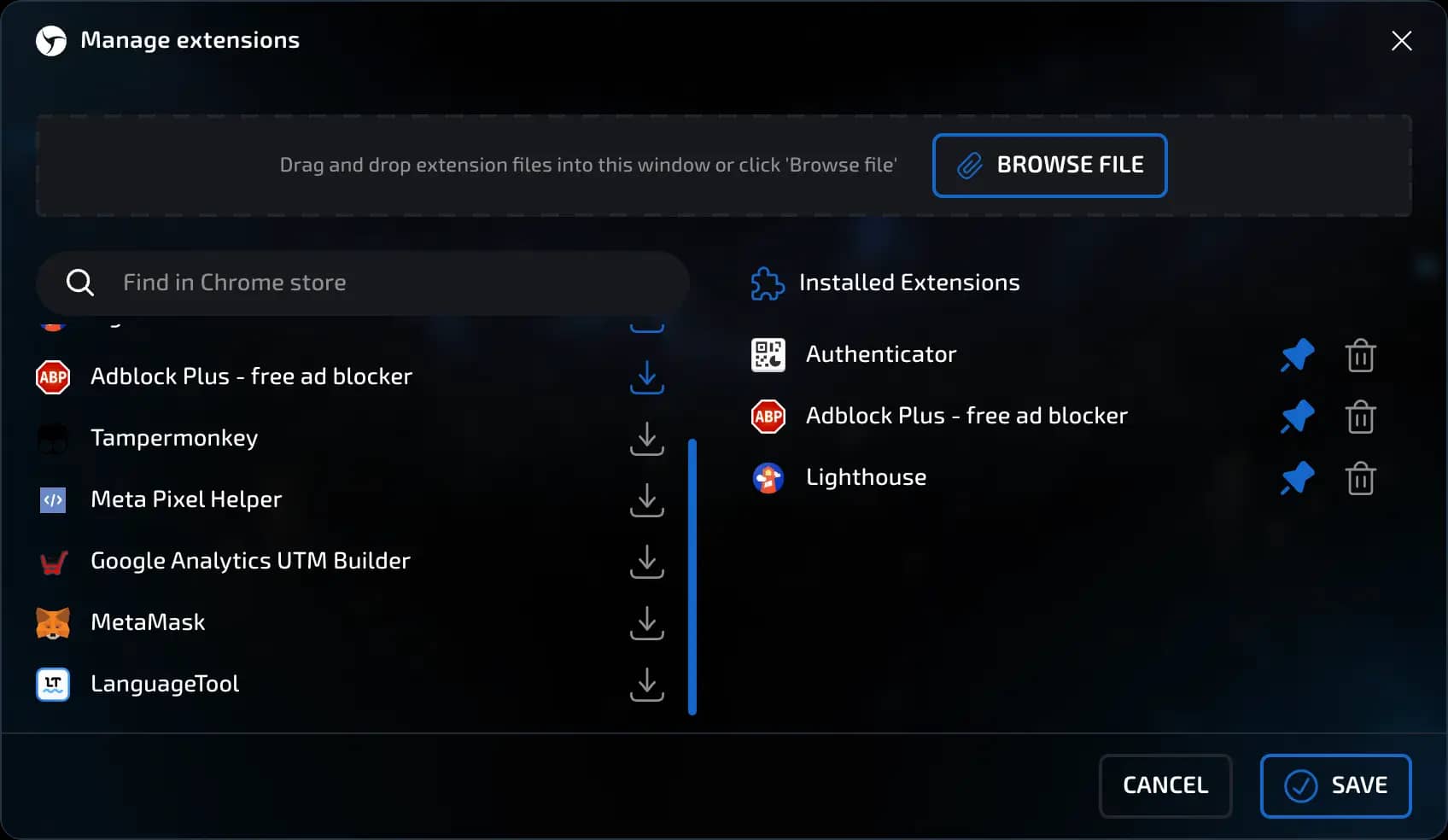
In addition to extensions from the Chrome Web Store, custom extensions in zip and crx formats can be imported. To install custom extensions, click Browse file in the top panel.

After selecting the extensions, click “Save.”
Method 2: Adding extensions to an existing session
Open an existing session.
Go to the “Data” section.
Find the “Manage extensions” item.
Repeat the same steps as in the first method: select extensions from the list, find the ones you need using the search function, or upload a file with extensions.
Click “Save.”
Method 3. Adding extensions directly in the session window
Start a session
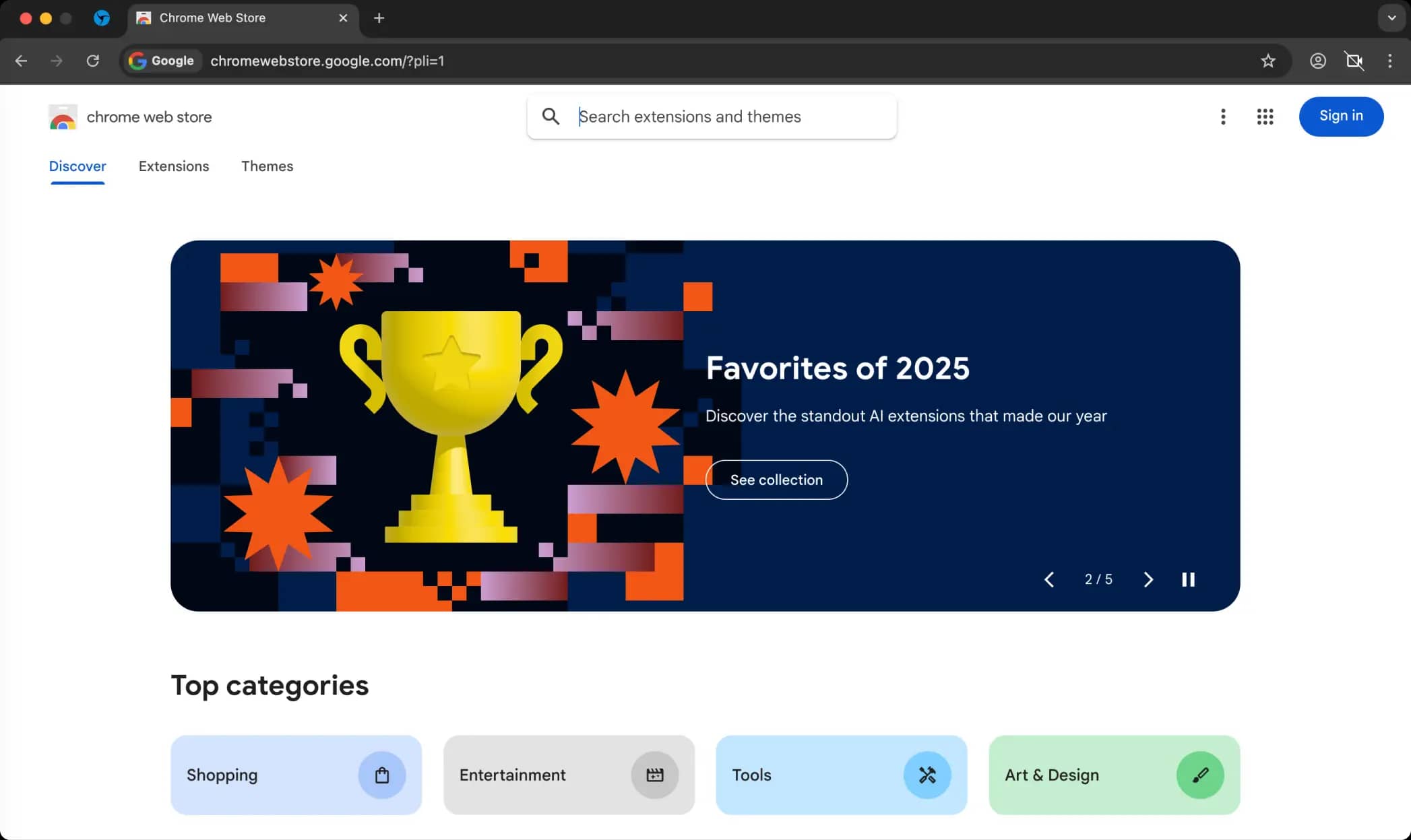
Go to the Chrome Web Store
Find and install the extensions you need.
IMPORTANT!!! You can disable extension data synchronization for greater security.
To do this:
Go to session settings
Find the “Data” section
Click on the Cloud Sync drop-down menu
Uncheck the “Extension Data” box
Click the “Save” button
invisible text for space
Tips:
Use file upload if you want to quickly apply a pre-prepared set of extensions.
The extensions will be automatically installed when you first start the session.
Previous page
Next page